
Catalog Health: find and fix product data problems in WooCommerce
On this page9 sections
Written for version 1.6.0.
A product without a price can’t be bought. A sale that should have ended last week still charges the sale price. A product with no weight gets the wrong shipping rate. None of these show up until a customer runs into them, and on a catalog of a few hundred products you won’t find them by scrolling.
Catalog Health checks your whole catalog for problems like these, gives it a score from 0 to 100, and shows you the affected products in the grid with one click. Most problems can then be fixed in bulk, with a preview before anything is saved.
What you need
- WPMelon Advanced Bulk Edit for WooCommerce 1.6 or later (free on WordPress.org)
- A Shop Manager or Administrator account
Free and Pro
The 14 core checks, the score, Show products, Fix in bulk and the Dashboard widget are in the free version. Pro adds six feed checks with a Feed readiness score, the weekly summary email, watched views, the SKU generator fix and undo for bulk fixes. Pro parts are marked (Pro) below.
Open Catalog Health
Go to WooCommerce → Catalog Health, or click Catalog Health in the bulk editor’s toolbar (the number next to it is your score). The first visit scans the catalog, one check at a time. After that the screen shows the last scan, with its time, and Rescan counts everything again.
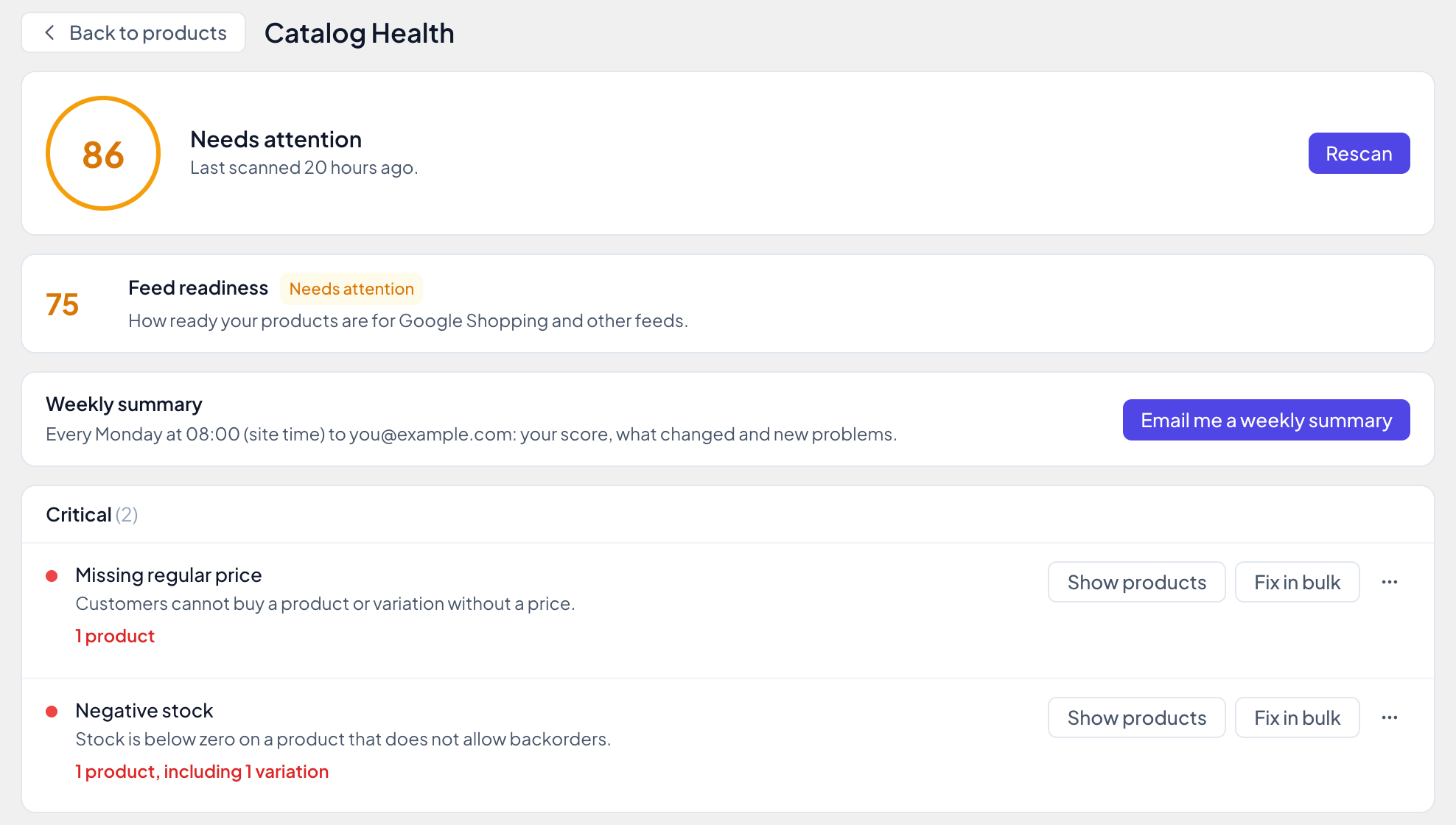
The checks are grouped by how much they matter: Critical (customers can’t buy, or pay the wrong price), Warnings and Notices. Each row shows how many products have the problem, for example “30 products, including 48 variations”. Checks with no problems fold into Passed. The counts cover published products and published variations.
Some checks don’t apply to every store. “No weight” doesn’t apply while shipping is turned off in WooCommerce, for example. Those are marked Does not apply and left out of the score. A check that is fine for your store, like zero prices for free samples, can be muted from its ⋯ menu: Mute this check. Muted checks are listed under Muted, where you can unmute them.
If you save product changes after a scan, the screen tells you some counts may be out of date. Click Rescan to update them.
How the score works
The score starts at 100. Each check takes points off according to two things:
- How many products have the problem, as a share of the products the check applies to. The weight check only looks at shipped products, the price checks at products that can be bought, and so on.
- How serious it is. A critical check counts three times as much as a notice, a warning twice as much.
A small share still costs something: 1% of products with a problem takes off about a tenth of that check’s points, so one broken product is never invisible. And while any critical check finds a problem, the score stays at 89 or below, however good the rest is.
| Score | Label |
|---|---|
| 90 to 100 | Good |
| 70 to 89 | Needs attention |
| 0 to 69 | Poor |
Muted checks and checks that don’t apply are left out. If a check couldn’t be counted (it was too slow on a very large store, or it failed), it is left out too, and the score says so: “Based on 12 of 14 checks.” A check that couldn’t be counted is never shown as 0.
Feed readiness score (Pro). Pro shows a second score next to the catalog score, worked out the same way over the checks that matter for Google Shopping and other product feeds: missing regular price, no product image, missing SKU, duplicate SKU, price is zero, sale ended but the price was not reverted, and Pro’s five feed checks. Image alt text is not part of it. The catalog score uses the 14 core checks in both versions, so it means the same thing on a free and a Pro site.
Show products
Show products opens the grid with exactly the products that have the problem: published products, with variations included when the check looks at variations. A chip above the grid shows which check is on, for example “Health check: No weight”. Click its × to go back to the filters you had before.
From there you can fix products one by one in the grid, export them to CSV, or save the view. If you have unsaved edits in the grid, you’re asked first.
Fix in bulk
Checks with a standard fix have a Fix in bulk button. It opens Bulk Edit with the fix filled in and All matching products chosen, so the fix covers every product with the problem, not only the page you see.
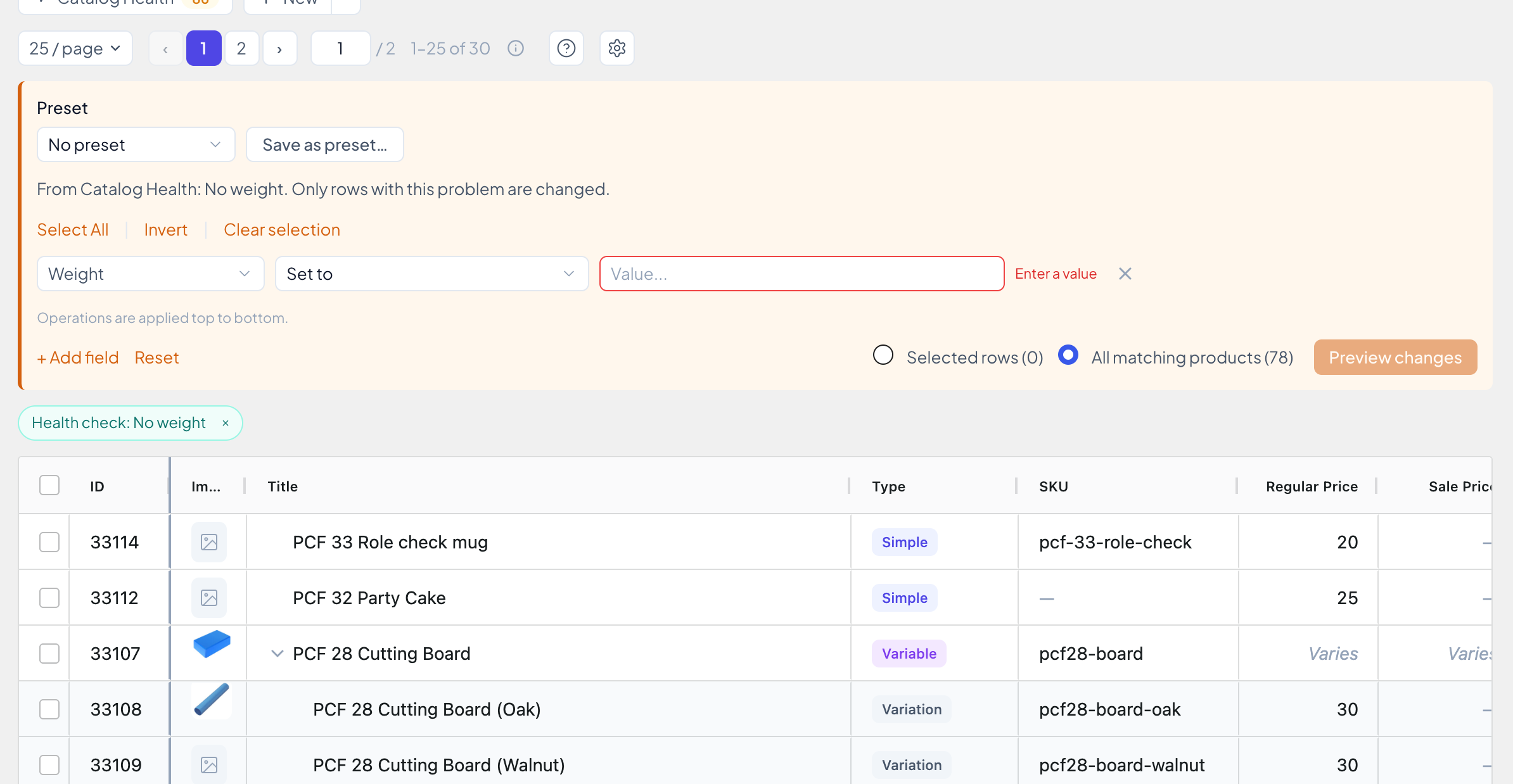
- Fill in the value if the fix needs one. Some fixes only you can decide: a price, a weight, a stock quantity, a featured image or categories. The field is marked until you enter it. Other fixes are complete, like “Set stock to 0”. You can change the operation or add fields like any bulk edit.
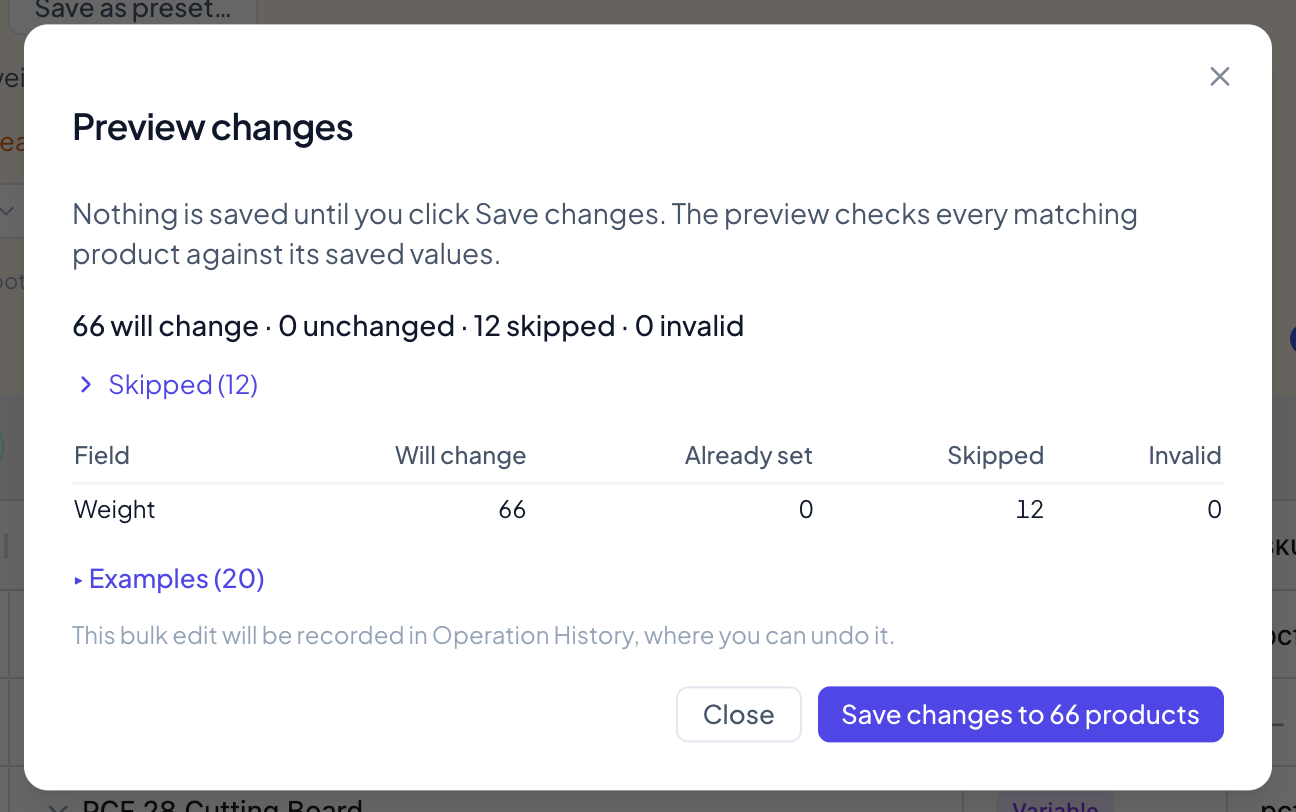
- Click Preview changes. The plugin checks every matching product and tells you how many will change, how many already have that value, and how many are skipped or invalid, with the reasons.
- Click Save changes. Nothing is saved before this.
Only products with the problem change. The panel says so: “Only rows with this problem are changed.” Every other row the filter brings in, such as the variable parent of a variation with the problem, is skipped with “Does not have this problem.” So is a product someone fixed after your preview. After the fix, that check is counted again, so the screen shows the new number.
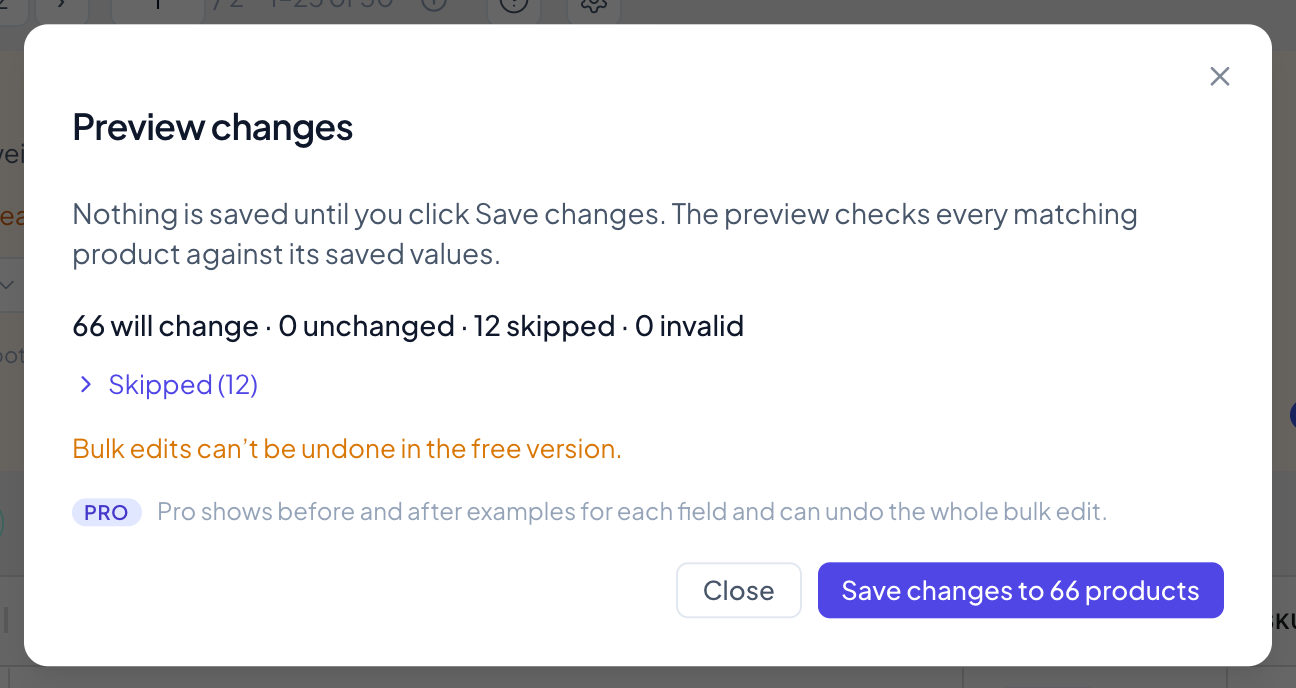
In the free version, a bulk edit can’t be undone, so export the affected products first if you want a backup (Show products, then Export). Pro adds a per-field table and before-and-after examples to the preview, and records the fix in Operation History, where you can undo the whole fix in one go. With recording off, the preview tells you and lets you turn it on.
A bulk fix runs like any All matching products edit: it keeps going if you close the dialog, skips a product that changed after the preview instead of overwriting it, and can be resumed for 7 days if it stops.
The checks
Each check below has its own link, so you can share it. “Fix in bulk” names what the button fills in; “Show products only” means there is no single right fix, and you fix the products in the grid.
Missing regular price (critical)
What it means: a simple product or a variation has no regular price.
Why it matters: WooCommerce won’t sell a product without a price. The product shows up in your shop, but there’s no Add to cart button, and feeds like Google Shopping reject it.
Fix in bulk: Regular price, Set to. Enter the price before you preview.
Negative stock (critical)
What it means: stock is below zero on a product or variation that manages stock and doesn’t allow backorders.
Why it matters: you sold more than you have. Your stock reports are wrong, and the next delivery won’t bring the number back to where it should be. Products that allow backorders are not counted, because there a negative number is how WooCommerce records units you owe.
Fix in bulk: Set stock to 0. Recount the real stock first if you can, and enter that instead.
Variable product without published variations (critical)
What it means: a published variable product has no published variations.
Why it matters: customers see the product but can’t choose anything to buy. It looks broken, and it wastes the traffic you paid for.
Fix in bulk: Set to draft, so it leaves the shop until you’ve added variations. To add them, see how to bulk create variations (Pro).
Sale ended but the price was not reverted (critical)
What it means: the sale end date has passed, but the price customers pay is still not the regular price.
Why it matters: WooCommerce ends scheduled sales with a daily background task. If that task didn’t run (WP-Cron turned off, or a failed run), customers keep paying the sale price. This is the check to run after Black Friday. A product whose sale ended normally is not counted, even though its sale price and dates are still filled in: that’s how WooCommerce leaves them.
Fix in bulk: End the sale. It clears the sale price and both sale dates, and WooCommerce sets the price back to the regular price when it saves.
Sale price not below the regular price (warning)
What it means: the sale price is equal to or higher than the regular price.
Why it matters: WooCommerce ignores such a sale price and shows the regular price, so the sale you think is running isn’t. It’s usually a typo or a price increase that forgot the sale price.
Fix in bulk: Clear the sale price. If you meant to run a sale, set a new sale price instead, for example with Decrease by % from Regular Price.
No product image (warning)
What it means: the product has no featured image, or the image it points to was deleted.
Why it matters: products without a picture sell worse, look unfinished in category pages, and are rejected by Google Shopping and Meta catalogs.
Fix in bulk: Set a featured image. Pick it from the media library before you preview. Handy for a placeholder or a brand image while you take real photos.
Only in the default category (warning)
What it means: the product’s only category is the one WooCommerce assigns when none is chosen (usually “Uncategorized”).
Why it matters: customers browsing your categories never find it, and an “Uncategorized” label on a product page looks careless.
Fix in bulk: Choose categories. The categories you pick replace the default one.
Missing SKU (warning)
What it means: a product or variation has no SKU of its own. A variation that only shows its parent’s SKU counts as missing.
Why it matters: SKUs are how stock, shipping, accounting and marketplace tools tell products apart. Imports and feed tools often match by SKU, and skip products without one.
Fix: Show products, and type SKUs in the grid. (Pro) Generate SKUs opens the SKU generator with a template filled in (SKU-{id}), which you can change before you preview. The free version shows the same button with a PRO badge.
Duplicate SKU (warning)
What it means: another product or variation has the same SKU.
Why it matters: WooCommerce won’t let you save a product with a SKU that’s taken, so duplicates usually come from imports. Tools that match by SKU then update the wrong product, and stock gets mixed up. On multilingual stores using WPML with WooCommerce Multilingual, Pro doesn’t count translations that share a SKU, since that’s how WooCommerce Multilingual works.
Fix: Show products only. Decide which product keeps the SKU and give the others new ones.
Price is zero (warning)
What it means: the price customers pay is 0.
Why it matters: WooCommerce lets customers order a zero-price product for free. Some stores do that on purpose (free samples, add-ons): mute the check if that’s you.
Fix: Show products only.
No weight (warning)
What it means: a shipped (not virtual) product or variation has no weight, or a weight of 0. A variation that inherits its parent’s weight is fine.
Why it matters: weight-based shipping rates and carrier plugins calculate the wrong price, or none, and you pay the difference. Doesn’t apply while shipping is turned off in WooCommerce.
Fix in bulk: Weight, Set to. Enter the weight before you preview. If your products have different weights, filter them into groups first, or fix them in the grid.
Stock managed but quantity empty (warning)
What it means: Manage stock is on, but no stock quantity is set.
Why it matters: the next time the product is saved, WooCommerce treats it as out of stock, or on backorder if backorders are allowed. A product can disappear from your shop after an unrelated edit.
Fix in bulk: Stock quantity, Set to. Enter the quantity before you preview.
Empty description (warning)
What it means: the product has no description.
Why it matters: customers have nothing to read before they buy, search engines have nothing to index, and feeds use the description for the product text.
Fix: Show products only, then write descriptions in the grid’s description editor.
Empty short description (notice)
What it means: the product has no short description.
Why it matters: many themes show the short description next to the price and the Add to cart button. Without it, that space is empty. Less serious than the others, which is why it’s a notice.
Fix: Show products only.
Feed readiness checks (Pro)
These six checks look at what Google Shopping, Meta catalogs and other product feeds ask for. The free version lists them with a PRO badge.
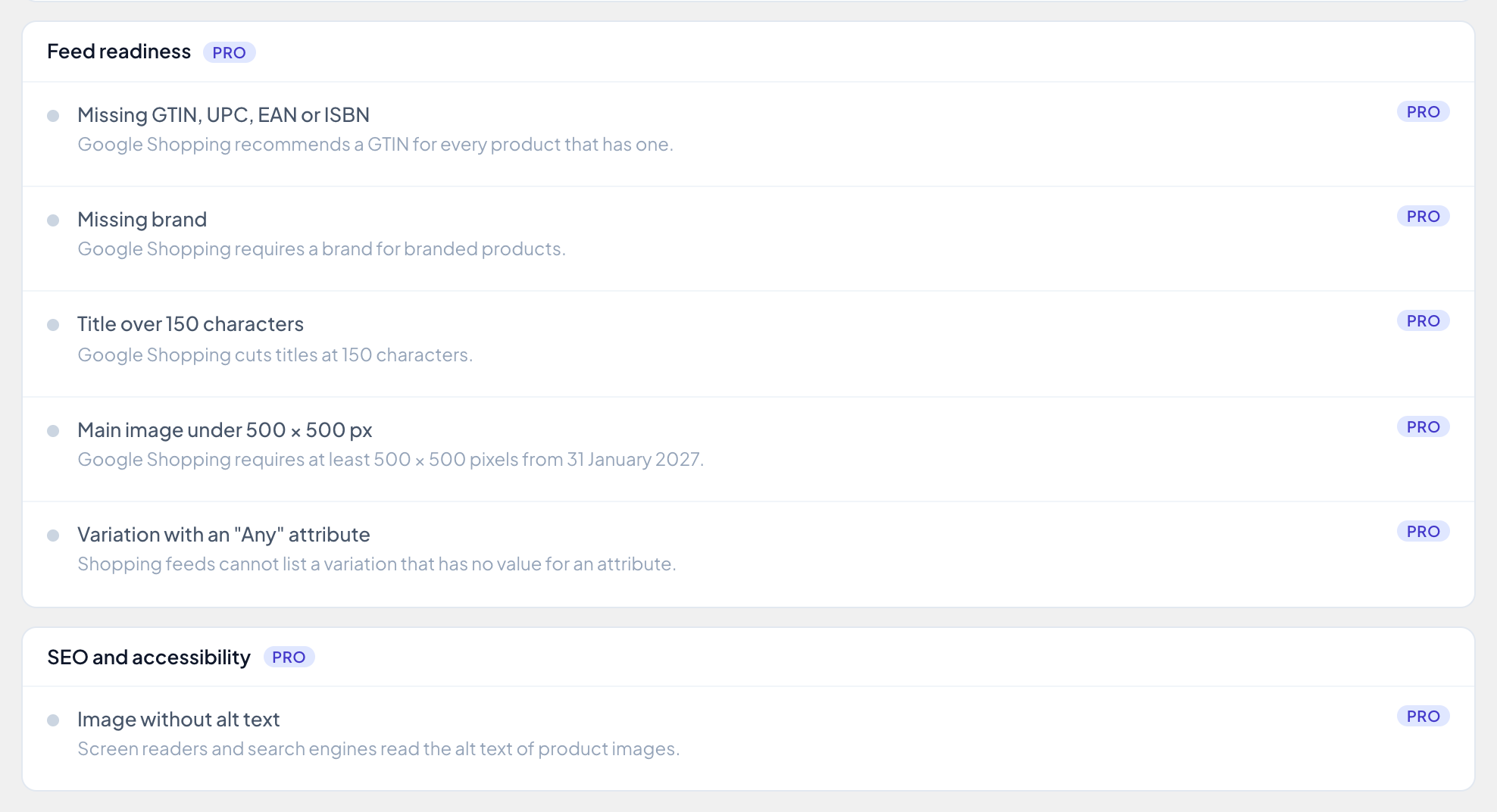
Missing GTIN, UPC, EAN or ISBN (Pro) (warning)
What it means: a product or variation has no value in WooCommerce’s GTIN, UPC, EAN or ISBN field. Variations don’t inherit their parent’s.
Why it matters: Google recommends a GTIN for every product that has one from its manufacturer, and products with one tend to show up in more searches. Products you make yourself have no GTIN, and that’s fine: mute the check if none of yours do.
Fix: Show products only. Paste the codes from your supplier’s list with Paste from Excel (Pro).
Missing brand (Pro) (warning)
What it means: the product has no term in WooCommerce’s Brands taxonomy. The check only applies once your store has at least one brand.
Why it matters: Google Shopping requires a brand for products that have a clear brand.
Fix in bulk: Add a brand, when the Brands taxonomy is turned on in Pro’s custom taxonomy settings. Otherwise Show products.
Title over 150 characters (Pro) (warning)
What it means: the product title is longer than 150 characters.
Why it matters: Google Shopping cuts titles at 150 characters, so the end of your title, often the size or color, gets lost.
Fix: Show products only, then shorten the titles in the grid.
Related: Filter products by title, with match modes and regex examples.
Main image under 500 × 500 px (Pro) (warning)
What it means: the main image is narrower or shorter than 500 pixels. A variation counts only if it has its own image.
Why it matters: Google Shopping requires at least 500 × 500 pixels for product images from 31 January 2027. Smaller images also look blurry on product pages.
Fix: Show products only, then upload bigger images.
Variation with an “Any” attribute (Pro) (warning)
What it means: a published variation has “Any” for one of its attributes, for example “Any size”.
Why it matters: a feed lists each variation as its own item, with a real size and color. A variation without a value can’t be listed. It also makes stock tracking per size impossible.
Fix: Show products only. In Pro you can set a variation’s value for a global attribute right in its grid cell.
Image without alt text (Pro) (notice)
What it means: the main image has no alt text. Listed under “SEO and accessibility”, and not part of the Feed readiness score.
Why it matters: screen readers read the alt text to people who can’t see the image, and search engines use it to understand the picture.
Fix: Show products only. Alt text belongs to the image, so you set it in the media library.
Dashboard widget
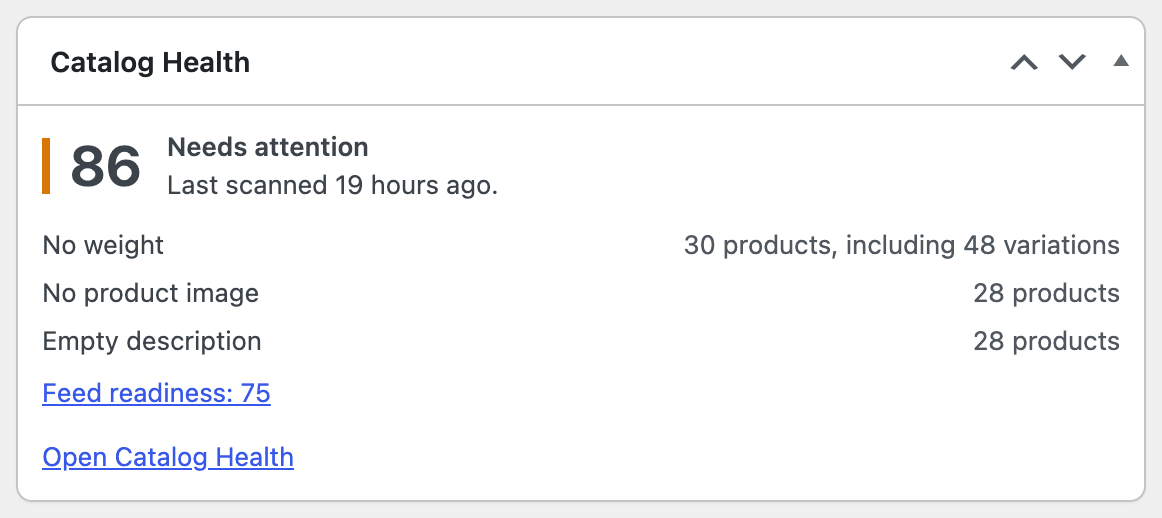
The WordPress Dashboard shows a Catalog Health widget to users who can manage WooCommerce: the score, the three problems that matter most, when the catalog was last checked, and a link to Catalog Health. In Pro it also shows the Feed readiness score. The widget only shows the last scan, it never scans by itself.
Watched views (Pro)
Your own checks, made from saved views. Save a view with the filters you care about, for example “In stock, no sale price, category Shoes”, then open the view’s menu and choose Watch in Catalog Health. The view’s products are counted with every scan, listed on the Catalog Health screen with Show products, and included in the weekly summary. They don’t change the score. Renaming or deleting the view updates or removes the watch.
Weekly summary email (Pro)
Click Email me a weekly summary on the Catalog Health screen. Every Monday at 08:00 (your site’s time) the plugin checks the catalog and sends a short plain-text email with your score, what changed since last week, any new problems and your watched views, with a link back to Catalog Health.

- It goes to the site’s admin email by default. Change the address, or add more separated by commas, in the card, then click Save.
- The card shows when the last summary was sent, and a small chart of how your score moved over the last 12 days you scanned.
- Turn off stops it. Deactivating the plugin stops it too.
- The email is sent by your own site with WordPress’s mail function. Nothing goes through a WPMelon server.
Summary email not arriving?
If WordPress couldn’t send the summary, the card says “Last summary could not be sent on [date]. Check your site’s email setup.” If the card says it was sent but nothing arrived, the email left your site and got lost on the way. Either way, it’s your site’s email setup, not the plugin. Check these in order:
- Look in spam, and search for “Catalog Health” in your mailbox.
- Check the address in the Weekly summary card. By default it’s the admin email in Settings → General.
- Do other WordPress emails arrive? Request a password reset or place a test order. If those don’t arrive either, your site can’t send email reliably.
- Install an SMTP plugin. Many hosts don’t deliver mail sent with PHP’s default mail function, or mail providers reject it. An SMTP plugin such as WP Mail SMTP, FluentSMTP or Post SMTP sends WordPress’s email through a real mail service (your email provider, or a sending service like Brevo, Mailgun, Amazon SES or SendGrid). All of them have a “send test email” button and an email log.
- Check the sender address. Unless a plugin changes it, WordPress sends from wordpress@yourdomain. Use a sender address on your own domain that your mail service is allowed to send for (SPF and DKIM set up). Mail from an address on a different domain, like a Gmail address sent through your host, is often rejected.
- Check that WP-Cron runs. The summary is sent by a scheduled task. On a site with very few visits it can be late. If WP-Cron is turned off (DISABLE_WP_CRON in wp-config.php), make sure your host runs it on a schedule instead.
Once a summary is sent, the warning on the card goes away. You don’t have to wait a week to test: an SMTP plugin’s test email tells you right away whether your site can send.
Still stuck? Contact support.