
Written for version 1.5.0.
Your supplier raised prices by 10%, or you want 20% off a whole category for the weekend. In WooCommerce itself that means opening every product one by one. With WPMelon Advanced Bulk Edit you pick the products, say how the price should change, check the new prices in the grid, and save. It takes about a minute, whether it’s nine products or nine hundred.
This guide raises the price of nine watches by 10%, puts them on sale, ends the sale, and then does the same for variations and for every product a filter matches.
What you need
- WPMelon Advanced Bulk Edit for WooCommerce, installed and activated (free on WordPress.org)
- A Shop Manager or Administrator account
New to the plugin? Getting started walks you through the grid, filters and saving in five minutes.
The screenshots were taken with Pro. Everything up to the Pro section at the end works in the free version, which shows Presets and Price rounding with a PRO badge where the screenshots show Pro’s controls.
1. Back up your prices
Before you change anything, click Export. Tick at least ID, SKU, Regular Price and Sale Price (add Parent ID when you export variations) and click Export. The CSV has the current price of every product that matches your filters, across all pages.
Once a price change is saved, the free version can’t undo it. The CSV is your record of the old prices. Step 2 of Getting started shows the export in detail.
2. Find the products
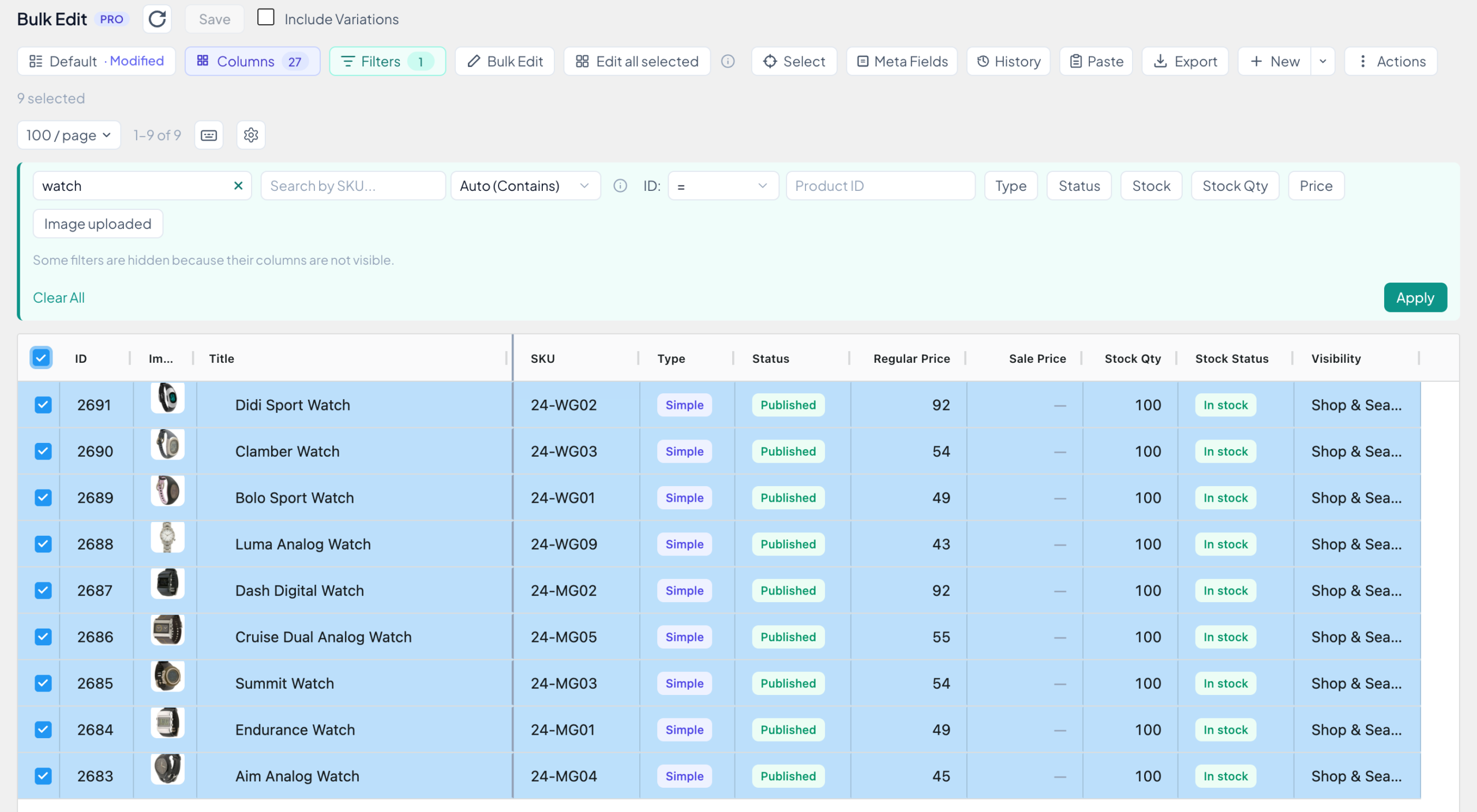
Go to WooCommerce → Bulk Edit and click Filters. Here, typing watch into Search by name… and clicking Apply leaves the nine watches. Tick the checkbox in the header row to select them all.
Other ways to narrow the list:
- Price has a Min Price and a Max Price. It filters on the price customers pay, so for a product on sale that’s the sale price.
- Categories, tags and many other columns have their own filter. A column’s filter appears once the column is visible (step 3 of Getting started).
- Or tick the rows you want one by one.
3. Raise the regular price
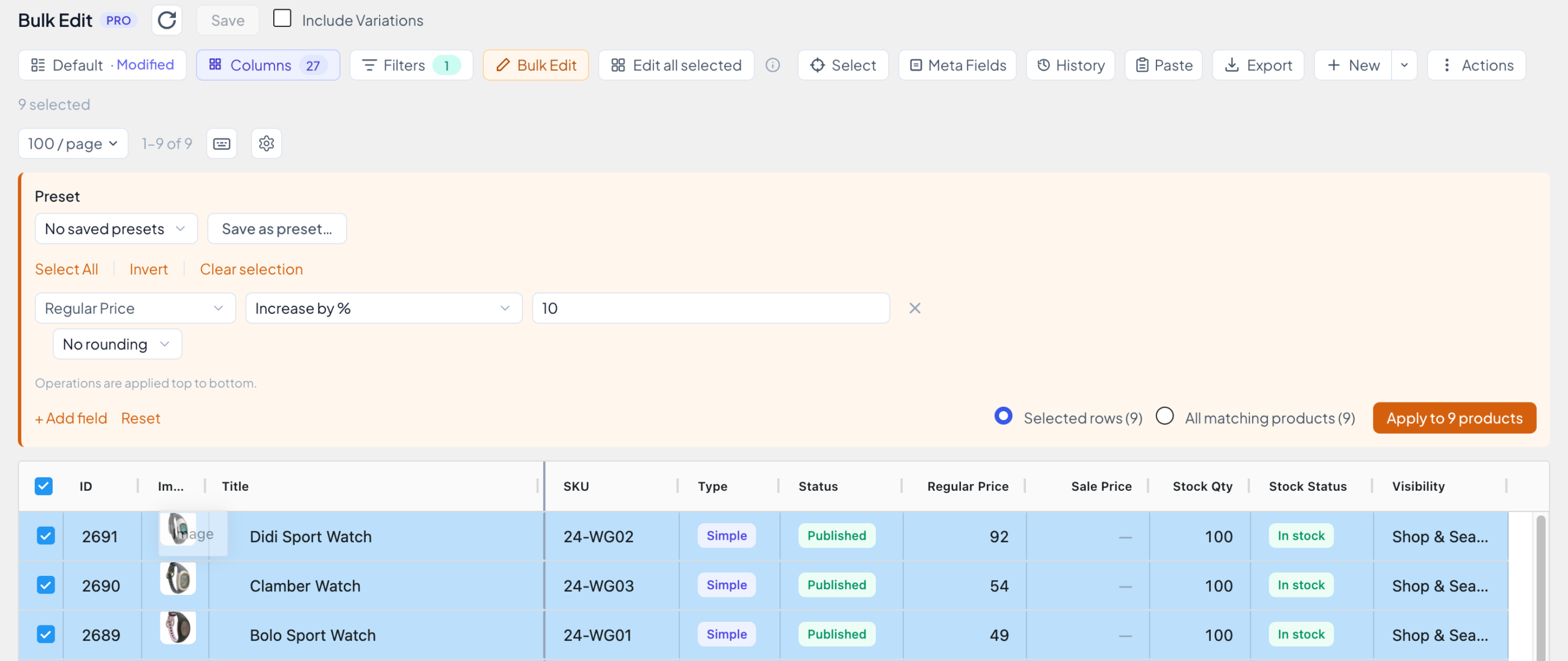
- Click Bulk Edit. The panel opens above the grid.
- Click Select field…, type
priceand pick Regular Price. - Choose Increase by % and enter
10. - Check that Selected rows (9) is chosen and click Apply to 9 products.
These are the operations for Regular Price and Sale Price, shown on a product that costs 45:
| Operation | Value | 45 becomes |
|---|---|---|
| Set to | 39 | 39 |
| Increase by value | 5 | 50 |
| Decrease by value | 5 | 40 |
| Increase by % | 10 | 49.5 |
| Decrease by % | 10 | 40.5 |
| Decrease by % from Regular Price (Sale Price only) | 20 | a sale price of 36 |
4. Check the new prices and save
Nothing is saved yet. The new prices land in the grid as yellow, unsaved cells, and the button reads Save (9). The Aim Analog Watch goes from 45 to 49.5, the Didi Sport Watch from 92 to 101.2.
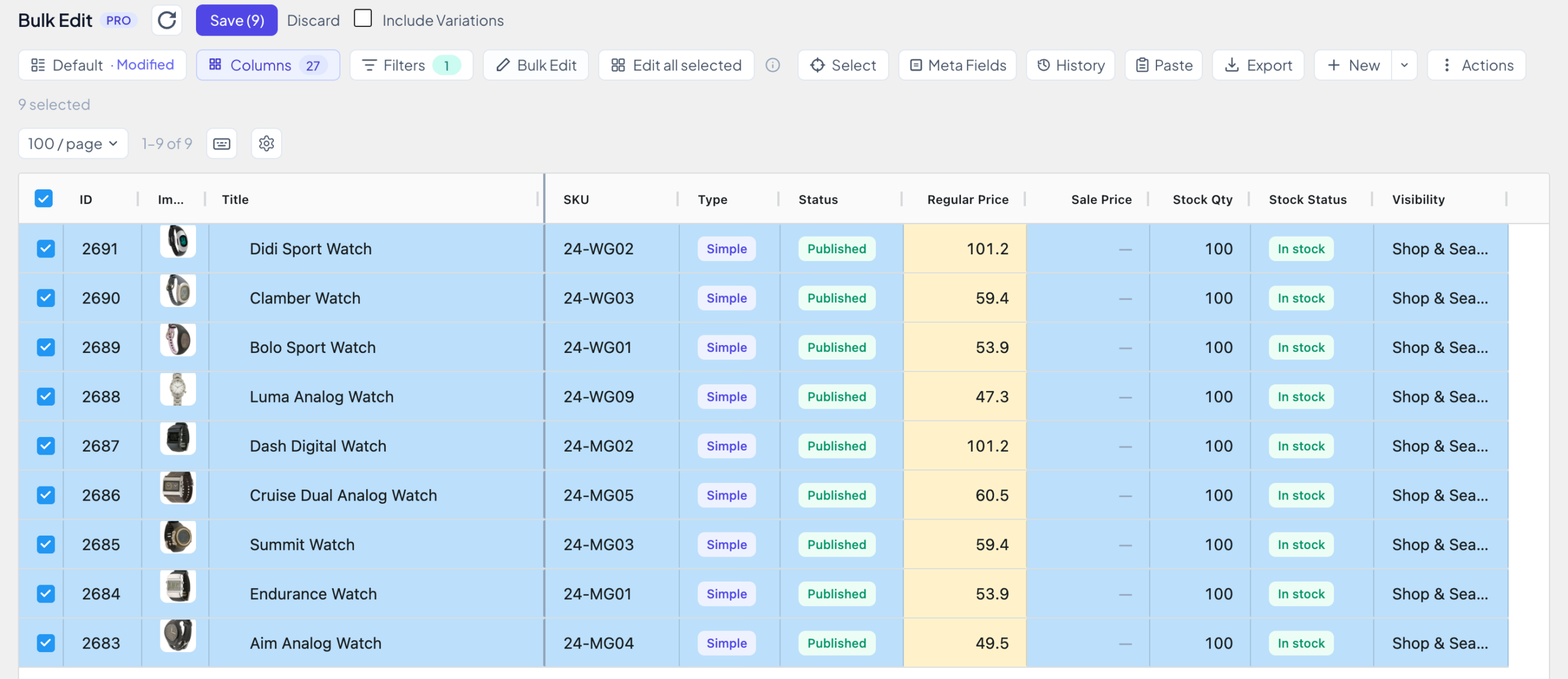
Fix any cell by hand if you need to, then click Save (or press Ctrl+S, ⌘S on a Mac). A message confirms Saved 9 products. Changed your mind? Discard throws away every unsaved change instead.
The shop shows prices with your store’s decimals, so 49.5 appears as $49.50.
5. Put the products on sale
For 20% off, work the sale price out from the regular price:
- In the Bulk Edit panel, change the field to Sale Price.
- Choose Decrease by % from Regular Price and enter
20. - Click Apply to 9 products, check the yellow cells, and Save.
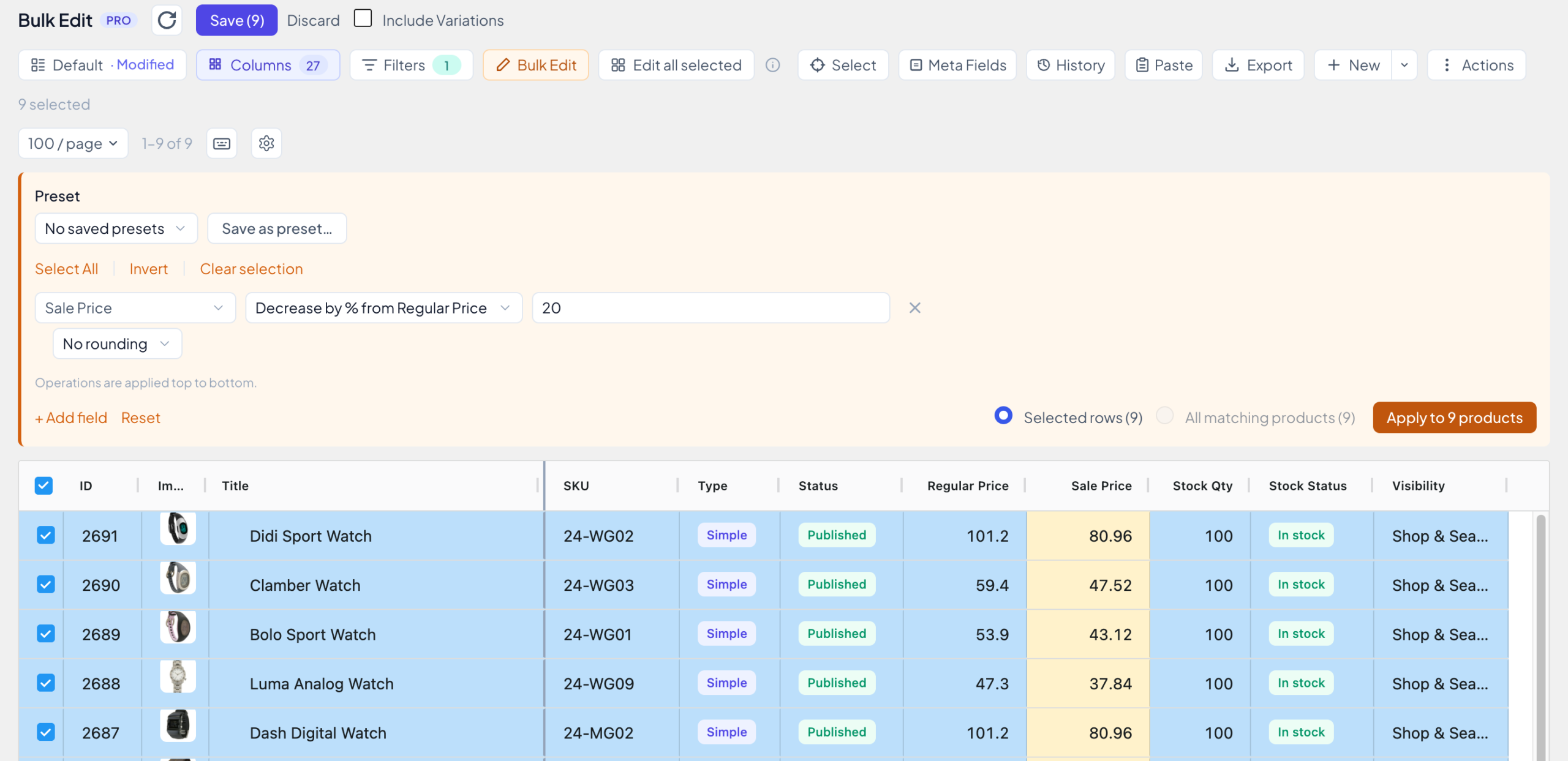
Each watch gets a sale price 20% below its own regular price: 49.5 gives 39.6, and 101.2 gives 80.96. The regular prices stay as they are.
Want both changes in one go? Click + Add field and put both rows in the panel, Regular Price first and Sale Price second. Operations run from top to bottom, so the sale price is worked out from the new regular price.
6. End the sale
To take the products off sale, clear their sale price:
- Set the field to Sale Price and the operation to Set to.
- Leave the value empty.
- Click Apply to 9 products, then Save.
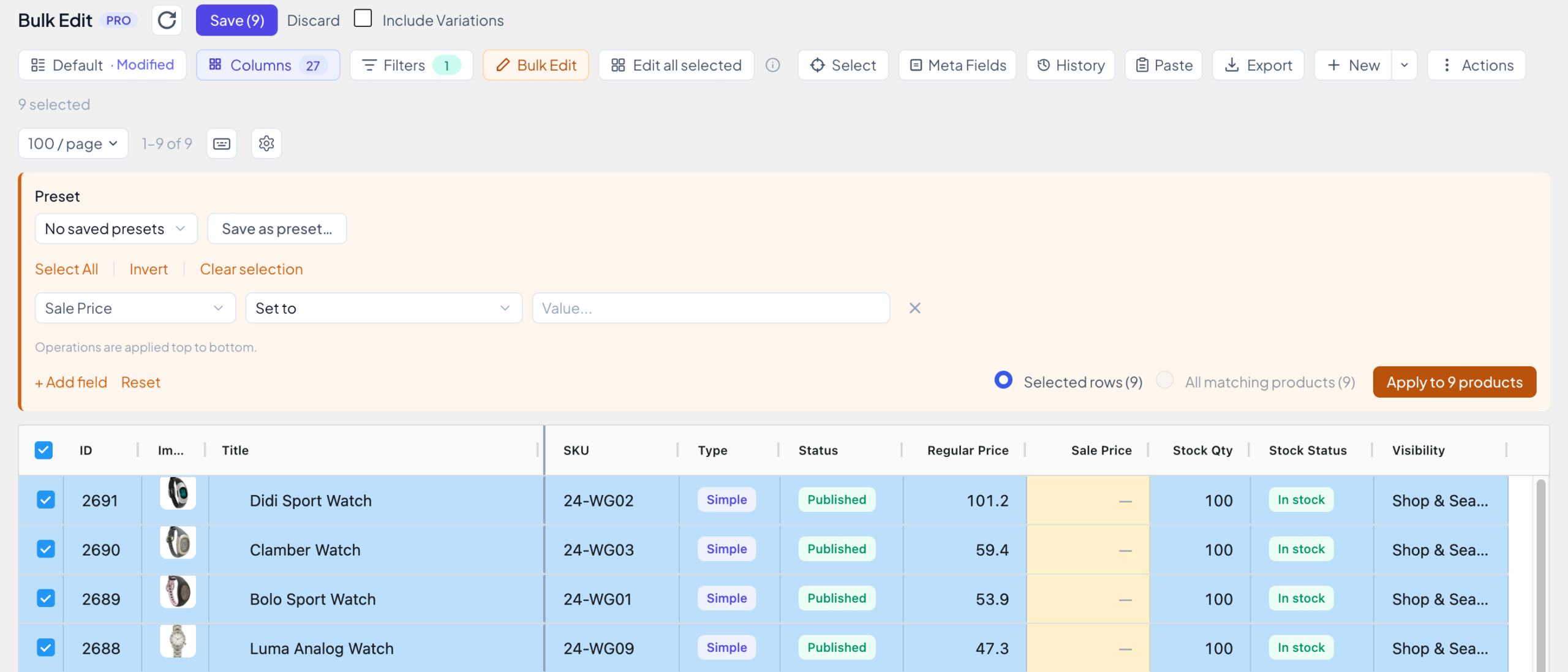
Set to with an empty value clears the field, so the watches go back to their regular price.
7. Change variation prices
A variable product has no price of its own. WooCommerce takes its price from the variations, which is why its row shows Varies. So you change the variations:
- Tick Include Variations at the top of the page. Every variation gets its own row under its product.
- Filter and select as before. Here:
Hero Hoodie, and all 16 rows (the hoodie and its 15 variations). - Set up the panel (here Regular Price, Increase by value,
5) and click Apply to 16 products.
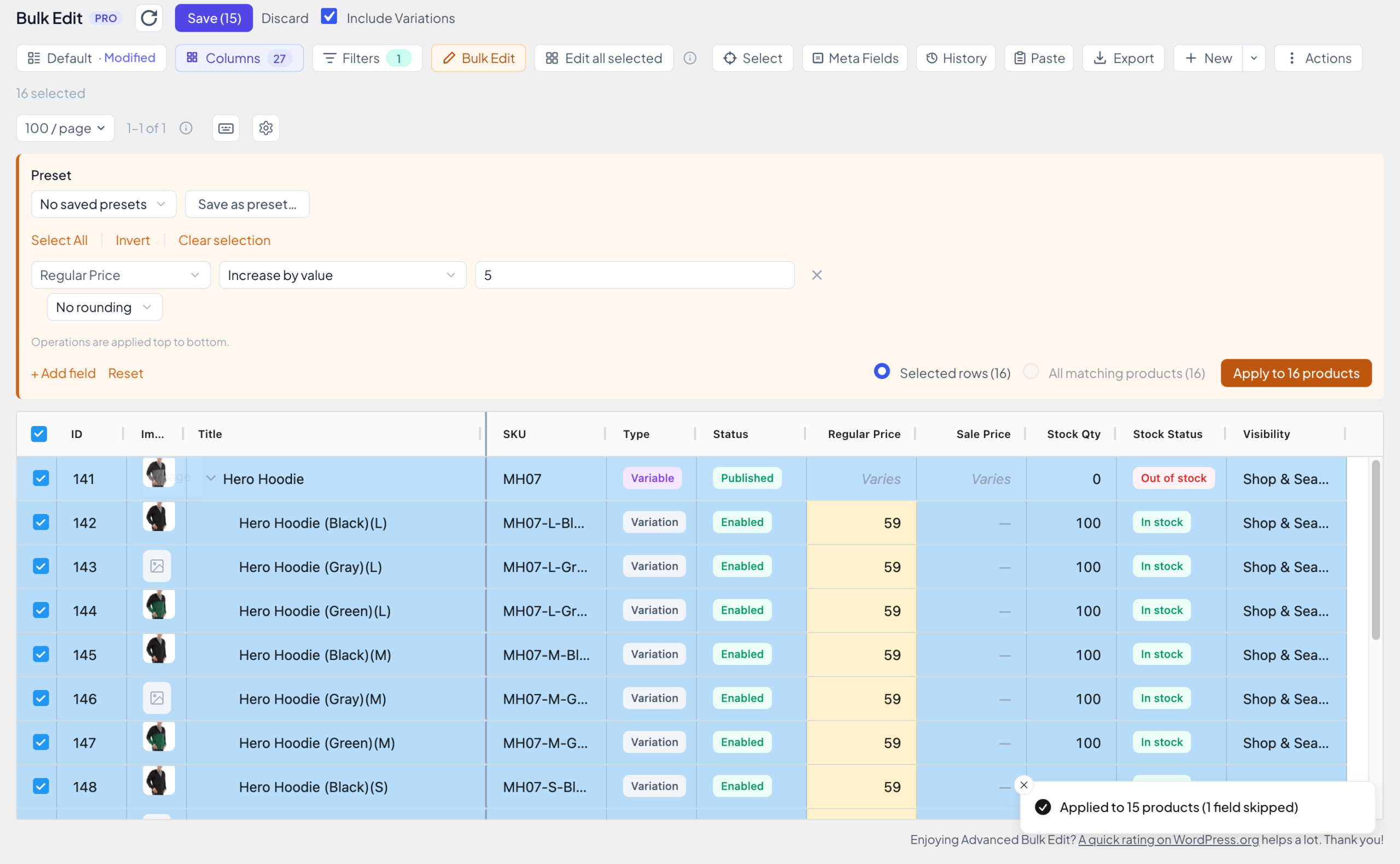
The message reads Applied to 15 products (1 field skipped). The 15 variations went from 54 to 59, and the Hero Hoodie row itself was skipped. That means you can select whole products with their variations, no need to pick the variations one by one. Then save as usual.
To change the variations of a single product, you can also open them with the small arrow before its name and select those rows.
8. Change every product that matches your filters
Selected rows only reach the page on screen (100 products by default). To change every product your filters match, on all pages, use All matching products. Here: all hoodies, plus 5%.
- Clear the selection (Clear selection in the panel). The panel switches to All matching products (13).
- Set up the operation (Regular Price, Increase by %,
5) and click Preview changes.
The preview checks every matching product against its saved values and counts what will change. Nothing is saved at this point.
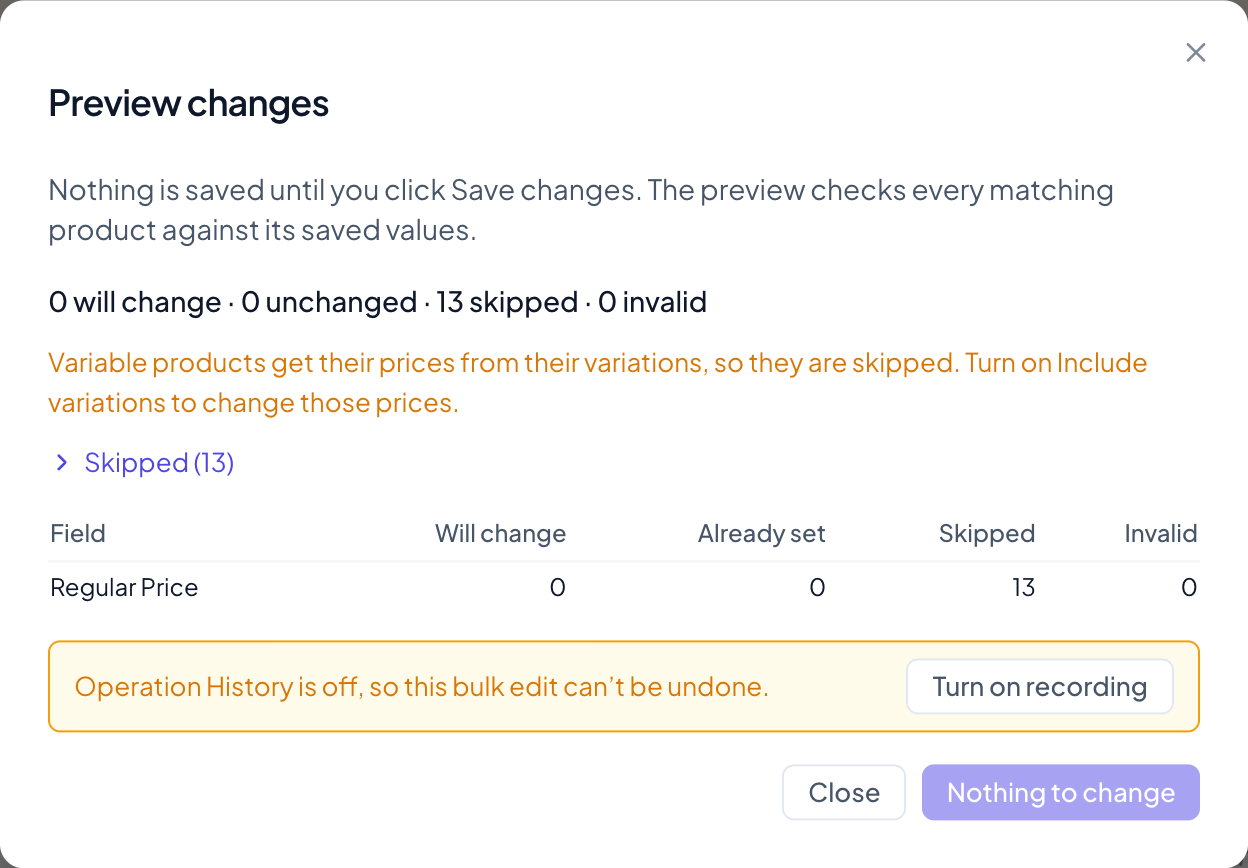
All 13 hoodies are variable products, so there’s nothing to change: Variable products get their prices from their variations, so they are skipped. Turn on Include variations to change those prices. Close the dialog and tick Include Variations. The scope now reads All matching products (198): the 13 hoodies and their 185 variations. Preview again.
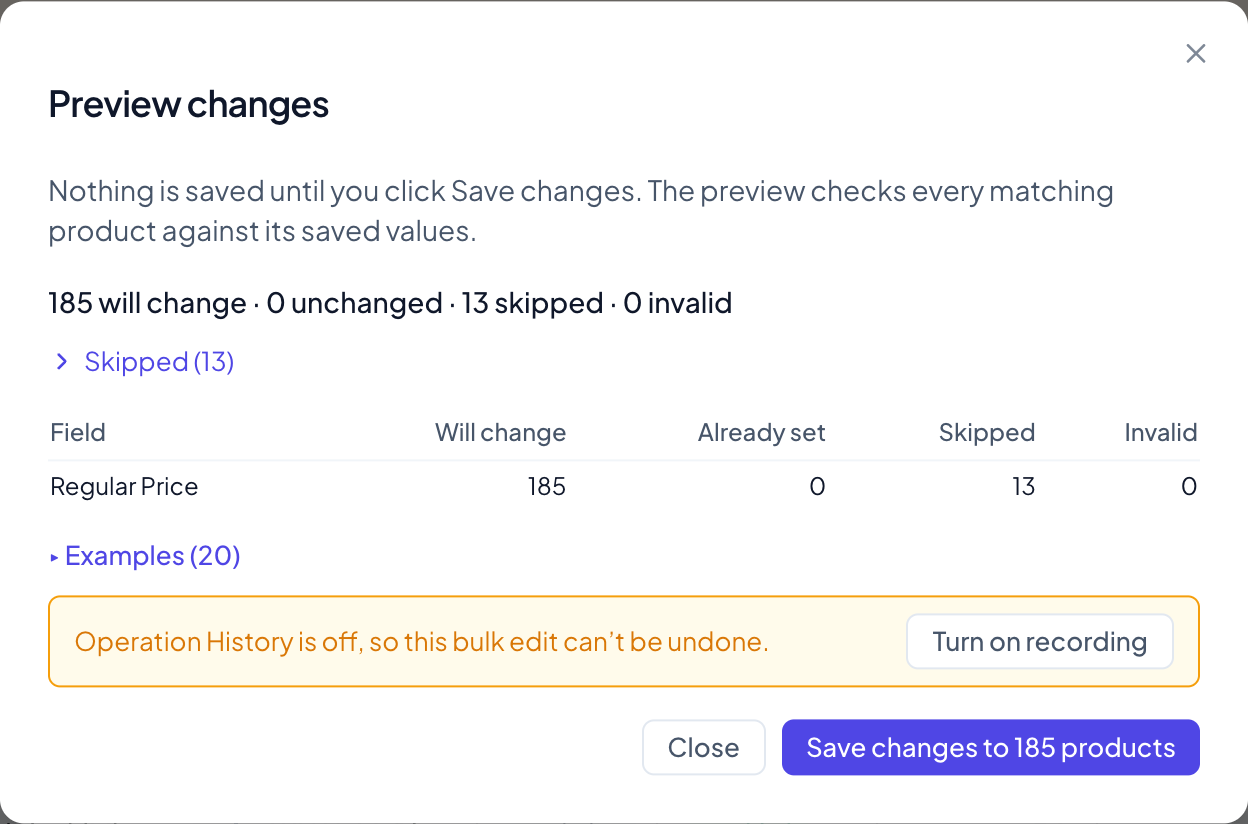
This time the 185 variations will change. The 13 skipped rows are the hoodies themselves. Click Save changes to 185 products to run it.
This scope works differently from Selected rows:
- It saves straight away, product by product. There are no yellow cells and no Discard, which is why the backup from step 1 matters.
- You can close the dialog while it runs. A banner above the grid shows the progress, and Cancel bulk edit stops it. Products already changed stay changed.
- It waits for unsaved changes. While the grid has unsaved edits, the option is greyed out with Save or discard N unsaved changes first.
The fine print
- Decimals. New prices are rounded to your store’s number of decimals (WooCommerce → Settings → General → Number of decimals).
- Never below zero. A decrease that would take a price below 0 stops at 0.
- Empty prices stay empty. The increase and decrease operations only change products that already have a price in that field. Raising the sale price of products that aren’t on sale changes nothing: Applied to 0 products.
- Positive values only. Enter a number like
5or2.5(a decimal comma works too), with up to 4 decimals. To lower prices, pick a Decrease operation:-5is refused with Must be a positive number. - Decrease by % from Regular Price only exists for Sale Price and goes up to 100. It uses the regular price the grid shows, including an unsaved one.
- Sale price above regular price. The plugin doesn’t stop you from setting a sale price at or above the regular price, but WooCommerce only shows a product as on sale when its sale price is lower.
- Which rows have a price. Simple products, external products and variations do. Variable and grouped products don’t, so price operations skip them, and the message or the preview says so.
Pro: round to .99 and save your price changes as presets
Price rounding
Pro adds rounding under every Regular Price or Sale Price row that increases or decreases: No rounding, Round up or Round down, to ending 0 to 99.
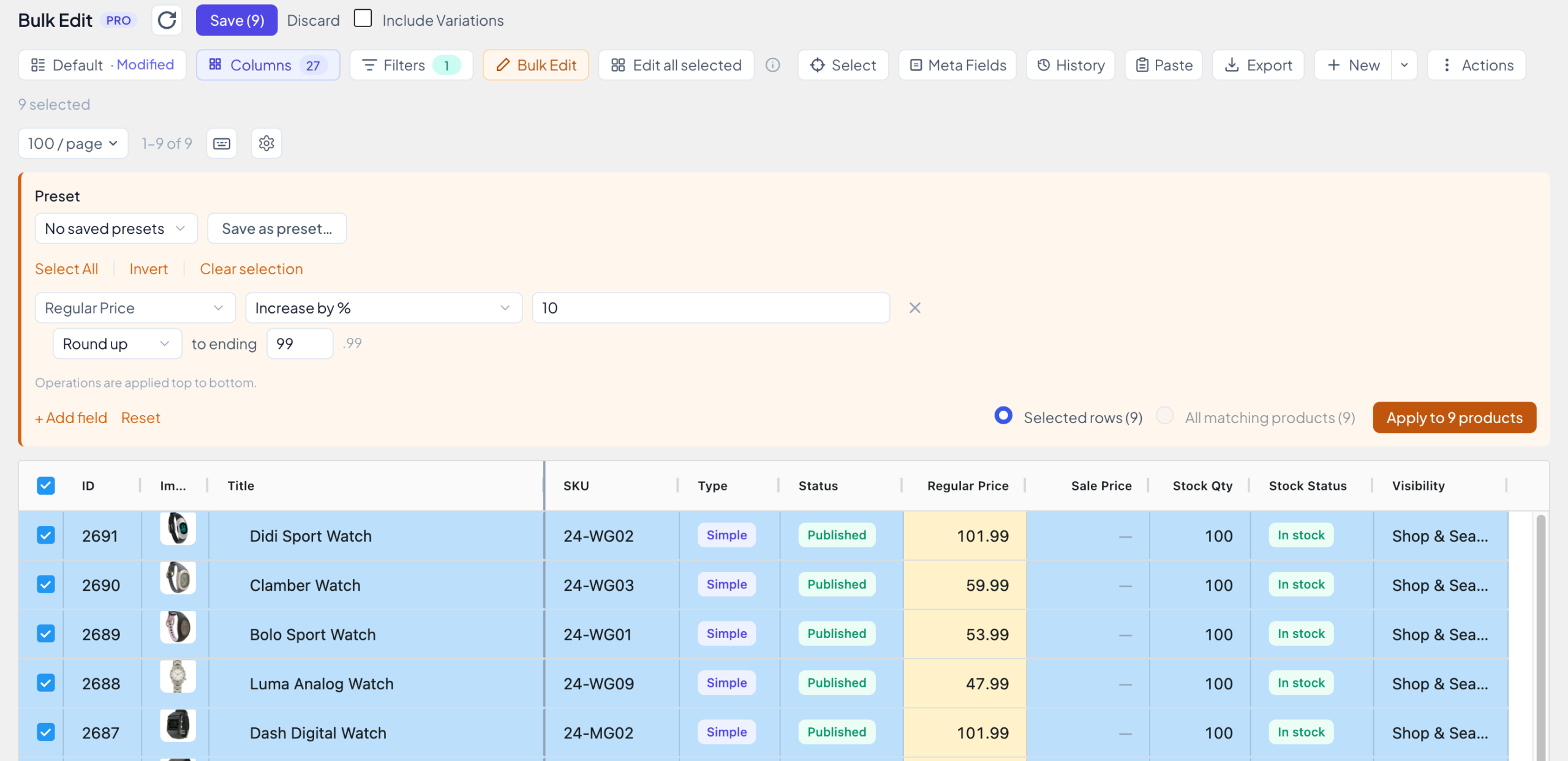
Here, Round up to 99 turns 49.5 into 49.99 and 101.2 into 101.99. Round down to 99 would give 48.99 and 100.99. Ending 0 gives whole numbers: rounding 49.5 up makes it 50. A price that already has the ending you chose stays as it is.
Rounding works with All matching products too. It isn’t offered for Set to, where you type the exact price anyway.
Presets
Running the same price change every season? Once the panel is set up, click Save as preset…, type a name and click Save. Next time, pick it from the Preset list and its rows come back, rounding included.

Loading a preset changes nothing by itself: you still click Apply or Preview changes. Save updates the loaded preset with the panel’s current rows, and Save as… stores them as a new one. Presets are personal: each user has their own list, up to 50 presets.
More Pro tools for prices
- Edit all selected. Turn it on, then edit the price of one selected product: every selected product gets the same value.
- Paste from Excel. Got a new price list from a supplier? Paste it into the grid and match it by SKU. See Paste from Excel.
- Operation History. With recording on, you can restore the prices from before a bulk edit, an All matching products one included. See Operation History.
- A detailed preview. For All matching products, Pro’s preview adds the per-field table and before-and-after examples you see in the screenshots.
More at wpmelon.com/bulk-edit.