
Written for version 1.5.0.
You’ve added three new T-shirts, each in three colors and four sizes. WooCommerce can generate the variations for you, but only one product at a time, from each product’s Variations tab. With WPMelon Advanced Bulk Edit Pro you select all the products, untick the combinations you don’t sell, and create every variation in one go. Then you give them prices, stock and SKUs in the same grid.
This guide gives three new T-shirts their Color and Size attributes, creates 31 variations for them, prices and stocks them, and later adds a new color.
Creating variations is a Pro feature. What the free version shows is at the end of this guide.
What you need
- WPMelon Advanced Bulk Edit for WooCommerce Pro, installed and activated
- Global attributes with their terms, set up under Products → Attributes in WooCommerce (here: Color with Black, Blue and White, and Size with S, M, L and XL)
- A Shop Manager or Administrator account
New to the plugin? Getting started walks you through the grid, filters and saving in five minutes.
1. Give the products their attributes
The wizard builds variations from the attributes a product already has. Each product needs its attributes, with the terms you sell, and Used for variations ticked: the same box as in WooCommerce’s product editor. If your products have that already, skip to step 2.
Otherwise, set it up in the grid for all the products at once:
- Click Columns and tick (attr) Color and (attr) Size. Every global attribute has its own column, hidden at first.
- Tick the products. Here: the three new tees.
- Click Bulk Edit, pick (attr) Color and choose Add. Click Select terms… and tick the colors (All ticks every term).
- Tick Set “Used for variations” to: and leave it on Yes.
- Click + Add field and do the same for (attr) Size.
- Click Apply to 3 products, check the yellow cells, and Save.
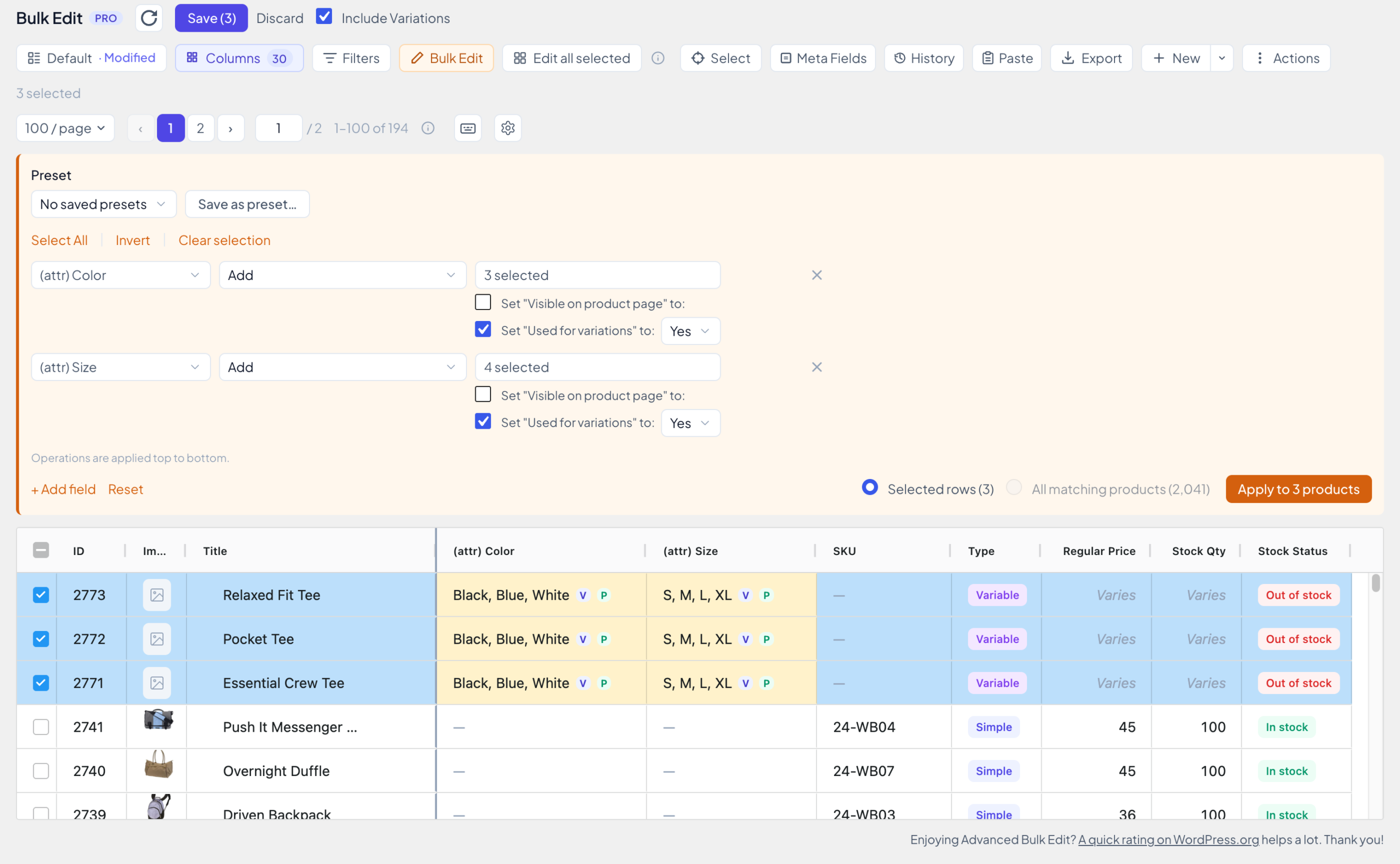
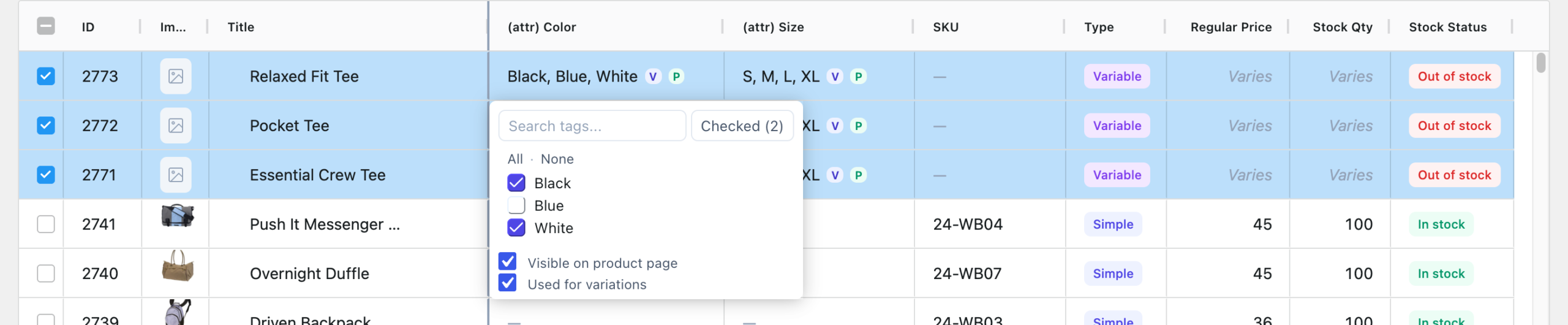
In the cells, V means Used for variations and P means Visible on product page. The plugin ticks Visible on product page when it adds an attribute to a product.
To change a single product, double-click its cell. Here the Pocket Tee only comes in black and white, so Blue is unticked. The cell has its own Used for variations box. Click outside the cell to close it, then Save.
Your products already have the attributes but not Used for variations? In the Bulk Edit panel choose Change settings only instead of Add. It changes the two boxes and leaves the terms alone.
2. Open the Create Variations wizard
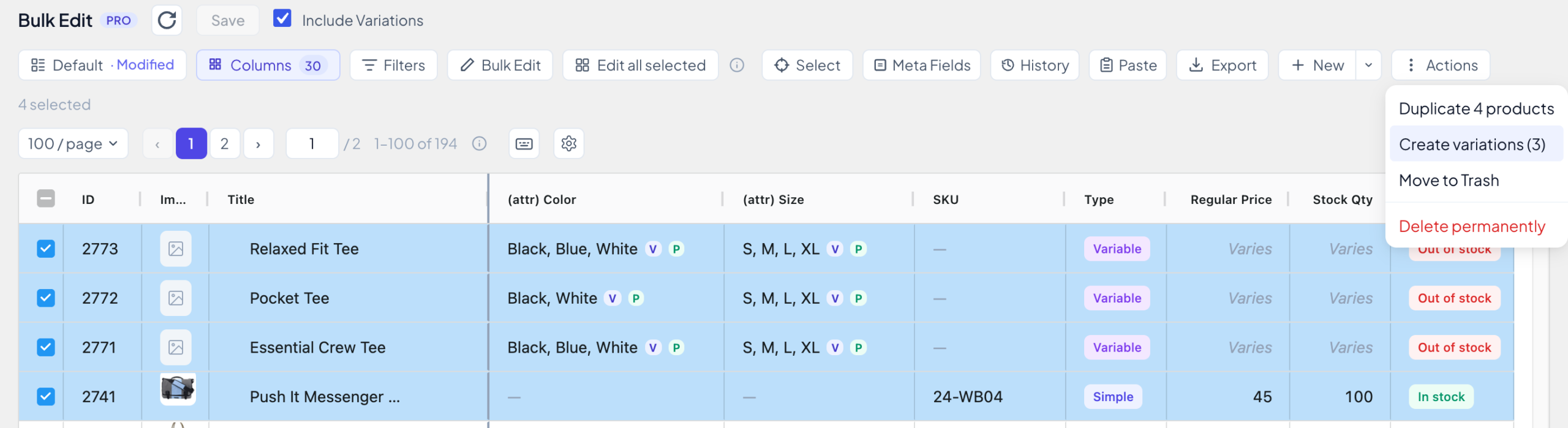
Tick the products and click Actions → Create variations (3). The number counts the variable products you selected.
Have unsaved changes? The plugin asks first. Save & Continue saves them and opens the wizard.
3. Check the products
The wizard has four steps: Products, Terms, Preview and Create. Nothing is created before the last one, so you can go Back or Cancel at any point until then.
The first step lists the Eligible products with their attributes. Products the wizard can’t use are listed under 1 product excluded, with the reason. Here the Push It Messenger Bag was selected too: Not a variable product.
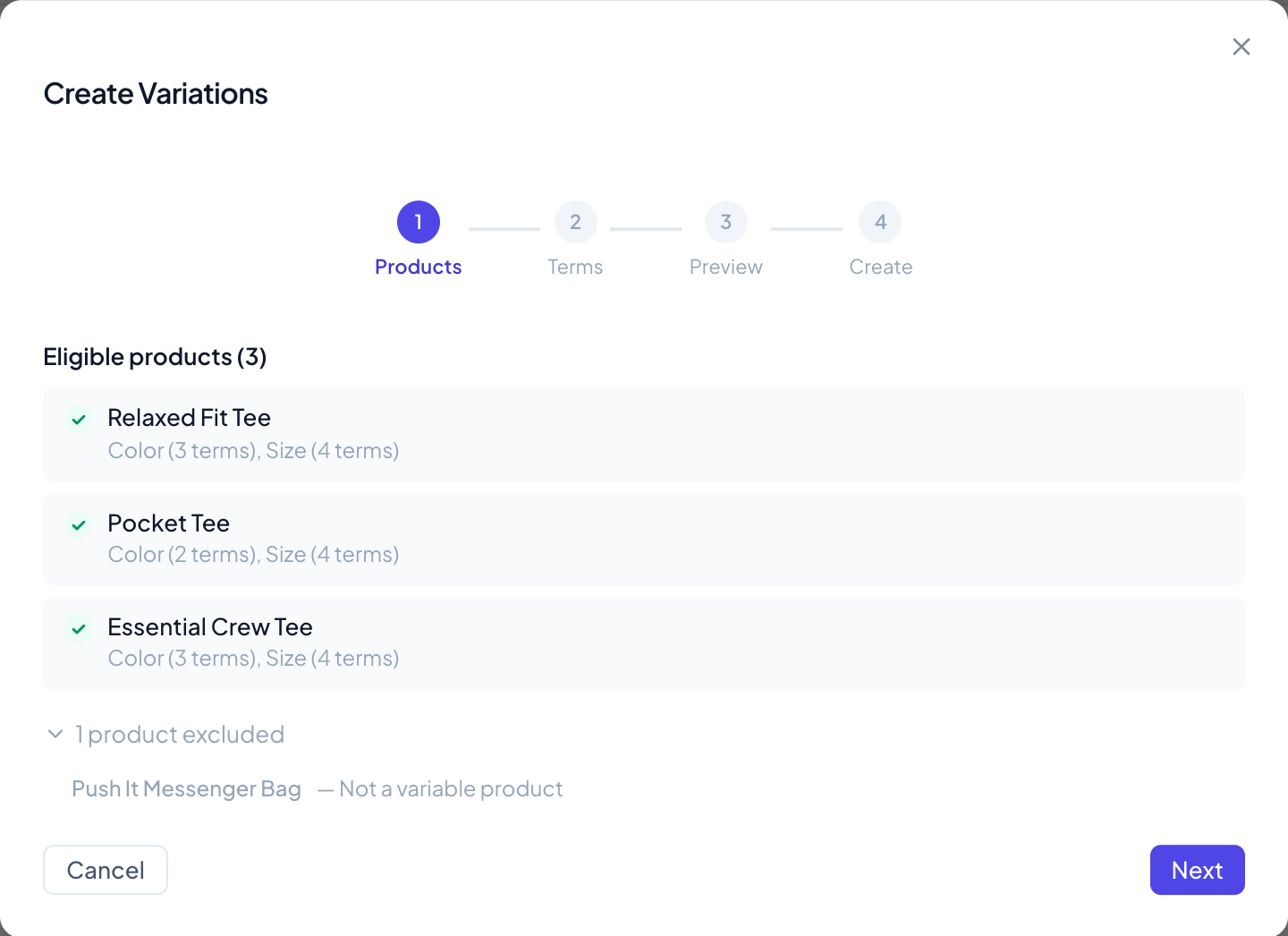
The other reasons are No attributes flagged for variations (step 1 is missing) and Attribute “Color” is flagged for variations but has no terms assigned. Click Next.
4. Choose the terms
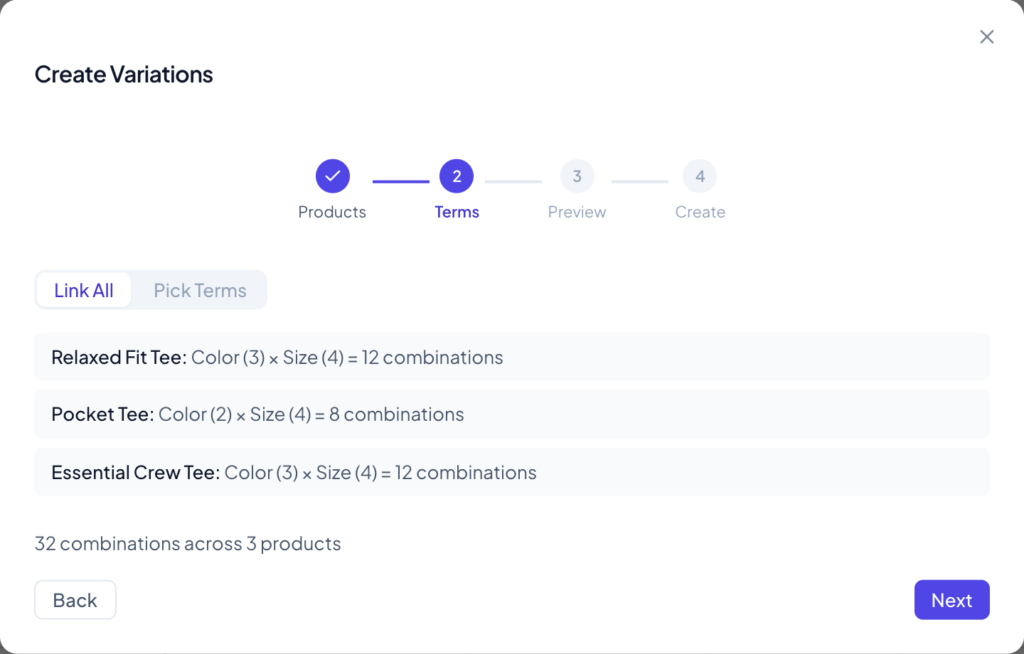
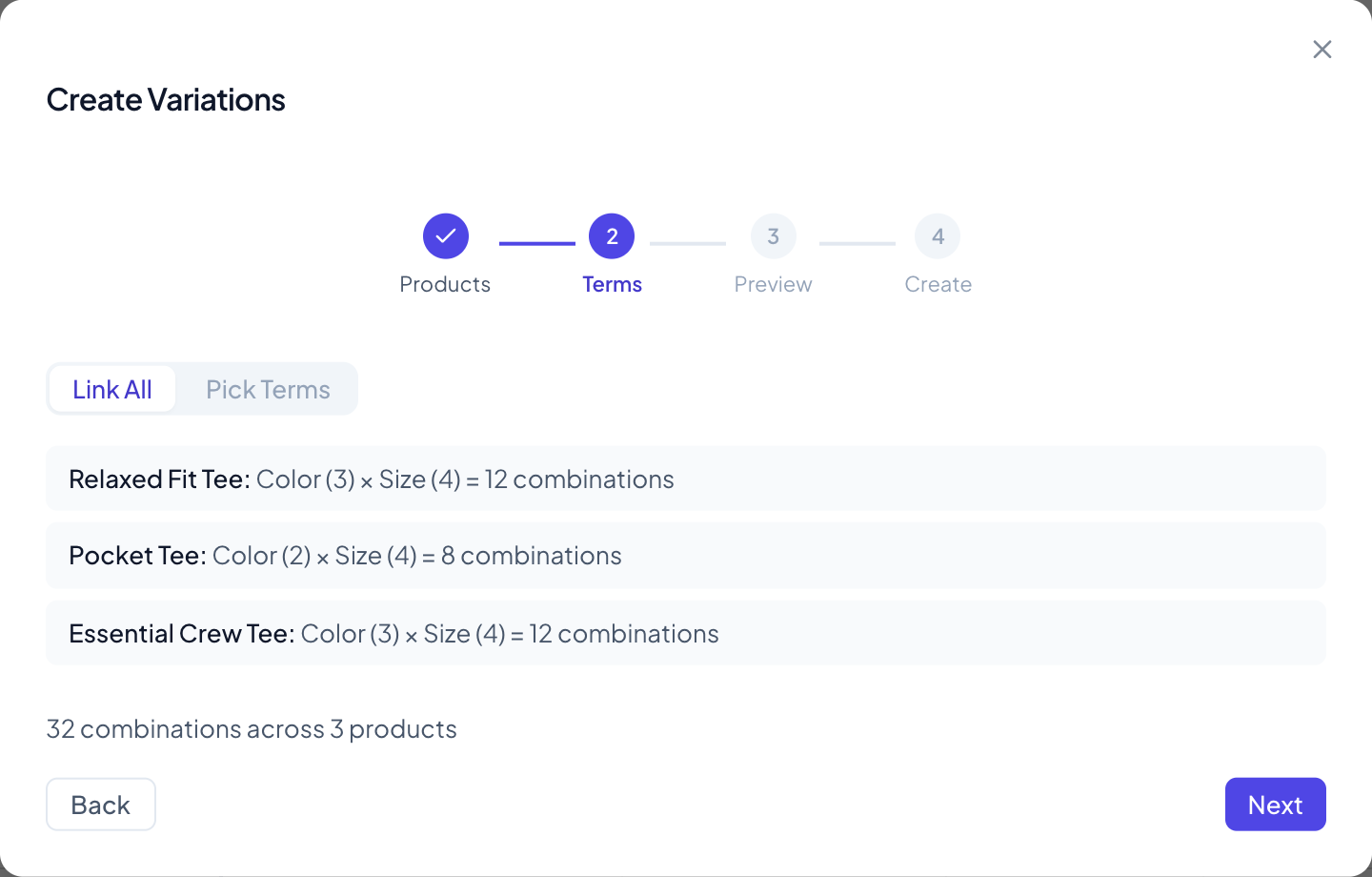
Link All uses every term each product has. Here that’s 3 colors × 4 sizes = 12 for the Relaxed Fit Tee and the Essential Crew Tee, and 2 × 4 = 8 for the Pocket Tee: 32 combinations in all.
Pick Terms is for a subset. It lists every term your products have, with Select All / Deselect All for each attribute. Each product only gets terms it has itself: Blue is ticked here, but the Pocket Tee still gets no blue variations. Leaving out XL gives 24 combinations.
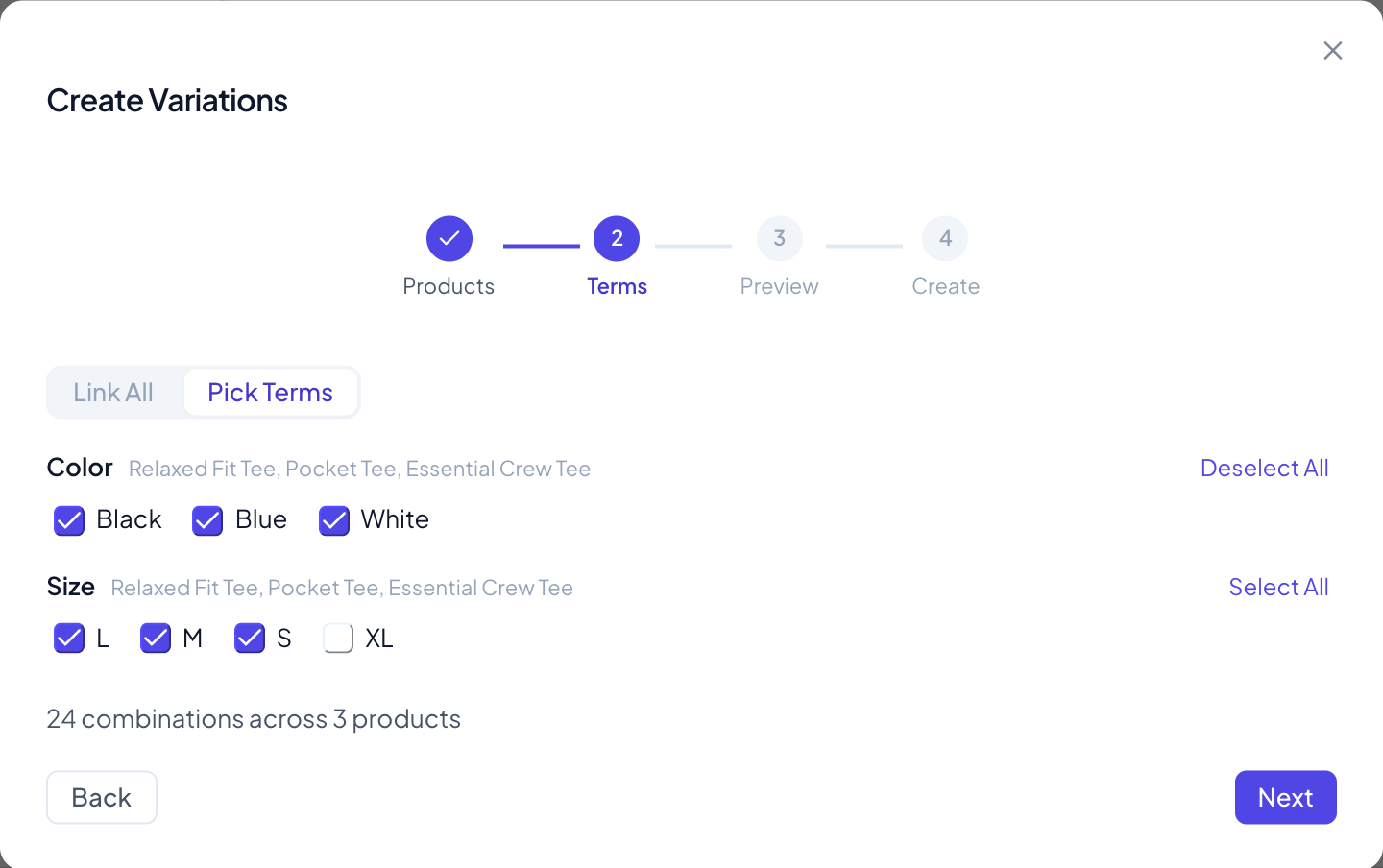
The count under the list updates as you tick. This guide carries on with Link All. Click Next.
5. Preview and untick what you don’t sell
The preview lists every combination of every product, all ticked. Untick the ones you don’t sell. Here the Relaxed Fit Tee doesn’t come in White / XL, which brings the total down to Will create 31 new variations across 3 products. Click a product’s name to fold its list away or open it again (a product with more than 20 combinations starts folded).
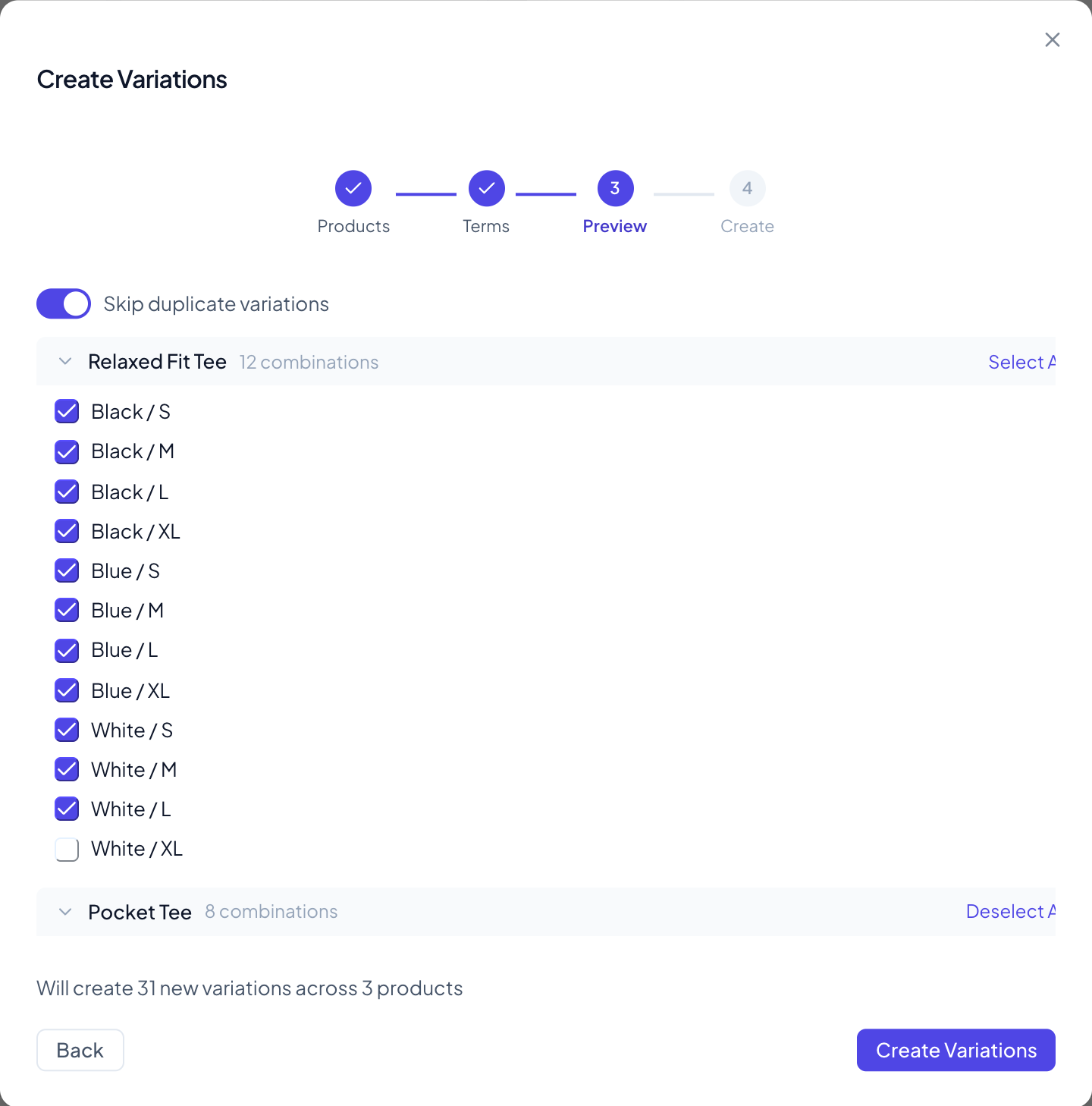
Skip duplicate variations is on, so a combination a product already has is greyed out with Already exists and left alone. Step 8 shows that. Click Create Variations.
6. Create
The wizard works through the products one by one: Product 2 of 3 — creating variations…. Stop cancels the products that haven’t started yet. Variations already created stay.
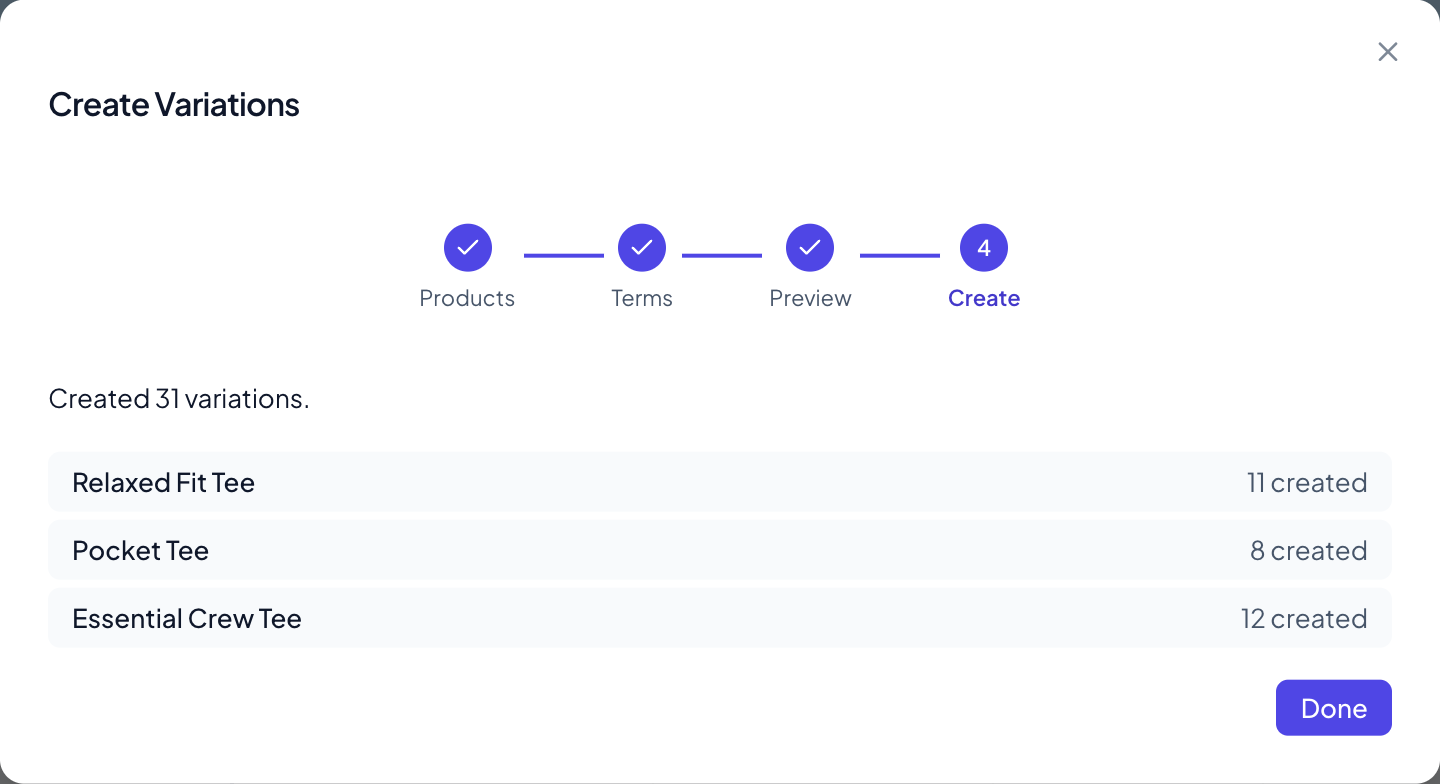
The summary reads Created 31 variations., with the count for each product. Click Done to close the wizard. The grid already shows the new variations.
7. Give the variations prices, stock and SKUs
With Include Variations ticked at the top of the page, each new variation has its own row under its product, named after its terms: Relaxed Fit Tee (Black)(S). To see the variations of one product only, open it with the small arrow before its name.
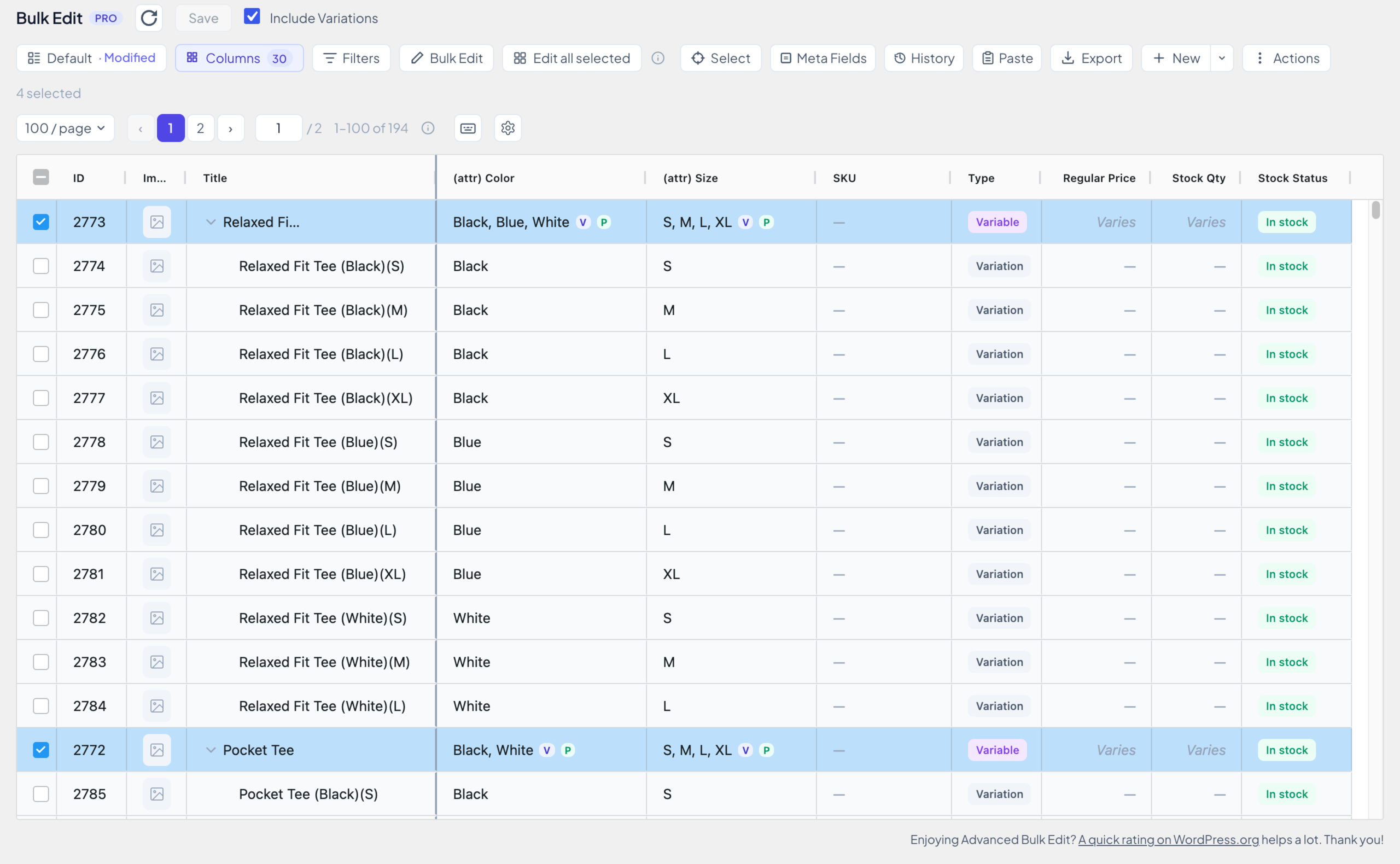
The new variations are published but empty: no price, no SKU, no stock management. WooCommerce doesn’t show a variation without a price in your shop, so don’t stop here.
- Select the variations: tick the first one, then hold Shift and tick the last. Untick the product rows in between, so only the variations stay selected (here 31). Otherwise Manage Stock would also turn on stock for the product as a whole.
- Give each product a SKU of its own, if it has none: type it into the product’s SKU cell. Here:
TEE-RLX,TEE-PKTandTEE-CRW. - In the Bulk Edit panel, set up four rows:
| Field | Operation | Value |
|---|---|---|
| Regular Price | Set to | 25 |
| Manage Stock | Set to | Yes |
| Stock Quantity | Set to | 10 |
| SKU | Generate from Template | {parent_sku}-{child_alpha} |
- Click Apply to 31 products, check the yellow cells, and Save. A message confirms Saved 34 products.: the 31 variations and the three product SKUs.
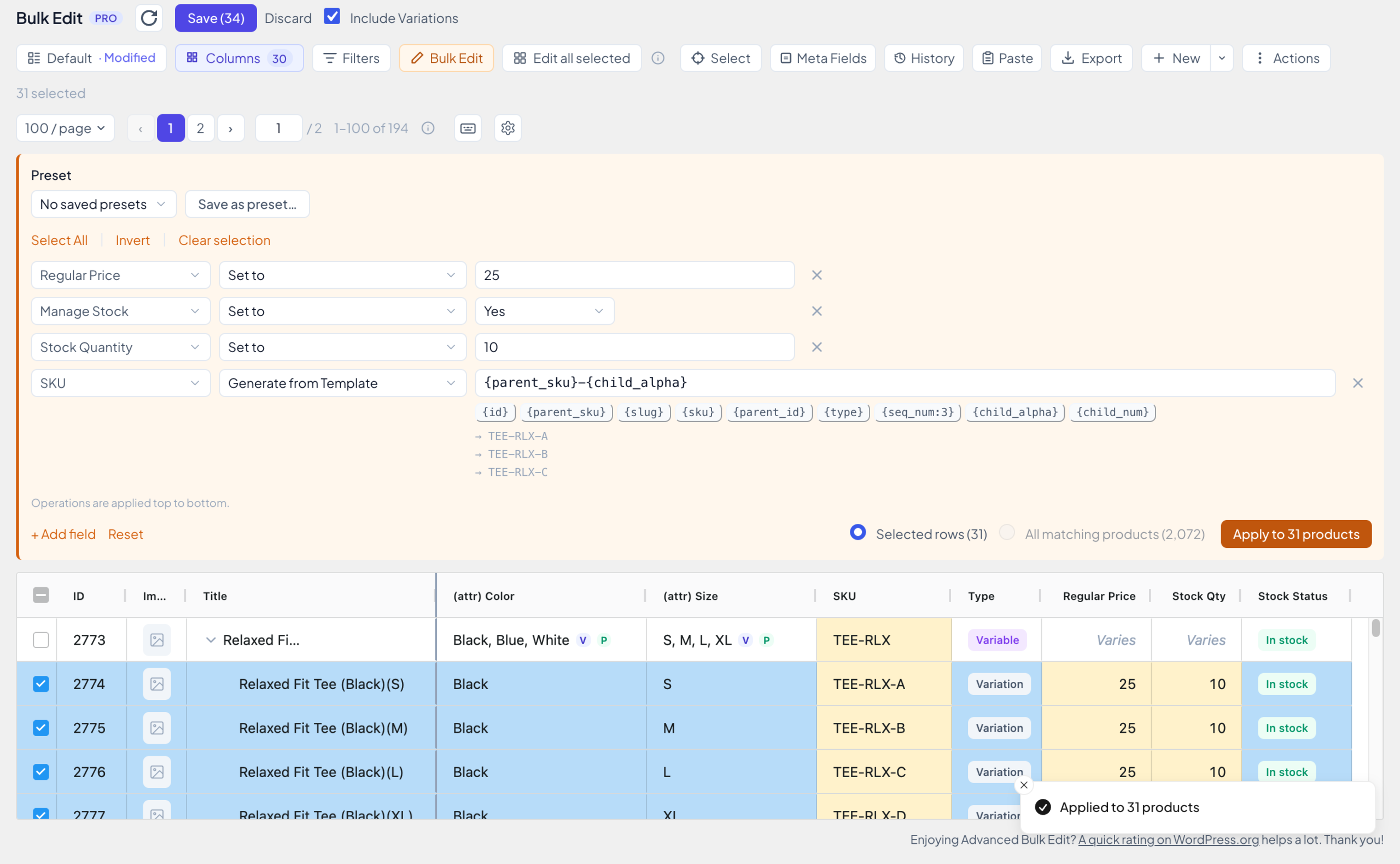
- Stock. Operations run from top to bottom, so put Manage Stock above Stock Quantity. The quantity then applies to the stock you just turned on.
- SKUs. Each variation gets its product’s SKU plus a letter:
TEE-RLX-A,TEE-RLX-Band so on, starting again at A for every product. The template also picks up a product SKU you haven’t saved yet. More in How to generate SKUs from a template. - Prices. XL costs more? Tick only the XL rows and set their price in a second go. Raising prices by a percentage, sale prices and more are in How to bulk edit prices in WooCommerce.
8. Add a new color later
Months later the Essential Crew Tee also comes in green:
- Double-click its (attr) Color cell, type
Greeninto the search box and click + Create “Green”. The new term is ticked. Click outside the cell and Save. - Select the product and open Actions → Create variations (1) again.
- Keep Link All and click Next.
The preview greys out the 12 combinations the tee already has as Already exists and ticks only the 4 green ones.
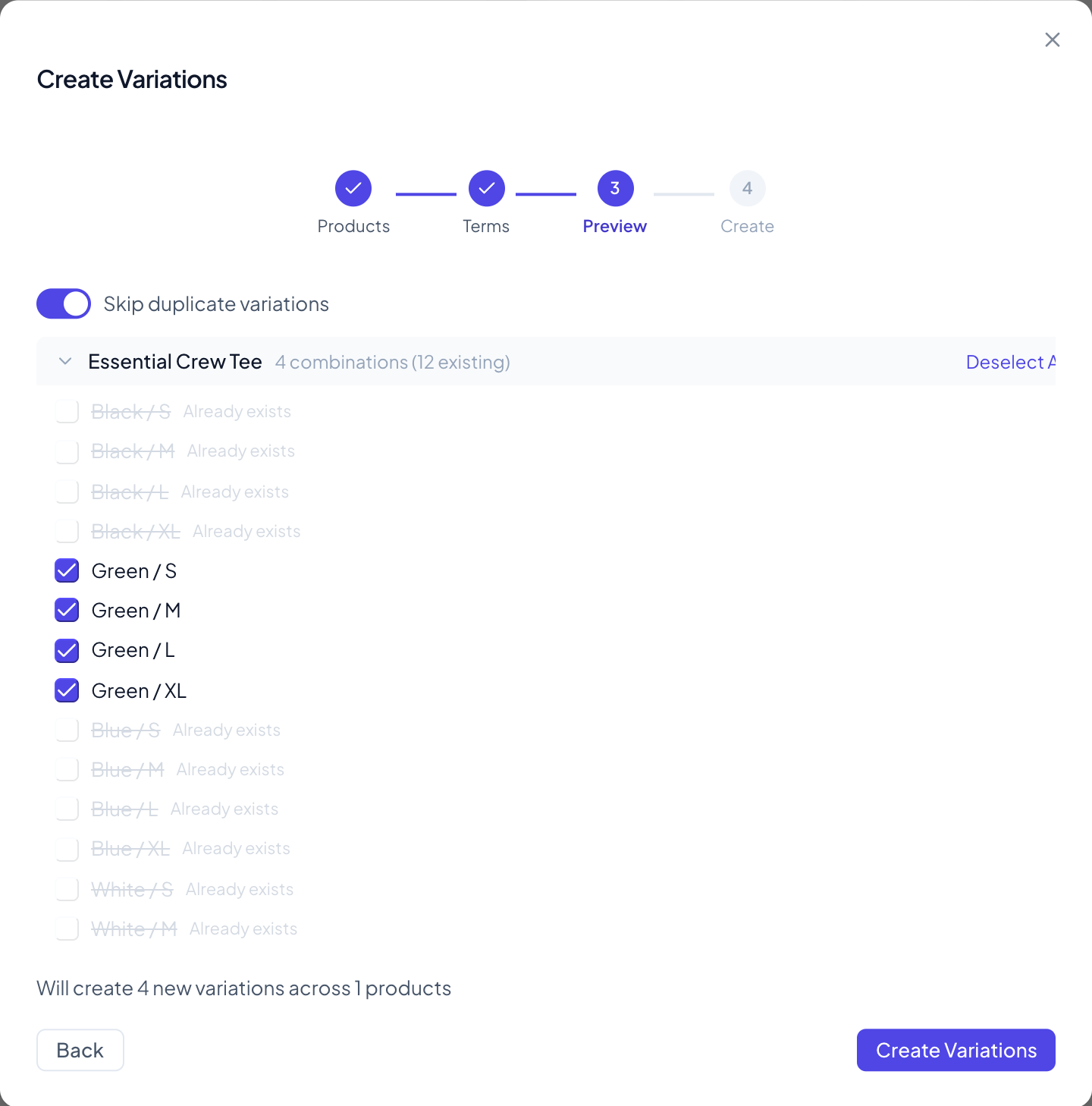
Click Create Variations: Created 4 variations. The 12 existing variations keep their prices, stock and SKUs. Give the 4 new ones theirs as in step 7.
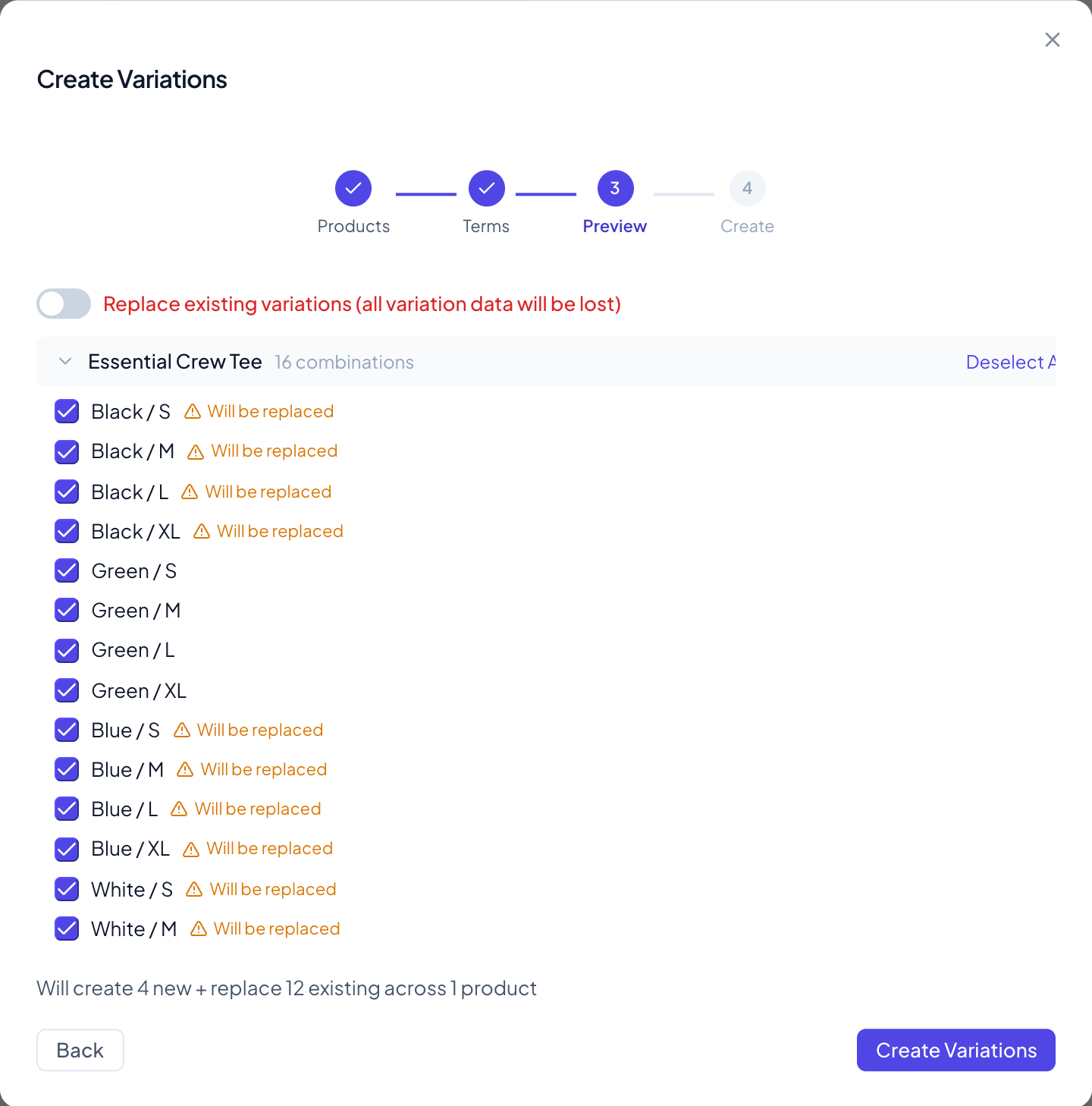
Replace existing variations. Switching Skip duplicate variations off turns it into Replace existing variations (all variation data will be lost), and every combination the product already has is marked Will be replaced. The plugin then deletes those variations for good and creates new, empty ones in their place: their prices, stock, SKUs and images are gone. Leave the switch on unless that’s what you want.
The fine print
- Global attributes only. The wizard uses the attributes under Products → Attributes. Attributes you added to a single product in WooCommerce’s editor (custom attributes) don’t count. A product that only has those is excluded with No attributes flagged for variations. If a product uses both kinds for variations, the new variations are set to “Any” for the custom attribute.
- Variable products only. Simple, grouped and external products are excluded, and so are variable product types from other plugins, such as variable subscriptions.
- Every variation attribute. Each new variation gets one term of every attribute ticked Used for variations. The wizard doesn’t create “Any Color” variations.
- Limits. Up to 1,000 combinations per product and 5,000 per run. Above that, Next stays greyed out with a message to reduce your selection.
- Product rows only. The wizard works on the products you select. Variation rows you select are ignored.
- No undo. Operation History doesn’t record created variations. To take them back, select the new variation rows and choose Actions → Delete permanently (you type DELETE to confirm).
- Errors stay with their product. Each product is created in its own request. If one fails, the others still go through, and the summary lists the error under that product.
In the free version
The free version shows Create variations in the Actions menu with a PRO badge. Clicking it opens the upgrade dialog. Everything else in this guide works in the free version: the attribute columns and Bulk Edit in step 1, and prices and stock in step 7. The SKU template is Pro.
More Pro tools for variations
- Paste from Excel. Got the variation prices or stock in a spreadsheet? Paste them into the grid and match them by SKU. See Paste from Excel.
- Operation History. With recording on, you can restore the prices and stock from before a bulk edit. See Operation History.
- Edit all selected. Turn it on, then edit one selected variation: every selected row gets the same value.
More at wpmelon.com/bulk-edit.