
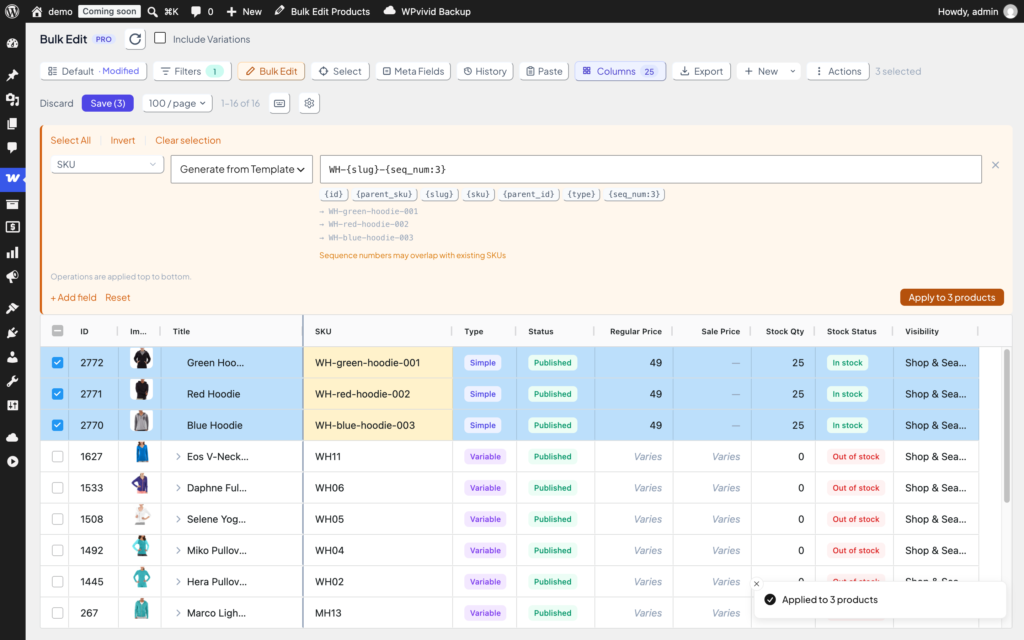
The SKU Generator builds SKUs for many products at once from a pattern like WH-{slug}-{seq_num:3}. You pick the products, write the pattern once, and the plugin fills in the product-specific parts for every row. No more typing SKUs one by one, and no spreadsheet round trip.
It is part of WPMelon Advanced Bulk Edit for WooCommerce PRO. In the free version the operation shows up in the list with a “(Pro)” label, but it can’t be applied.
The typical case: you imported a batch of products, or created them by hand, and the SKU column is full of dashes. Or you have SKUs but they follow three different conventions from three different people. Either way, you want WH-blue-hoodie-001, WH-red-hoodie-002 and so on, and you want it done in a minute.
1. Select the products
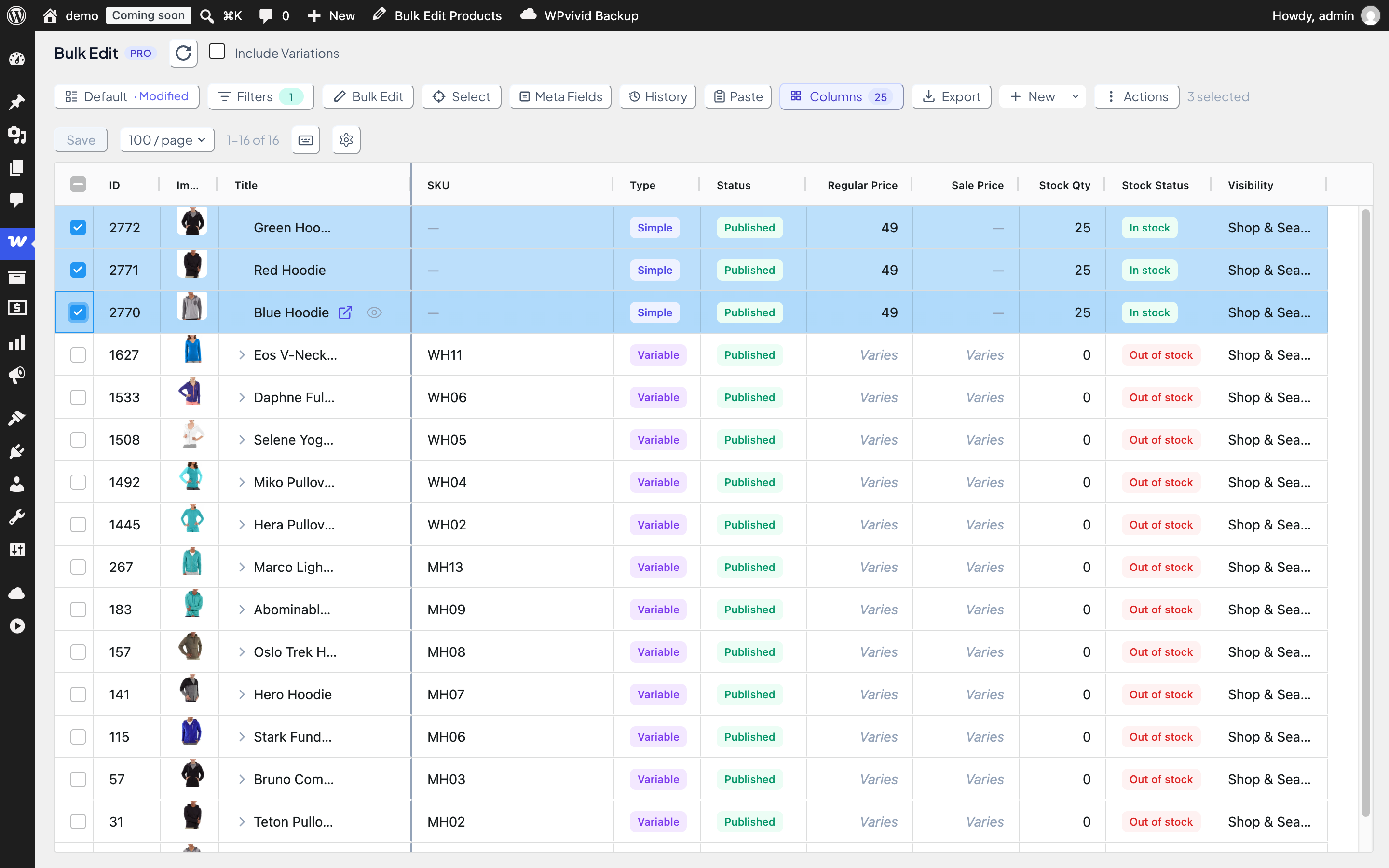
Go to WooCommerce → Bulk Edit. Find the products you want to give SKUs to (the Filters panel searches by name, category, type and a lot more) and tick their row checkboxes. The selection count shows at the right end of the toolbar.
In this example three new hoodies have no SKU yet. The SKU column shows a dash for them.
2. Open Bulk Edit and add the SKU field
Click Bulk Edit in the toolbar. The Bulk Edit panel opens above the grid with one empty operation row.
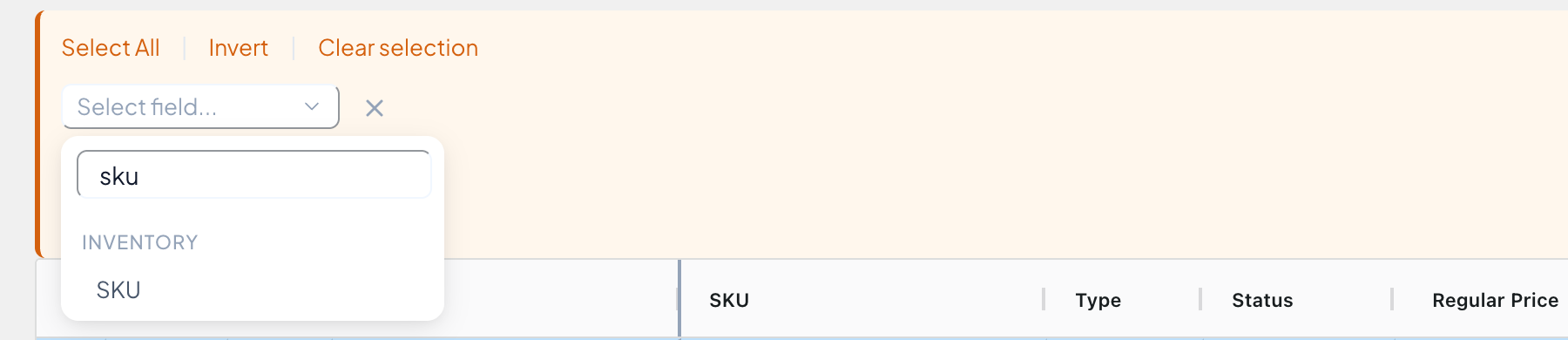
Click Select field…, type sku to narrow the list, and pick SKU. It lives in the Inventory group.
3. Choose “Generate from Template”
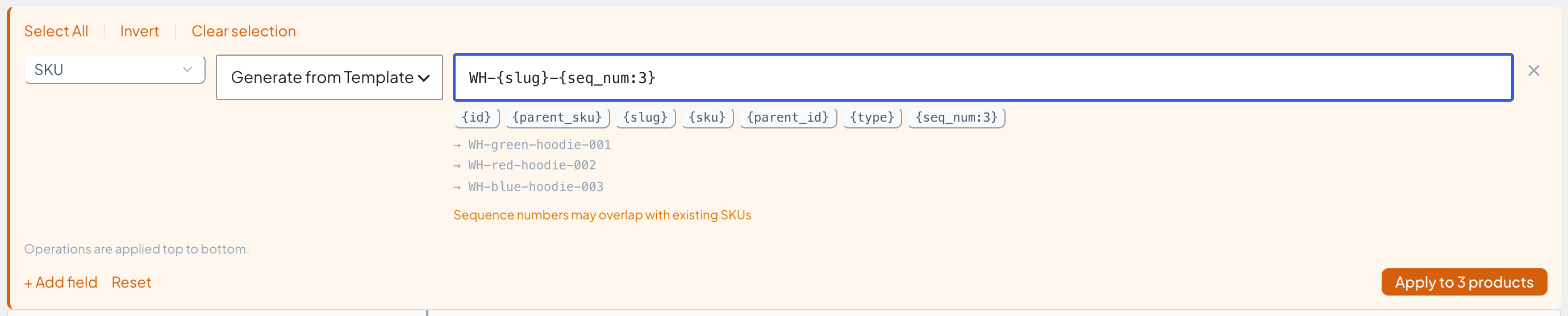
In the operation dropdown next to the field, choose Generate from Template. A template input appears, with a row of clickable token pills underneath it.

4. Write your template
Type your pattern into the input. Anything in curly braces is a token and gets replaced per product. Everything else is kept as it is. Click a token pill to insert it at the cursor, or just type it.
| Token | Replaced with | Example |
|---|---|---|
{id} | The product (or variation) ID | 2770 |
{slug} | The product’s saved URL slug | blue-hoodie |
{sku} | The product’s current SKU. Useful for adding a prefix or suffix | MH07 |
{type} | Product type | simple, variable, variation, grouped, external |
{parent_id} | For variations: the parent product’s ID. Empty for other products | 141 |
{parent_sku} | For variations: the parent product’s SKU. Empty for other products | MH07 |
{seq_num} | A running number, counted across the selected products (see step 6) | 1, 2, 3 |
Some examples:
| Template | Result |
|---|---|
WH-{slug} | WH-blue-hoodie |
WH-{seq_num:4} | WH-0001, WH-0002, … |
{parent_sku}-{id} | MH07-142 (variations) |
OLD-{sku} | OLD-MH07 |
{type}-{id} | simple-2770 |
As soon as the pattern contains at least one token, a live preview for the first three selected products appears under the input. It uses the real data of those rows, so what you see is exactly what will be applied.
If nothing is selected, the preview area says “Select products to see preview” instead.
5. What happens with a typo
The preview shows unknown tokens literally, so a typo is easy to spot. If you click Apply anyway, the plugin refuses with “Unknown token: {…}” and changes nothing. Same for a pattern with no token at all, or a malformed {seq_num...}.

6. Sequence numbers
{seq_num} counts up once per selected product. Two optional modifiers control the start value and the zero-padding:
| Syntax | Meaning | Output for 3 products |
|---|---|---|
{seq_num} | Start at 1, no padding | 1, 2, 3 |
{seq_num=100} | Start at 100 | 100, 101, 102 |
{seq_num:3} | Pad to 3 digits | 001, 002, 003 |
{seq_num=100:4} | Start at 100, pad to 4 digits | 0100, 0101, 0102 |
Two things to know:
Numbering follows the order the products were loaded, which is the grid’s default order (newest first). Sorting a column afterwards changes what you see on screen, but not the numbering. The preview always shows the real order, so check it before you apply.
Numbers don’t check for collisions. The plugin warns “Sequence numbers may overlap with existing SKUs” whenever {seq_num} is used. WooCommerce requires SKUs to be unique, so if a generated SKU already exists on another product, that product fails to save with “SKU … is already in use by another product” and the rest still save. Pick a prefix or start number that keeps you clear of existing SKUs.
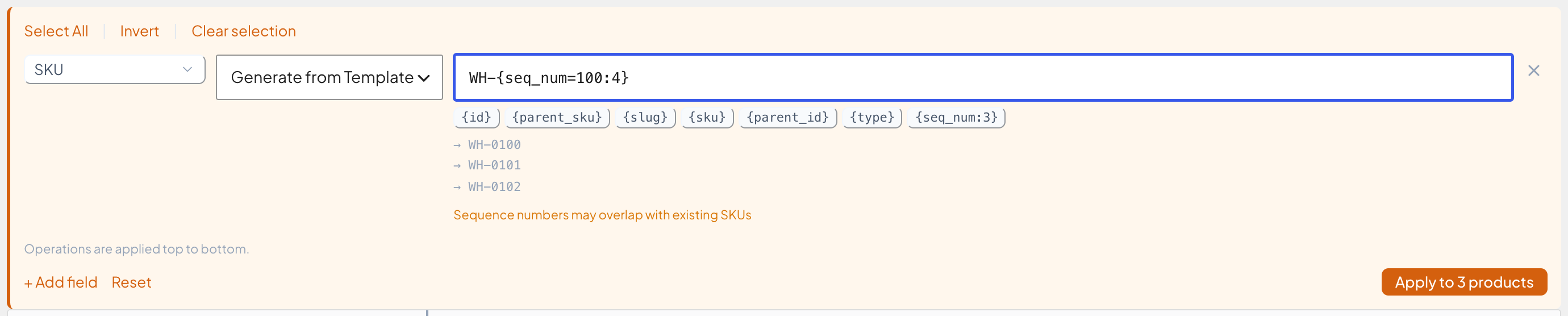
WH-{seq_num=100:4}: starts at 100, padded to four digits.7. Apply, review, save
Click Apply to N products. The generated SKUs are written into the grid as pending changes: the edited cells are highlighted and the toolbar’s Save button shows the number of changed products. Nothing has been saved to WooCommerce yet.
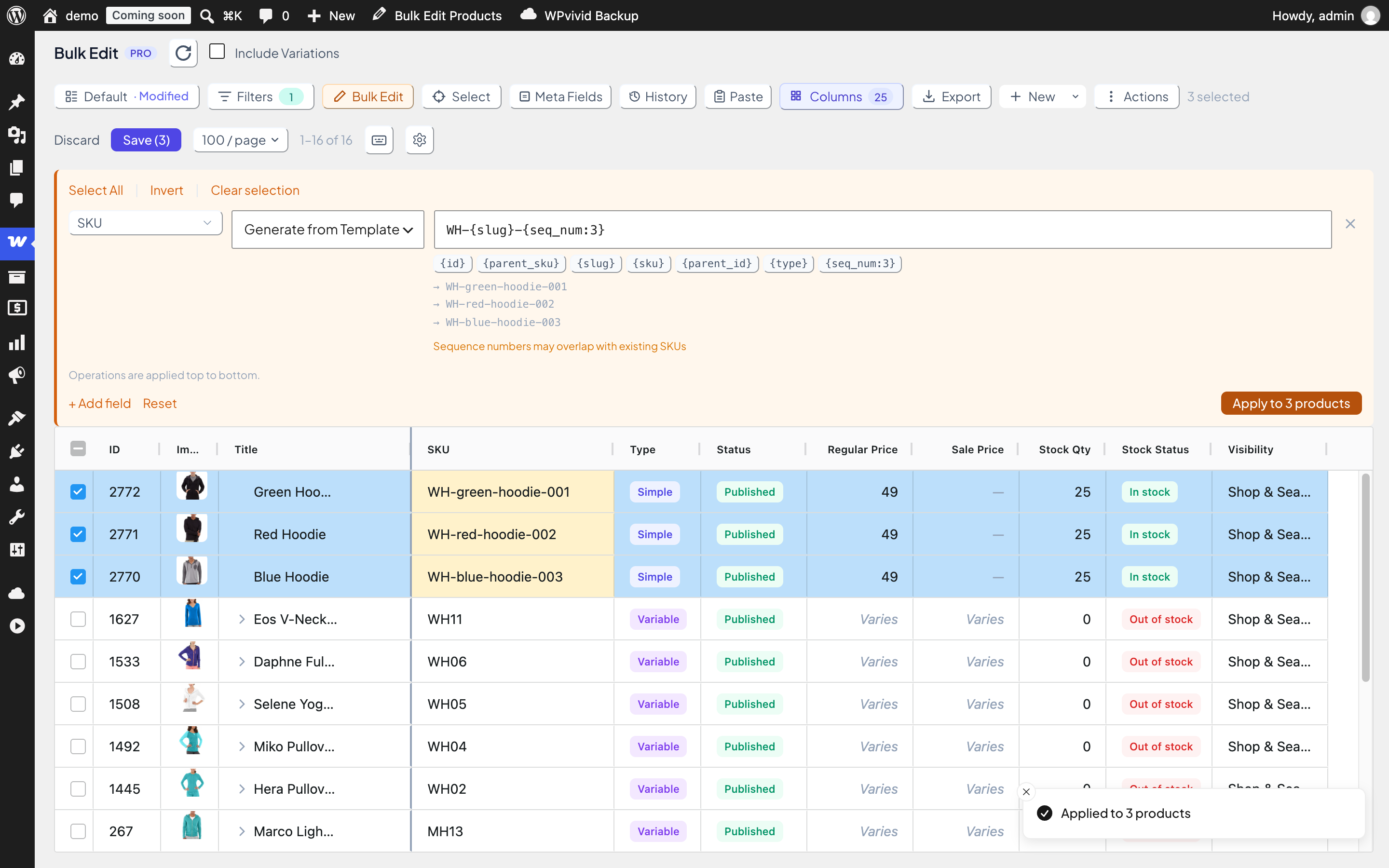
If something looks wrong, fix individual cells inline, click Discard in the toolbar to throw the pending changes away, or click Reset in the Bulk Edit panel and adjust the template. When you’re happy, click Save (or press Ctrl+S). The button turns into a green Saved badge when the save completes, and the selection is cleared.
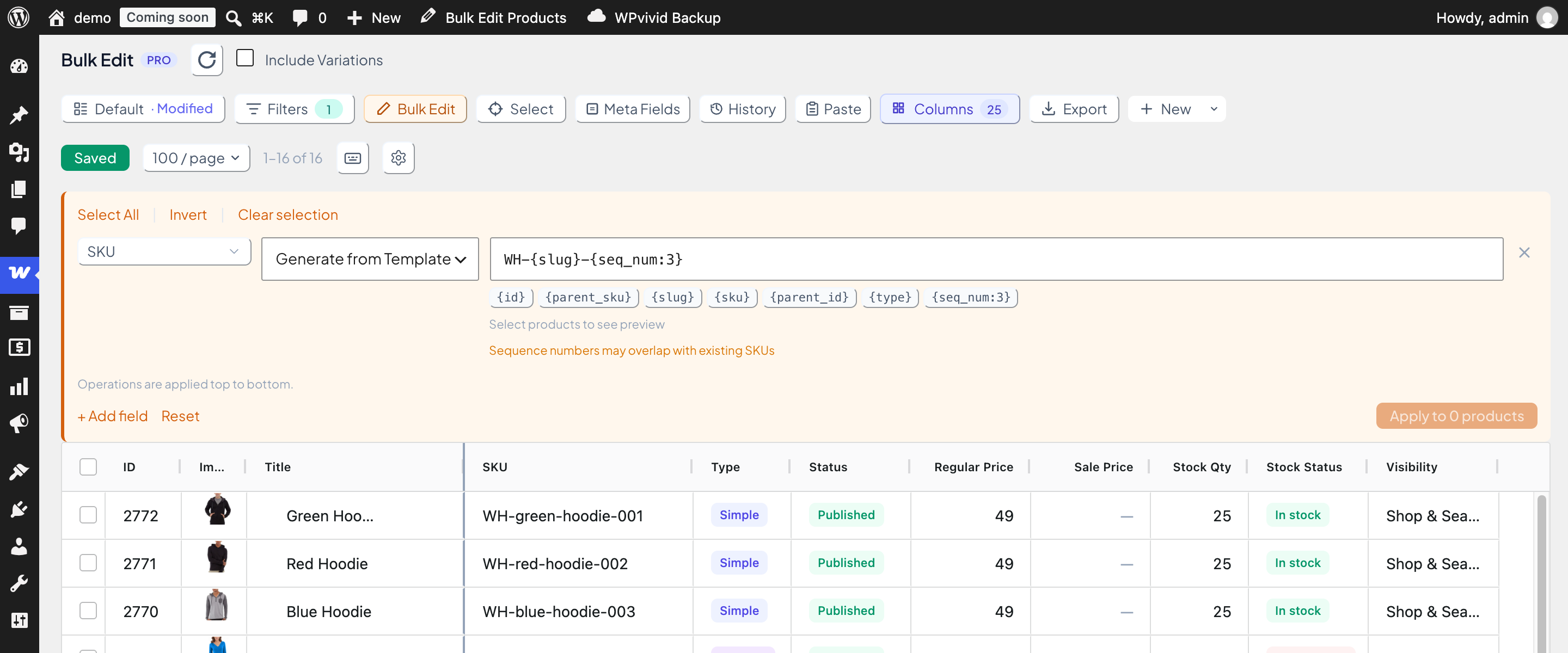
If a row fails to save (for example because the SKU already exists), that row shows an error and stays pending. The other rows are saved normally.
8. SKUs for variations
Tick Include Variations at the top of the page to show variation rows. The {parent_sku} and {parent_id} tokens are made for them. A common pattern is the parent’s SKU plus something unique:
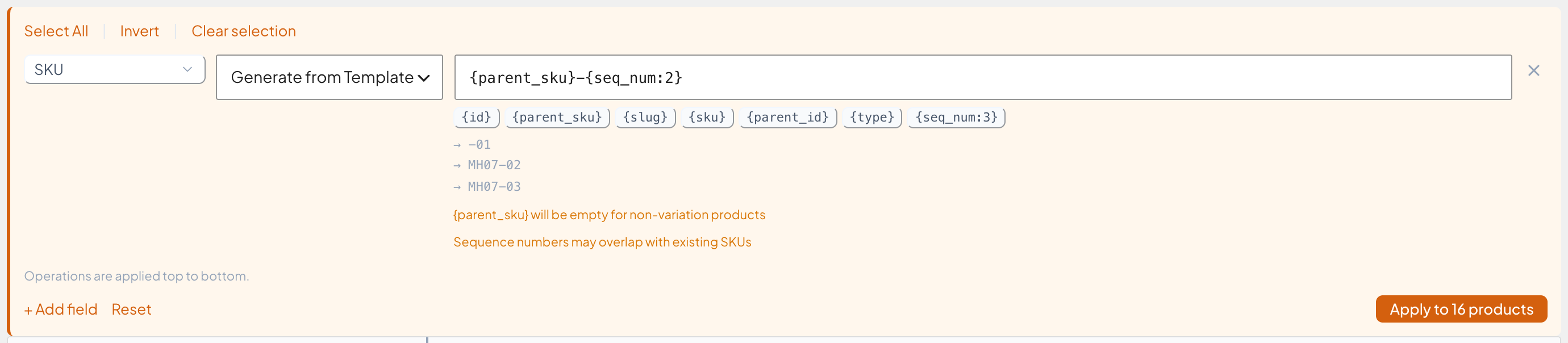
{parent_sku}-{id}→MH07-142{parent_sku}-{seq_num:2}→MH07-01,MH07-02, …
If you set a new SKU on the parent in the same session (still unsaved), the generator uses that pending parent SKU. So you can do the parent and its variations in one go.
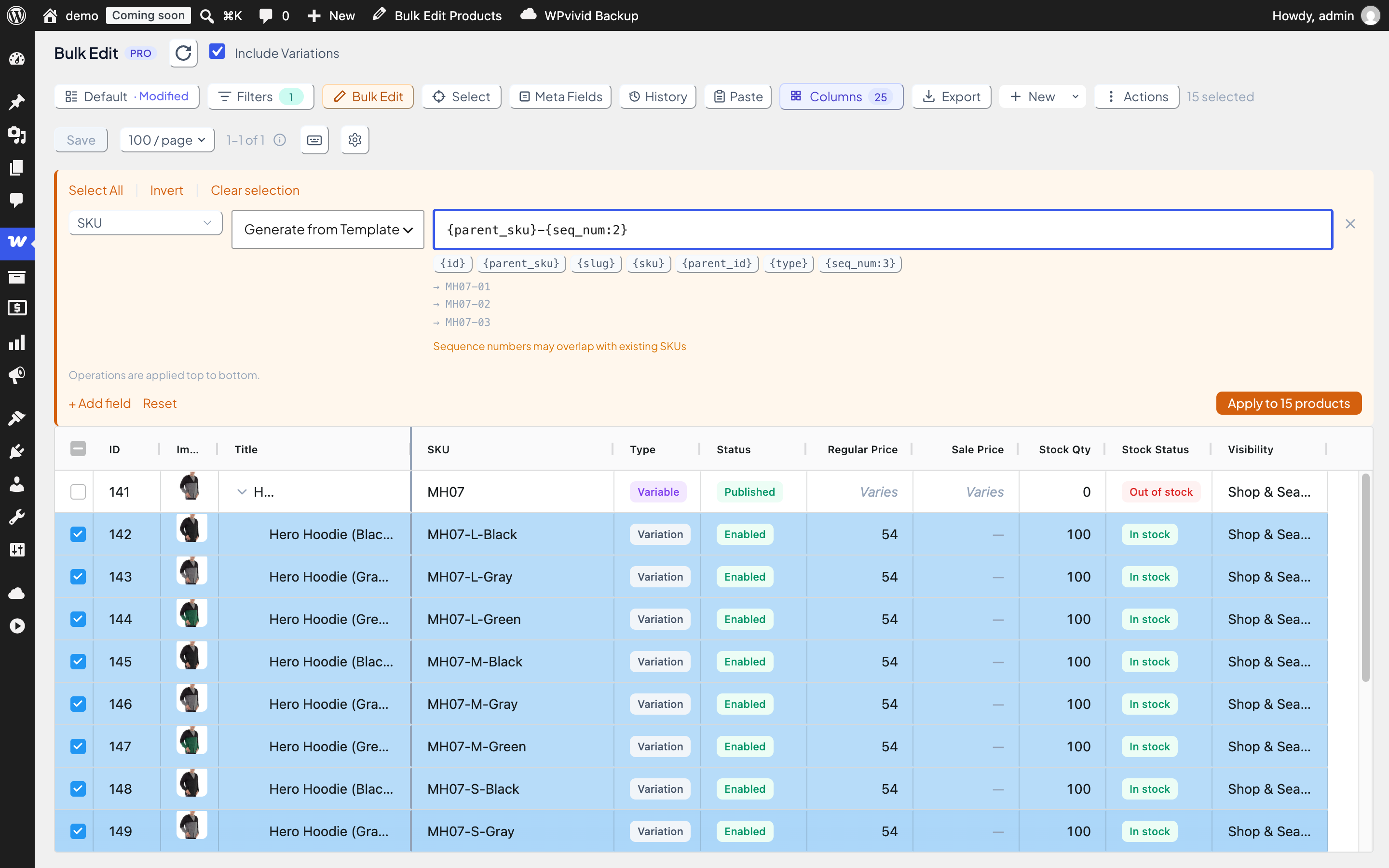
If your selection also contains simple or variable products (for example the parent row itself), the plugin warns “{parent_sku} will be empty for non-variation products”. For those rows the token resolves to nothing, so {parent_sku}-{seq_num:2} becomes just -01. Either narrow the selection to variations only, or use a different pattern for the parents.
Combining with other operations
The Bulk Edit panel applies operations top to bottom, so you can chain the SKU Generator with other SKU operations in the same run. For example, add a second SKU row with Find & Replace to swap a character, or use the generator’s {sku} token to wrap the existing SKU with a prefix (NEW-{sku}) instead of replacing it.
Quick reference
{id}  {slug}  {sku}  {type}  {parent_id}  {parent_sku}
{seq_num}   {seq_num=START}   {seq_num:PAD}   {seq_num=START:PAD}
- Pattern must contain at least one token.
- Preview shows the first three selected products.
- Sequence order = the order products were loaded, not the on-screen sort.
- Uniqueness is checked by WooCommerce on save, not by the generator.
{slug}always uses the saved slug, even if you have an unsaved slug edit in the grid.
The SKU Generator is available in WPMelon Advanced Bulk Edit for WooCommerce PRO. If you have a SKU convention the tokens can’t express yet, tell us. The token list grows from exactly this kind of feedback.