
Update thousands of products from a spreadsheet (GTINs, prices, stock)
On this page9 sections
Your supplier sends a spreadsheet with barcodes for every size and colour you sell. Or you have a list of new prices, or this week’s stock counts. With Bulk Edit Pro you copy the columns from the spreadsheet, paste them in, and every product gets its own value, even when the rows are in a different order than your shop.
What you need: WPMelon Advanced Bulk Edit Pro PRO and a Shop Manager or Administrator account. Moving from the classic WCABE? This replaces its “Update via CSV” button.
When to use it
- Your supplier sends GTINs (the barcode numbers, also called EAN, UPC or ISBN) for all your variations. A variation is one version of a product, like “Garden Gloves, green, size M”.
- You have a CSV file of new prices or stock levels.
- Any list where one column says which product and the next says the new value.
Bulk Edit finds each product by its SKU (the product code you gave it, like GLV-M-GREEN) or by its ID (the number WordPress gave it). There is no file upload: you copy from Excel or Google Sheets and paste.
1. Get the spreadsheet ready
- One column with the SKU (or the ID). One column for each value you want to change, for example GTIN.
- A header row on top helps (“SKU”, “GTIN”): Bulk Edit uses it to guess where each column goes.
- Format the barcode column as Text. Excel likes to turn long numbers into 5.01235E+12 and to drop a leading 0. Select the column, choose Format Cells → Text, then paste the codes in again. Bulk Edit refuses the 5.01235E+12 kind, but a missing 0 looks like a normal number, so check it.
- Open a CSV file in Excel or Google Sheets first. Copying the raw text from a text editor doesn’t work.
2. Open Bulk Edit and show the right products
- Go to WooCommerce → Bulk Edit.
- Tick Include Variations, so every size and colour gets its own row.
- Click Columns, type GTIN and tick it. The GTIN column is hidden at first, and you want to see the new values arrive.
- Use Filters to show only the products in your list, for example one category or one brand.
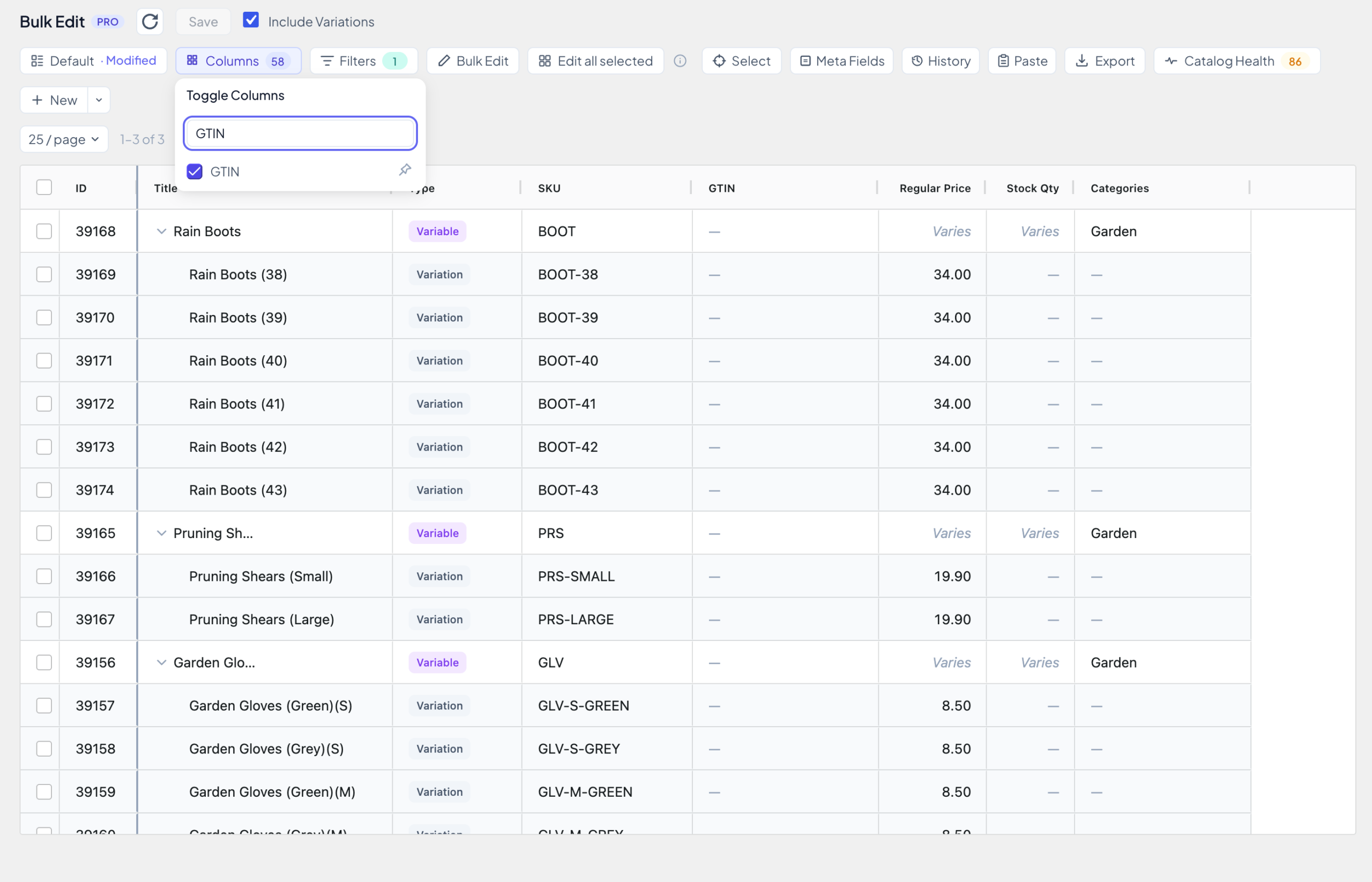
Important: Bulk Edit only matches the products on the page you see. The page size (for example 25 / page) counts products, and their variations come on top: 25 products with 100 variations each is 2,525 rows. See the tips below for how big a page can safely be.
3. Paste and match by SKU
- In your spreadsheet, select the SKU and GTIN columns, header included, and copy them (Ctrl+C, or Cmd+C on a Mac).
- In Bulk Edit, click Paste and press Ctrl+V (Cmd+V) in the box. It reads the rows straight away: “Found 17 rows and 2 columns.”
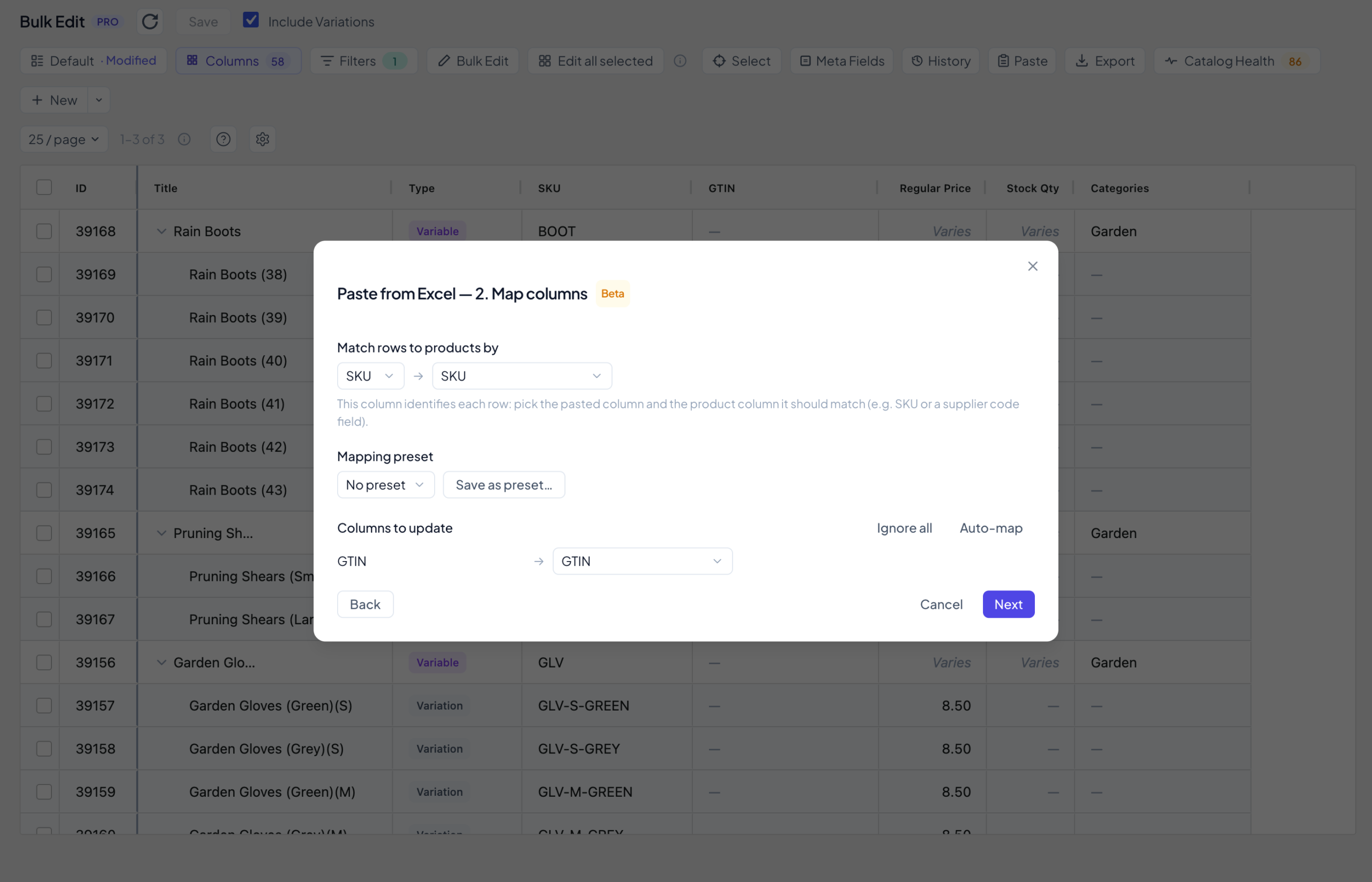
- Click Next. Under Match rows to products by, choose your SKU column → SKU. Under Columns to update, check that GTIN → GTIN. To use IDs instead, choose ID on the right.
- Click Next again to see the preview.
4. Check the preview, then apply
Every row gets a mark: matched, no match (that SKU isn’t on this page, or not in your shop), ambiguous (two products share it, so it’s skipped), or no key (the SKU cell is empty). If a SKU appears twice in your list, the lower row wins.
Leave Also update each matched product’s loaded variations unticked for barcodes. It copies one value to all sizes, and every variation needs its own GTIN.
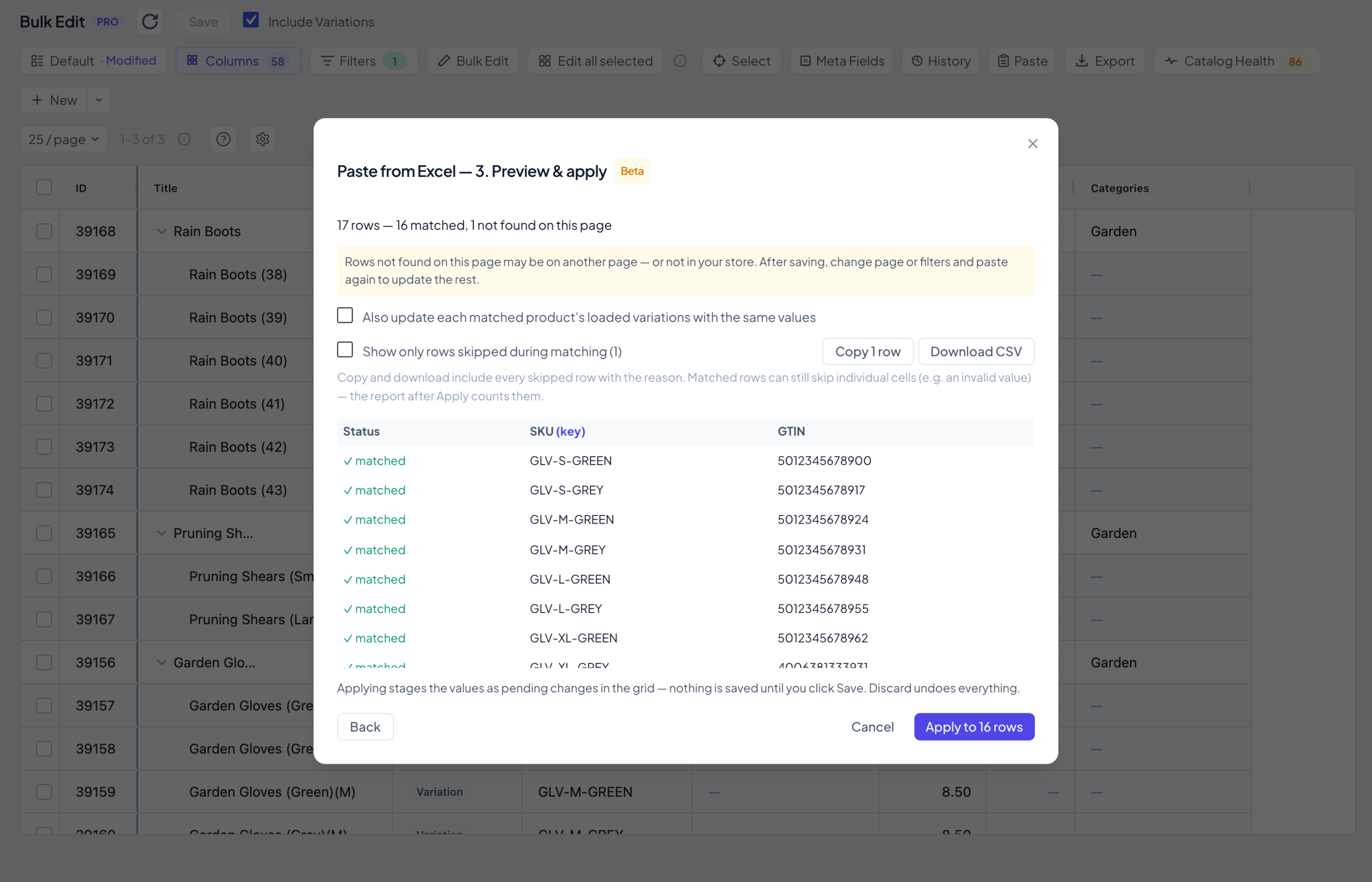
Click Apply to 16 rows. The new values turn yellow in the table. Nothing is saved yet. A value that can’t be used is listed with the reason, for example: GTIN “5.01235E+12” is not valid. Use digits and hyphens only; an X is allowed only as the last character. Copy or Download CSV gives you that list to fix in your spreadsheet.
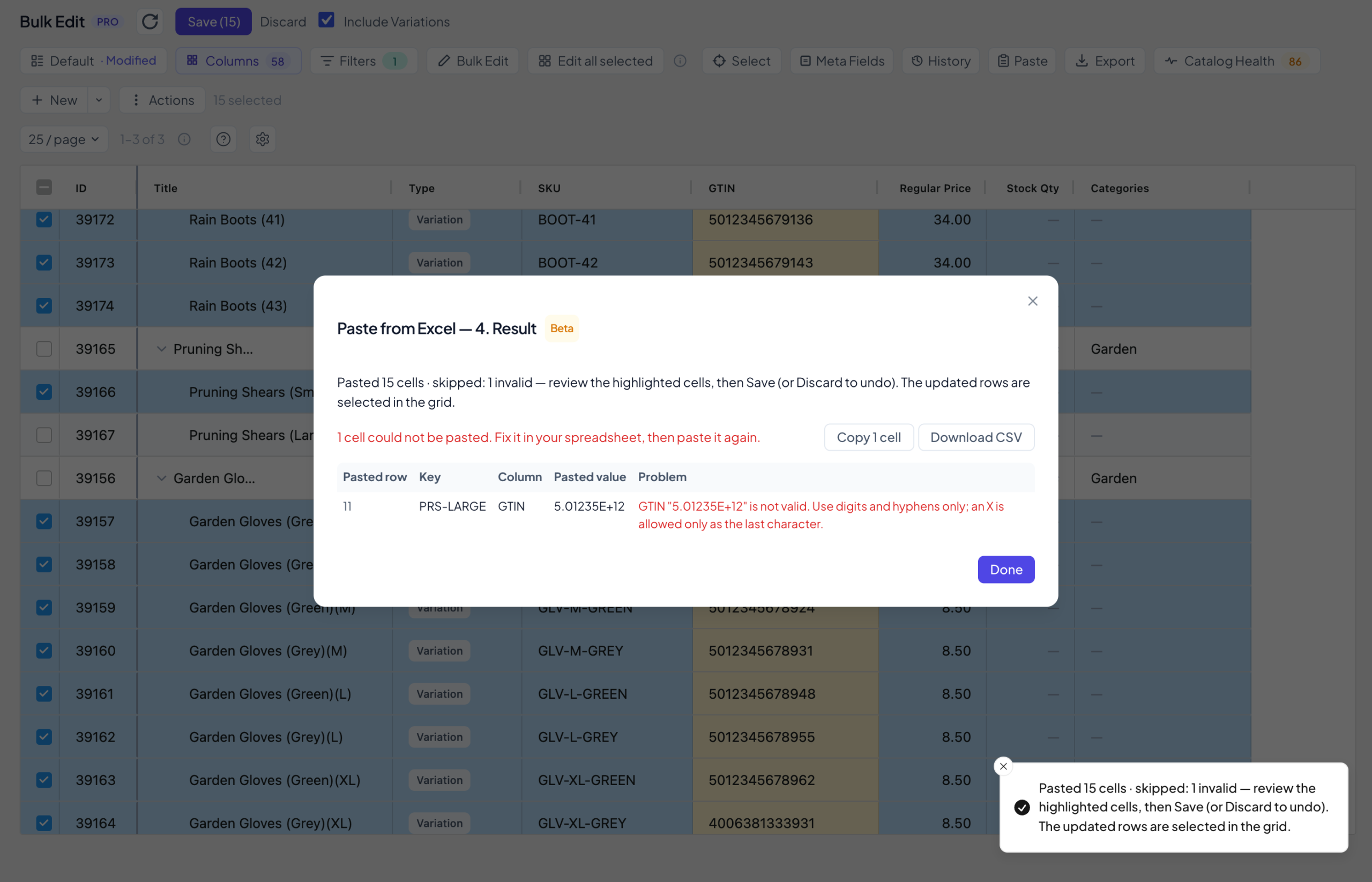
5. Save and read the report
Click Save. WooCommerce makes one more check: a GTIN can belong to only one product. If a code is already used by another product, that row is not saved, its cell turns red and the message says GTIN “…” is already in use by another product. The same happens when your list gives two products the same new code: the second one is refused.
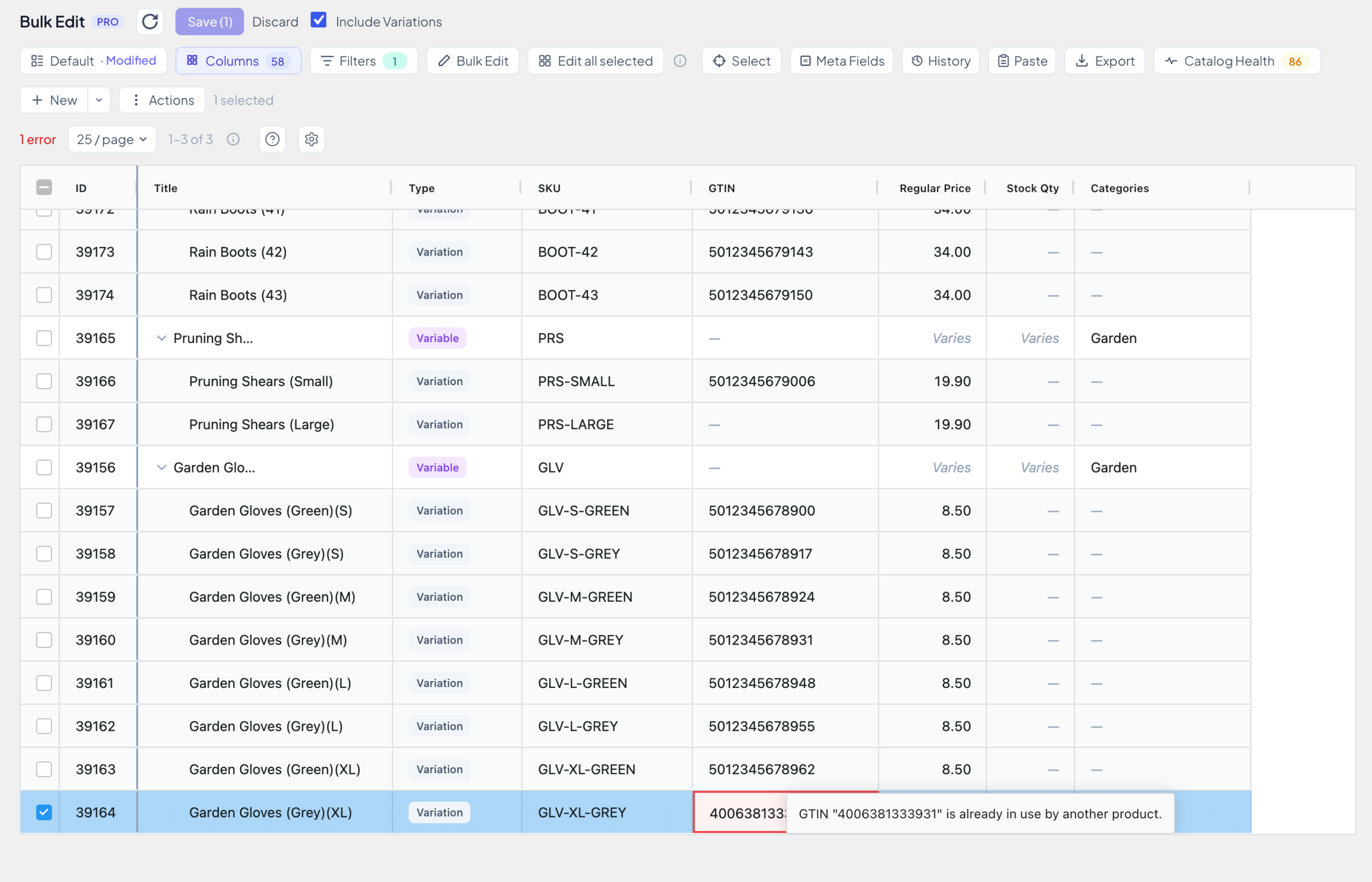
Fix the code (ask your supplier, or find the other product with the GTIN filter) and save again, or click Discard to drop it.
6. Undo if something went wrong PRO
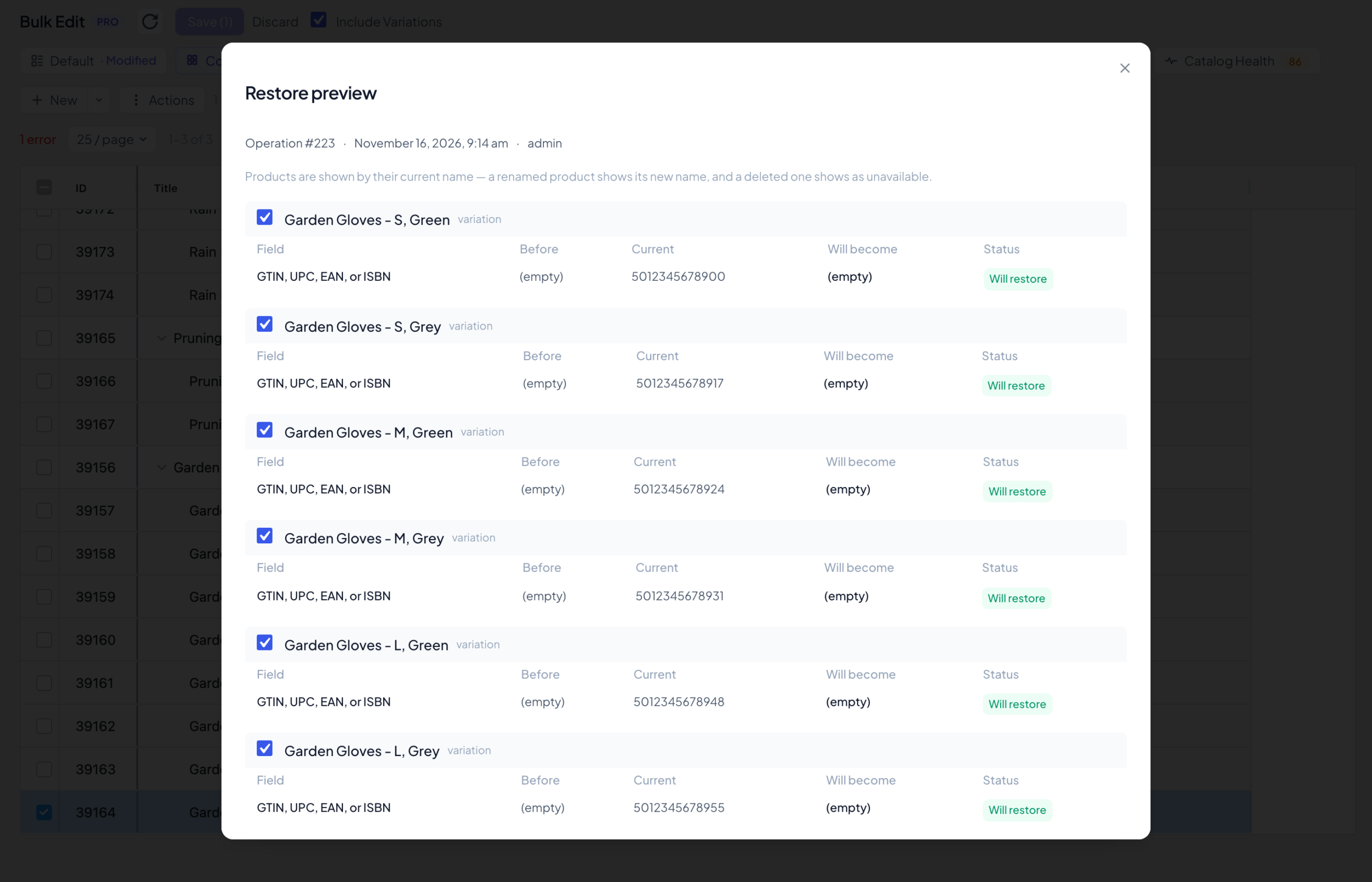
Switch this on before a big update: click History, then Settings, and tick Record operation history. Each Save then becomes one entry, however many products it changed. To undo it, open History, click the entry, check what will be put back, click Restore and confirm.
7. Tips for big lists
- Work in batches of about 2,000 rows. One paste takes up to 5,000 rows (“Paste too large: 5001 rows (maximum 5000)” otherwise), but the page also has to fit. On our test shop, a page of 2,525 rows loaded in 2 seconds and about 3,500 rows ran out of server memory (“Failed to load products”). If you see that message, pick a smaller page size.
- Paste the whole list on every page. Save, go to the next page (or change the filter), and paste the same list again. Values that are already right are skipped, so pasting twice does no harm.
- Give saving time. In our test, 1,000 variations saved in about 12 seconds and 2,500 in about 30. Keep the tab open until the green message appears.
- Check for duplicates first. Sort the GTIN column in your spreadsheet and look for the same code twice.
- The same field everywhere. Bulk Edit fills WooCommerce’s own “GTIN, UPC, EAN, or ISBN” field, the same one the classic WCABE used.
Want to know more?
- Every option of the Paste window, like pasting straight into the table: Paste from Excel: update your products straight from a spreadsheet.
- Moving from the classic WCABE? Switching from the classic WCABE: a simple guide.
- Stuck? Get in touch with support.