
Filter products by title in Bulk Edit (with regex examples)
On this page7 sections
In a big catalog, the hard part of a bulk edit is often finding the right products first. The Title filter in WPMelon Advanced Bulk Edit narrows the grid by product name, so you edit exactly the products you mean.
This guide covers every Title filter option, when you need a regular expression (regex), and ten ready-made patterns you can copy. The match options and regex are available from Bulk Edit 1.6.
The Title filter options
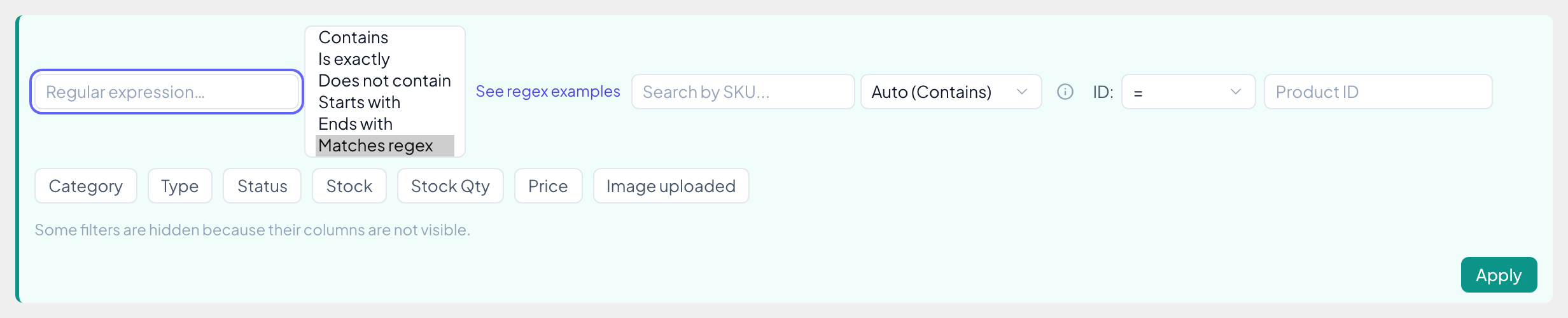
Open Filters, type in the Title box and pick how to match from the dropdown next to it. Then click Apply.
| Option | Finds titles that… | Example | Plan |
|---|---|---|---|
| Contains | contain the text. With two or more words you also choose All words, Any word or Exact phrase. | hoodie finds “Hero Hoodie” | Free |
| Is exactly | are exactly the text | hero hoodie finds only “Hero Hoodie” | Free |
| Does not contain | are left out by Contains | hoodie hides every hoodie | Free |
| Starts with | begin with the text | Sprite finds “Sprite Foam Roller” | Free |
| Ends with | end with the text | jacket finds “Juno Jacket” | Free |
| Matches regex | match a pattern | [0-9]+ ?cm$ finds “Sprite Stasis Ball 55 cm” | Pro |
None of them care about upper or lower case: hoodie finds “Hoodie” and “HOODIE”.
When you need regex
If Contains, Starts with or Ends with does the job, use them. They’re simpler and you can’t get them wrong.
Regex is for when you’re looking for a pattern, not a fixed piece of text:
- “any title with a number in it”
- “titles that end with a size, like 500 ml or 55 cm”
- “either shirt, tee or top, but as whole words”
Regex is a Pro feature. It uses the same pattern syntax as the RegExp Find & Replace operation in Bulk Edit.
Regex in 5 minutes
You only need a few building blocks. Anything else in a pattern is matched as typed.
| Write | Means | Example | Finds |
|---|---|---|---|
tee | these letters, in this order | tee | “Layla Tee” |
. | any one character | t.e | “Tee”, “Tie” |
[0-9] | one digit (\d works too) | [0-9] | “Olivia 1/4 Zip” |
[a-z] | one letter | v-[a-z] | “V-Tee” |
+ | the thing before it, once or more | [0-9]+ | “55”, “750” |
* | the thing before it, any number of times (also none) | red.*shirt | “Red Training Shirt” |
? | the thing before it is optional | 55 ?cm | “55 cm”, “55cm” |
{2,} | at least 2 times ({3} exactly 3) | [0-9]{4} | “Planner 2025” |
^ $ | start / end of the title | ^sprite | titles starting with “Sprite” |
| | or | bag|tote | “Joust Duffle Bag”, “Compete Track Tote” |
\b | a word edge | \btee\b | “Tee”, not “Steel” |
\ | take the next character literally | \( | a real “(” |
Characters that need a \ in front to be matched literally: . ( ) [ ] + * ? | ^ $ \.
Ready-made recipes
Copy a pattern, pick Matches regex and click Apply. Each one was tested in the plugin.
Numbers
Titles with a number
[0-9]Finds: any title with a digit, like “Sprite Stasis Ball 55 cm”.
Then: check sizes or pack counts before a price change.
Titles without any number
^[^0-9]*$Finds: “Hero Hoodie”. [^0-9] means “anything but a digit”.
Then: append a size or model number to the Title.
Ends with a size or volume
[0-9]+ ?(ml|l|g|kg|cm)$Finds: “Affirm Water Bottle 750 ml”, “Sprite Stasis Ball 65 cm”. Add your own units inside the brackets.
Then: set Weight or a Shipping class for all of them.
Dimensions like 30×40
[0-9]+ ?x ?[0-9]+Finds: “Sprite Yoga Mat 180×60 cm” and “Poster 30 x 40”.
Then: fill in Length and Width.
Words
Any of several words
\b(shirt|tee|top)\bFinds: “Logan Tee XL”, “Leah Yoga Top”. The \b keeps “Sweatshirt” and “Steel” out; without it, shirt|tee|top finds them too.
Then: add them all to a “Tops” category.
Two words, in any order
red.*shirt|shirt.*redFinds: “Red Training Shirt” and “Shirt in Red”.
Then: set the Color attribute to Red.
A size as its own word
(^| )(XS|S|M|L|XL|XXL)( |$)Finds: “Logan Tee XL”, but not the “L” in “Lando”.
Then: remove the size from the Title with Find & Replace and move it to an attribute.
Cleanup
Double spaces
+Finds: “Frankie Sweatshirt”. The pattern is two spaces and a +.
Then: Find & Replace two spaces with one in the Title.
HTML codes in the title
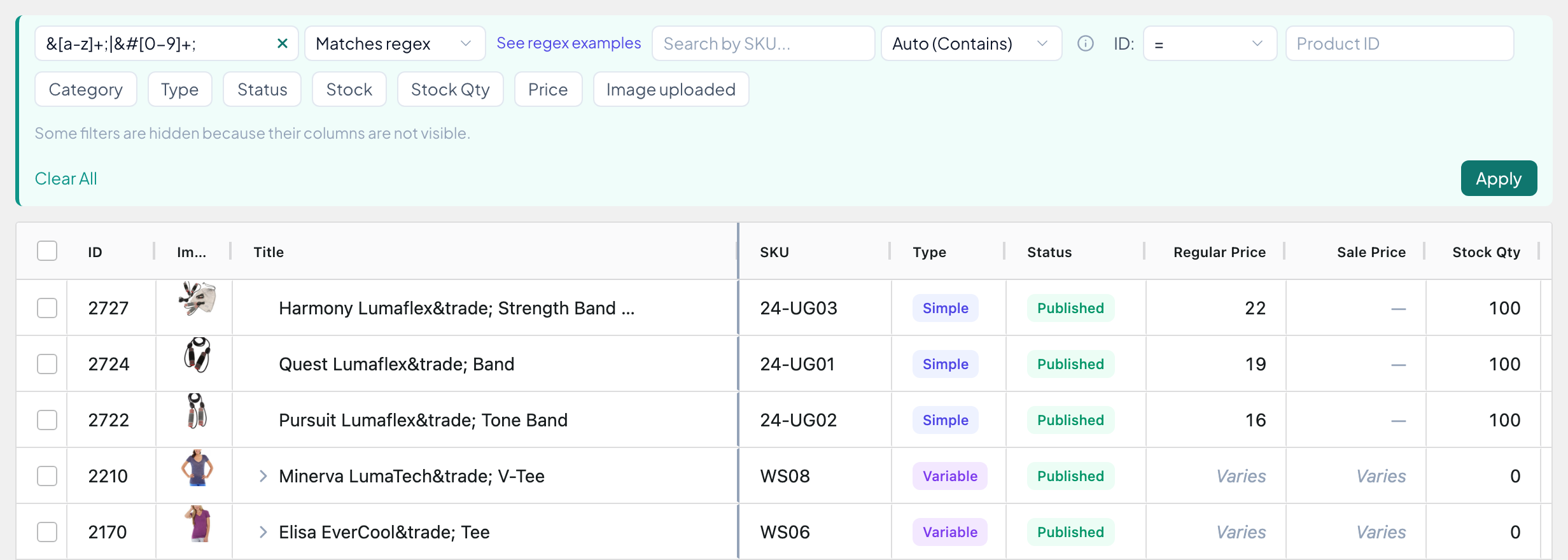
&[a-z]+;|&#[0-9]+;Finds: titles saved with codes like &, ™ or ’, often left by imports, like “Quest Lumaflex™ Band”.
Then: Find & Replace ™ with ™. See the next section.
Long titles
^.{61,}Finds: titles of 61 characters or more. Change 61 to your own limit.
Then: shorten them before they get cut off in search results.
From filter to bulk edit
Here’s the whole flow, using the HTML codes recipe on a demo store.
- Filter. Pick Matches regex, paste the pattern and click Apply. Check the count next to the page size: here it’s 15 products.
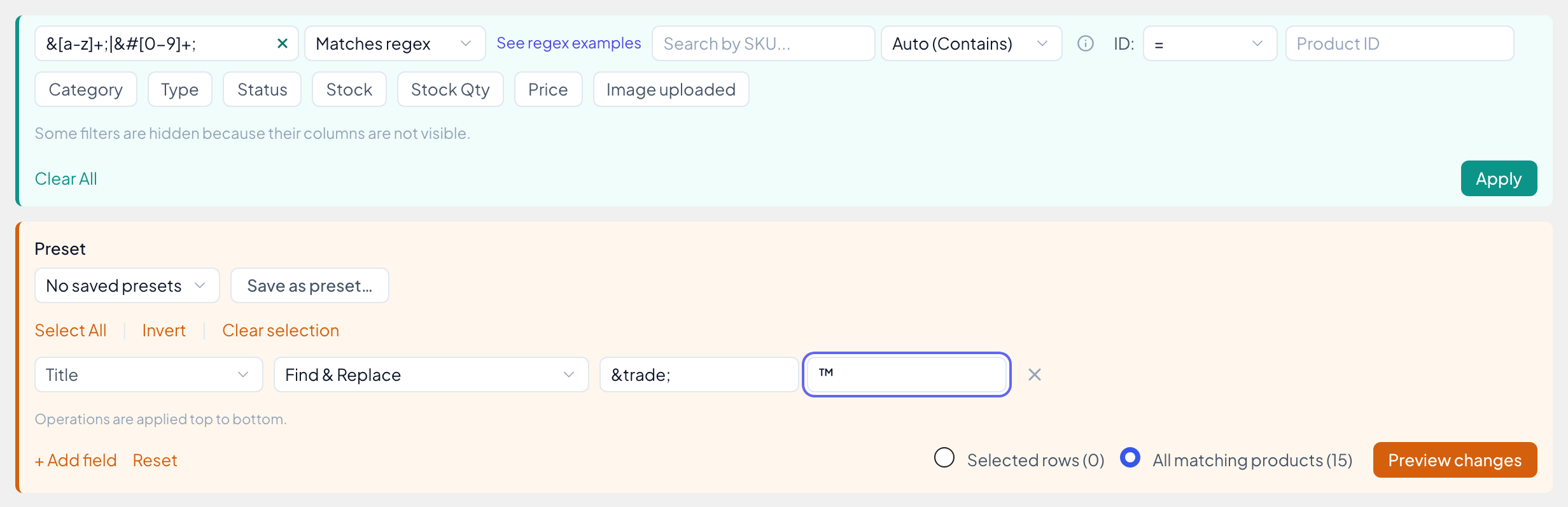
- Open Bulk Edit and choose All matching products. That’s every product the filter found, on every page. Then add your change: here Title, Find & Replace,
™with™.
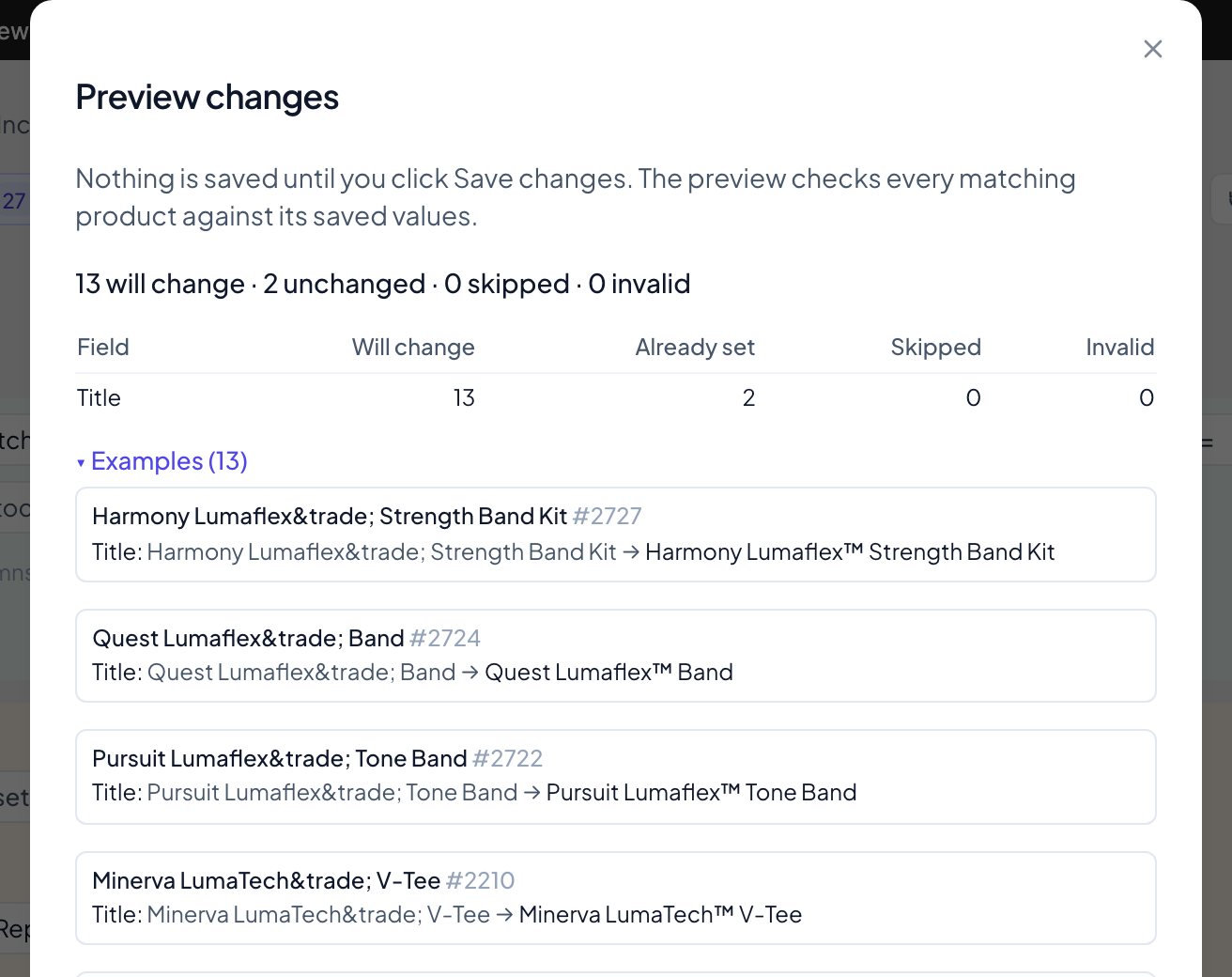
- Click Preview changes. Nothing is saved yet. The preview counts what will change and shows before and after examples. Two products here have
®, not™, so they stay unchanged. - Click Save changes when the preview looks right.
Changed your mind afterwards? In Pro, the whole bulk edit is one entry in Operation History, and you can undo it from there. More on All matching products in the version 1.5 post.
Common mistakes
- Forgetting the
\..()+?$have a meaning in regex. To find a real “(2024)”, write\(2024\). - Expecting case to matter. Matching always ignores case.
XLalso finds “xl”, and there’s no way to search for ALL CAPS titles with it. - A stray space in the pattern. A space you typed at the end is part of the pattern. If you get no results, check that first.
- Looking for spaces at the start or end of a title. WordPress removes them when a product is saved, so there’s nothing to find.
- Matching what the shop shows. The filter reads the title as it’s saved. A title that shows “Salt & Pepper” may be saved as
Salt & Pepper, which is why the HTML codes recipe works. - Variations. The filter matches the product’s own title. Variations show up under a product that matches; their own names aren’t checked.
Not sure about a pattern? Try it on a smaller filter first, or check the count before you bulk edit. If the pattern has a mistake, like an unclosed (, the Title box turns red, you see “Invalid regular expression”, and Apply stays off until you fix it.

Free and Pro
Contains, Is exactly, Does not contain, Starts with and Ends with are in the free version. Matches regex is in Pro, along with RegExp Find & Replace, price rounding, the SKU generator and Operation History.
In the free version the dropdown lists Matches regex (Pro). Pick it and you see where to get it, with a link back to this page. Your other filters keep working.

Want regex in your Title filter?
See the Pro plansGot a pattern you can’t get right, or a recipe I should add? Send it to me through support.
Yas