
Written for version 1.5.0.
This guide takes you from a fresh install to your first bulk price change in about five minutes. You’ll open the grid, back up your data, narrow the list down to the products you care about, edit one by hand, and then change several at once.
The example store sells bags, clothing and gear. Every step works the same on your own catalog.
What you need
- WooCommerce 10.0 or newer, on WordPress 6.0+ and PHP 8.0+
- WPMelon Advanced Bulk Edit for WooCommerce, installed and activated (free on WordPress.org)
- A Shop Manager or Administrator account
The screenshots were taken with Pro. The free version has the same toolbar, with a PRO badge on the Pro-only buttons such as Paste and History. Everything in this guide works in the free version.
1. Open the grid
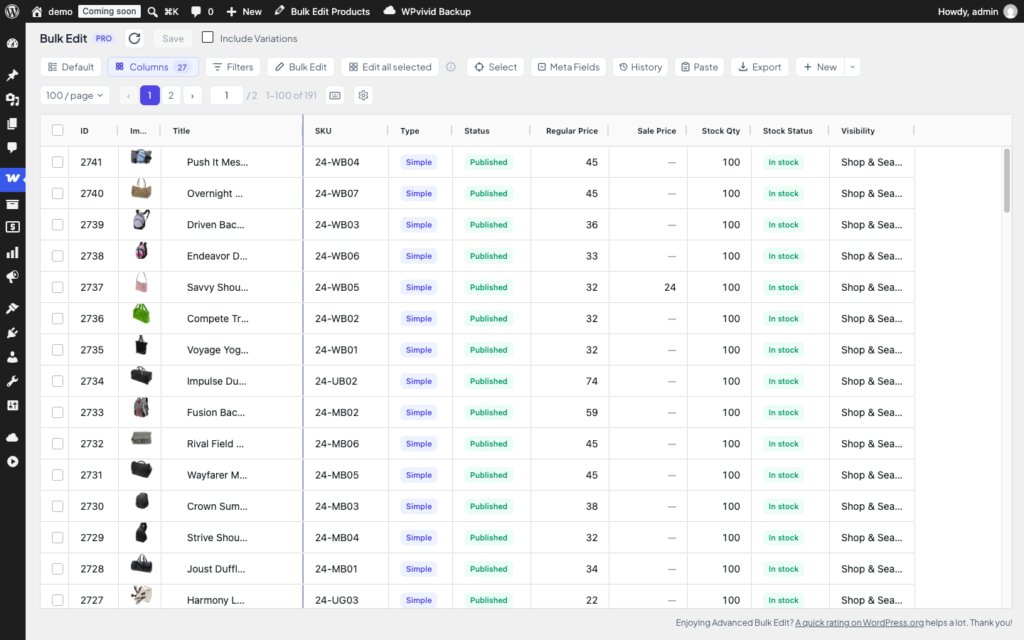
Go to WooCommerce → Bulk Edit. Your products load into a spreadsheet-style grid, newest first, 100 per page.
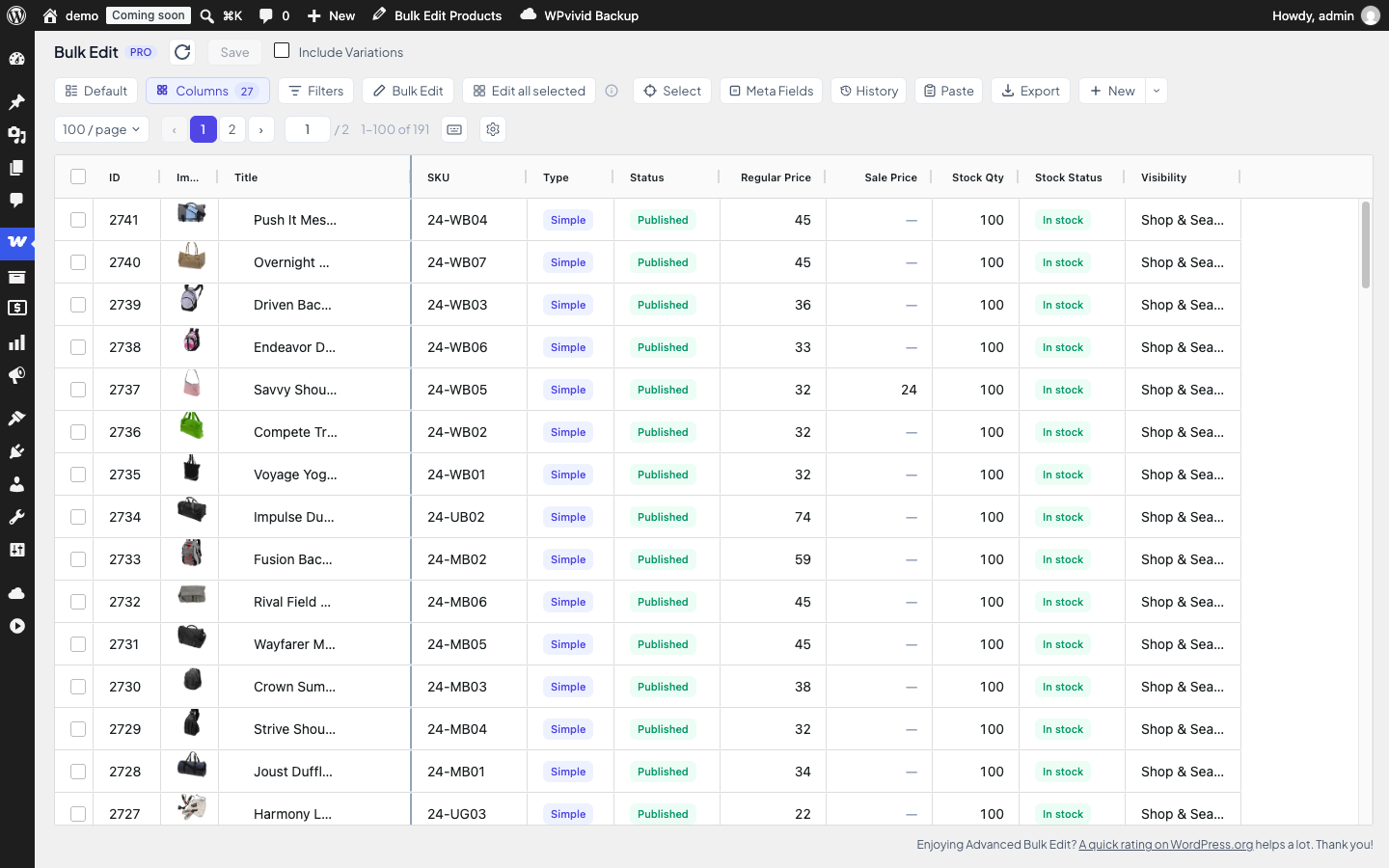
The toolbar has three rows:
- Save and Include Variations sit at the top. Save stays greyed out until you change something.
- The second row starts with Default, the active view (step 7 explains views). Then come Columns, Filters, Bulk Edit and Export. New creates a product.
- The third row holds the page size (100 / page), the pager, the keyboard shortcuts button and the Settings gear.
Each row of the grid is one product. A dash means the cell is empty (a product with no sale price, for example) or the field doesn’t apply to that type of product.
2. Export a backup first
Before you change anything, save a copy of the current values. Click Export, check the columns you want (the visible ones are already ticked, and All ticks every column), pick a delimiter and click Export.
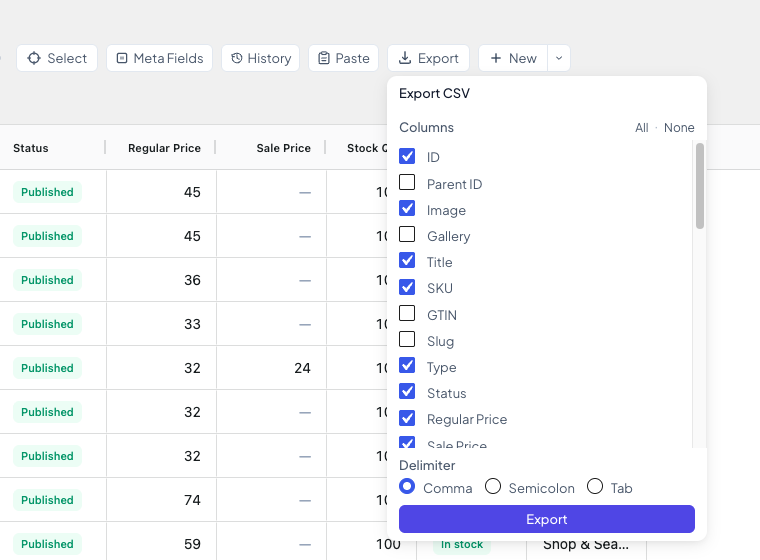
The file has every product that matches your filters, across all pages and in the grid’s order. Not just the page on screen.
Why bother? Once a change is saved, the free version can’t undo it. The CSV is your record of the old values. Before a big change, take a full site backup as well. (Pro adds Operation History, which can restore earlier values.)
3. Show the columns you need, then filter
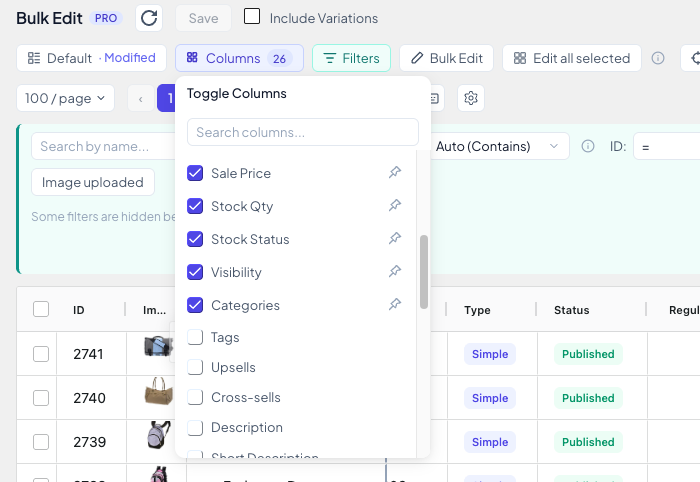
Say you only want to work on bags. Category is a filter, but a filter only appears when its column is visible, and the Categories column is hidden at first. The Filters panel tells you so: Some filters are hidden because their columns are not visible.
- Click Columns and tick Categories. Type in Search columns… to find a column quickly. The column appears in the grid straight away.
- Click Filters. A Category button has joined the filters. Click it, type
bagsinto Search categories…, tick Bags and click Apply.
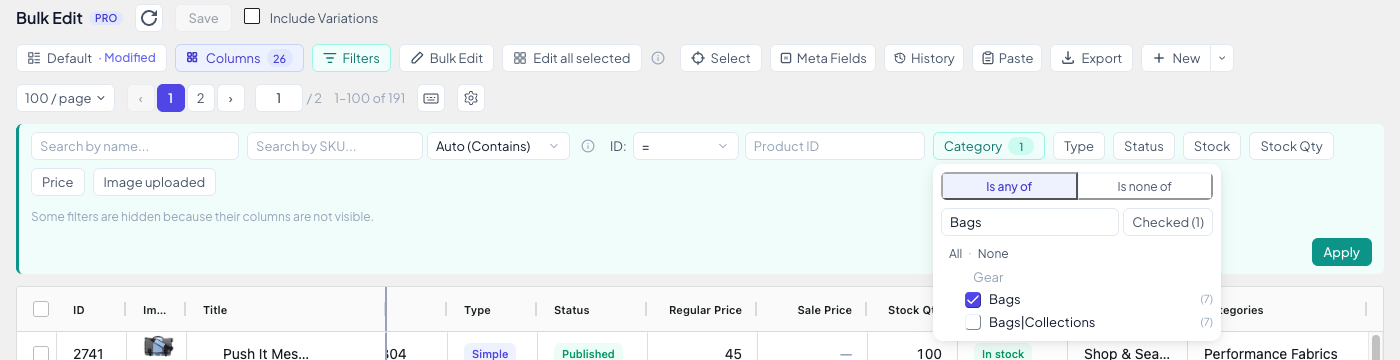
The grid now lists the 7 bags only, and the Filters button shows one active filter. Click Filters again to close the panel. The filter stays on.
Is none of, at the top of the Category filter, does the opposite: it hides the categories you tick.
The view button now reads Default · Modified, because you changed the layout. Step 7 shows how to keep it.
4. Edit a cell and save
Click a cell, type the new value and press Enter. Here the Driven Backpack’s regular price goes from 36 to 39.
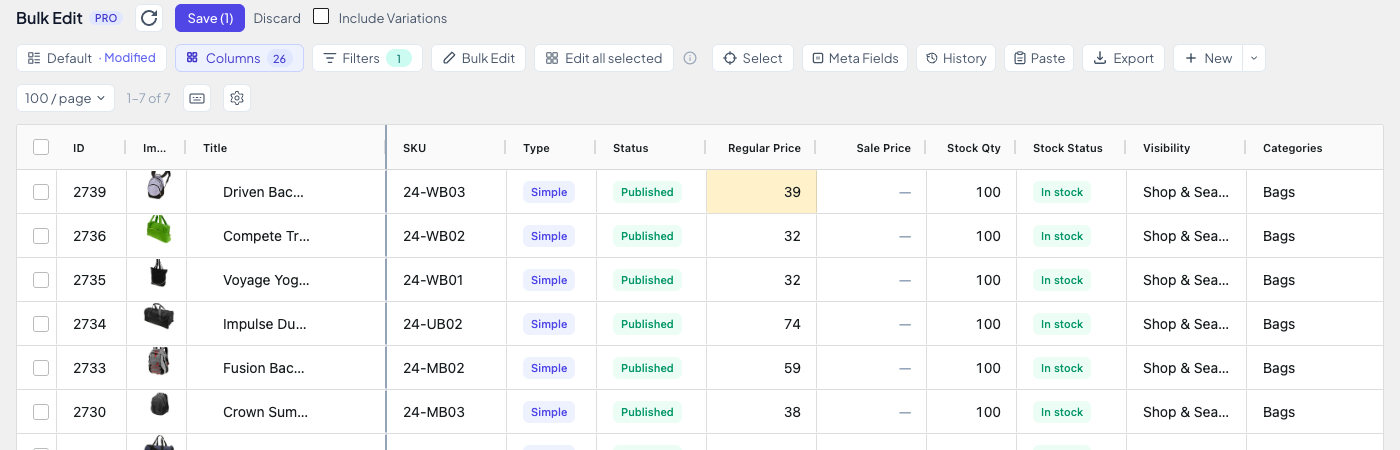
Nothing is saved yet. The edited cell turns yellow and the button reads Save (1). The number counts products, not cells, so three edits on the same product still show (1).
A few keys help:
- Enter confirms and moves down to the next row.
- Tab jumps to the next editable cell.
- Esc cancels what you’re typing.
- The small dot at the corner of the selected cell is the fill handle. Drag it up or down to copy the value into the neighbouring rows.
When you’re happy, click Save or press Ctrl+S (⌘S on a Mac). The button briefly shows Saved and a message confirms Saved 1 product.
Changed your mind? Discard, next to Save, throws away every unsaved change after you confirm. If you change page, filters or view while you have unsaved changes, the plugin asks whether to save or discard them first.
5. Edit variations
A variable product has a small arrow before its name. Click it to open the variations underneath, then edit them like any other row.
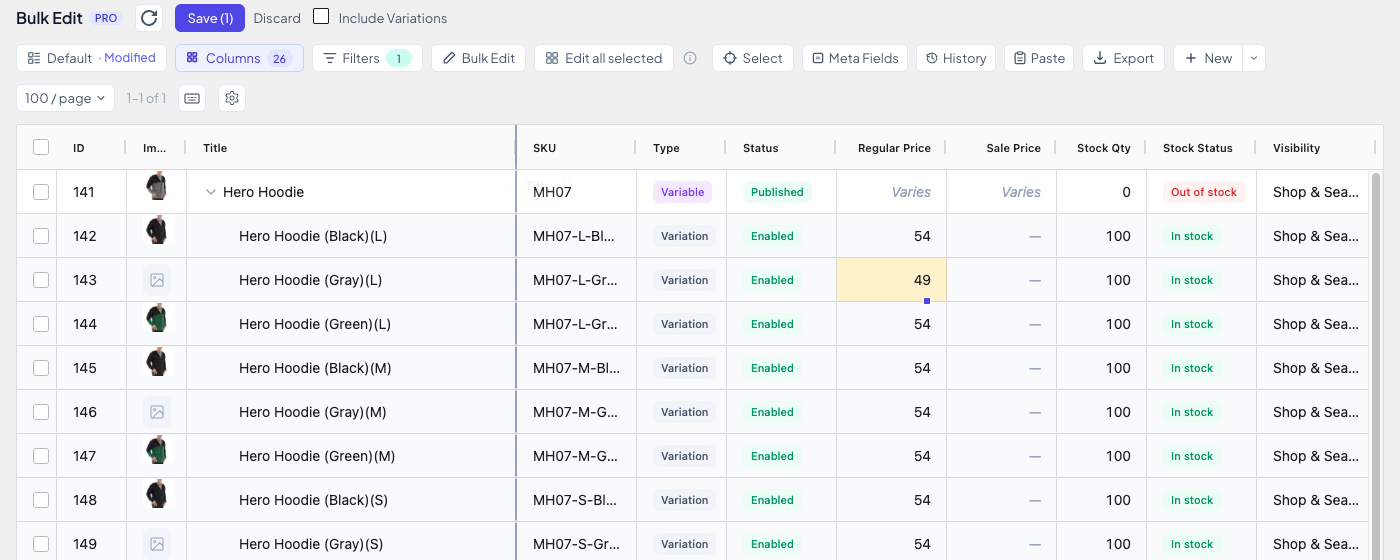
The parent row shows Varies in the price columns, because a variable product takes its prices from its variations. Change prices on the variation rows.
To work on the variations of many products at once, for example to select them for a bulk edit, tick Include Variations at the top of the page. Every variation then gets its own row under its parent.
6. Change many products at once
Editing cell by cell is fine for a few fixes. For anything bigger, use Bulk Edit. It changes either the rows you selected, or every product that matches your filters.
Selected rows
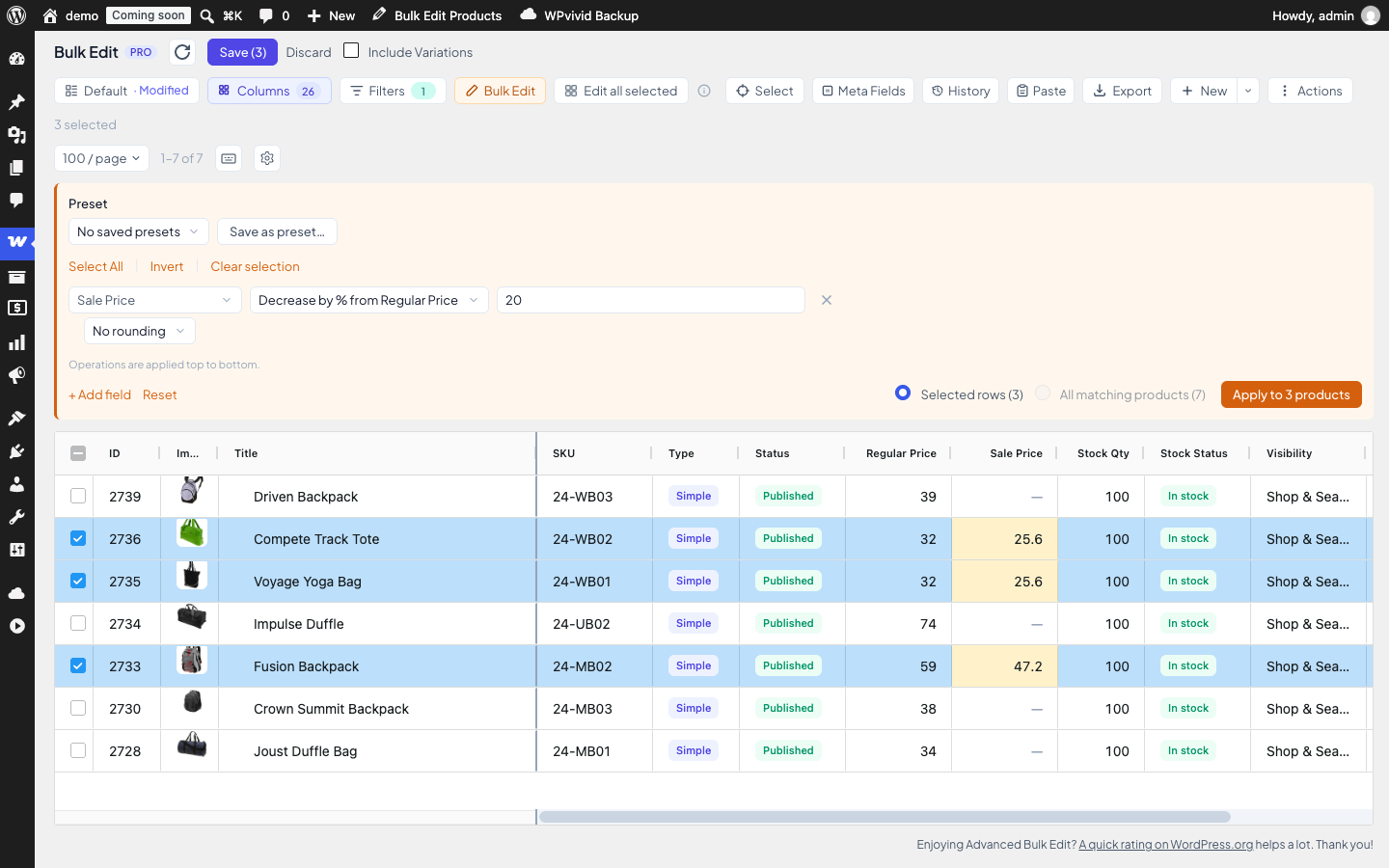
- Tick the checkboxes of the products you want to change. Here: three bags.
- Click Bulk Edit. The panel opens above the grid.
- Click Select field… and choose a field (you can type to search). Here: Sale Price.
- Choose an operation and enter a value. Here: Decrease by % from Regular Price and
20, for a 20% sale. - Check that Selected rows (3) is chosen and click Apply to 3 products.
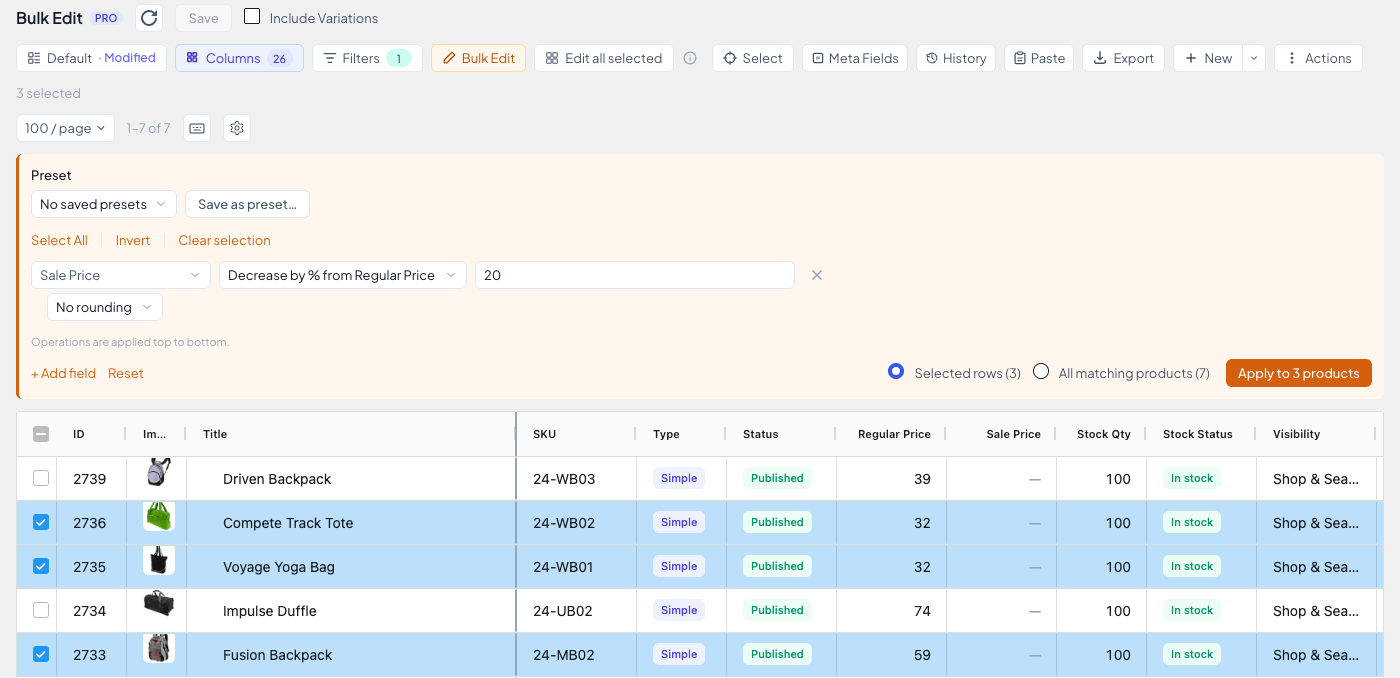
The new values land in the grid as unsaved changes, exactly like a hand edit. Look them over, fix any cell by hand if needed, then Save or Discard.
A few more things the panel can do:
- + Add field adds another operation. Operations run from top to bottom.
- Reset empties the panel.
- Prices can be set, raised or lowered by an amount or a percentage. Categories and tags can be replaced, added or removed. Text fields can be set, prepended, appended, found and replaced, or cleared.
The free version shows Presets and Price rounding with a PRO badge, in the places where the screenshots show Pro’s preset and rounding controls.
All matching products (new in 1.5.0)
Selected rows only reach what’s on the current page. To change every product your filters match, however many pages that is, use All matching products. Here: raise the regular price of every bag by 5%.
- Clear the selection (Clear selection in the panel). The panel switches to All matching products (7).
- Set Regular Price, Increase by % and
5. - Click Preview changes.
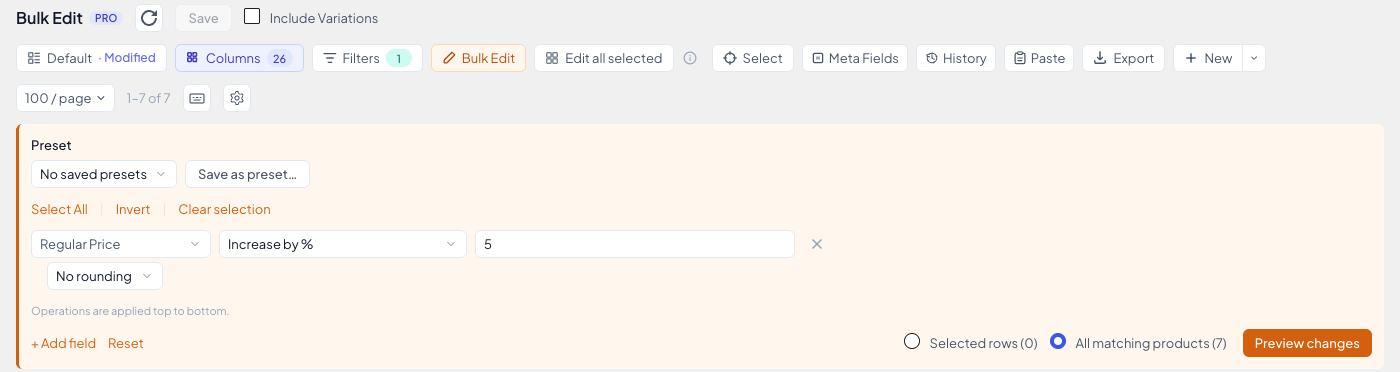
The preview checks every matching product against its saved values: how many will change, how many already have that value, how many are skipped, and how many values are invalid. Nothing is saved yet.
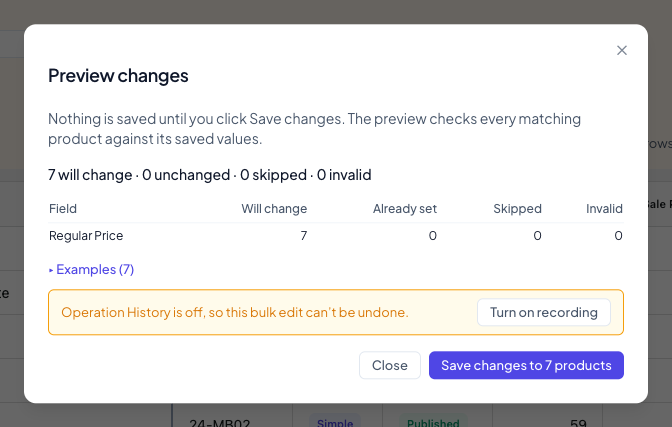
The free version shows the counts. Pro adds the per-field table and before-and-after examples you see in the screenshot, and can undo the whole bulk edit.
Click Save changes to 7 products to run it.
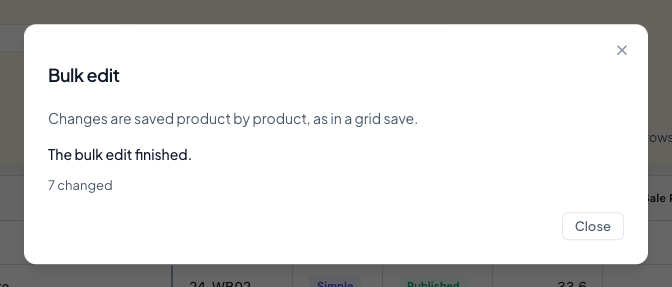
This scope works differently from Selected rows:
- It saves straight away, product by product. There is no yellow pending step and no Discard, which is why the backup from step 2 matters.
- You can close the dialog while it runs. A banner above the grid keeps showing the progress while the page is open. If you leave, the edit carries on when your site’s scheduler runs. Cancel bulk edit stops it; products already changed stay changed.
- It waits for unsaved changes. While the grid has unsaved edits, the option is greyed out with Save or discard N unsaved changes first.
Variable products take their prices from their variations, so a price change on all matching products skips them unless Include Variations is on. The preview tells you when that happens.
7. Save your layout as a view
The Bags filter and the extra Categories column took a few clicks. Save them as a view and they’re one click away next time.
Click Default · Modified and choose Save as new view… (before your first view, the name box is already showing). Type a name, here Bags, and click Save.
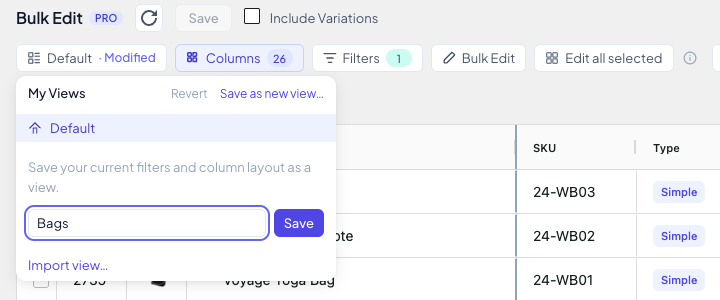
The view button now reads Bags. A view keeps your filters, column layout and page size. Switch between views from the same menu, and pick Default to go back to the full catalog. Revert throws away layout changes you haven’t saved into a view.
Where to go next
- Press ? to see every keyboard shortcut.
- The Settings gear has Dark mode, Row Height, Auto-load products and Keep selection after saving. Selected products stay selected after a save unless you turn that last one off.
- How-tos: Generate SKUs from a template (Pro) and Paste from Excel (Pro).
- Pro adds paste from Excel or Google Sheets, Edit all selected, Operation History with restore, custom and ACF fields, and more. See wpmelon.com/bulk-edit.