
Operation History is a Pro feature that records the previous values of every field your bulk edits change. If an edit doesn’t turn out the way you expected, you can open the history, see exactly what changed, and put the old values back — a real undo that survives saving.
This is not the same as the grid’s undo. The Bulk Edit grid already lets you undo changes you haven’t saved yet. Operation History is the safety net for edits you have saved: once a bulk edit is written to your store, the grid’s undo can’t reach it, but Operation History can.
In beta: recording is off until you turn it on, and we recommend trying it on a staging site before using it on a live store.
Getting started
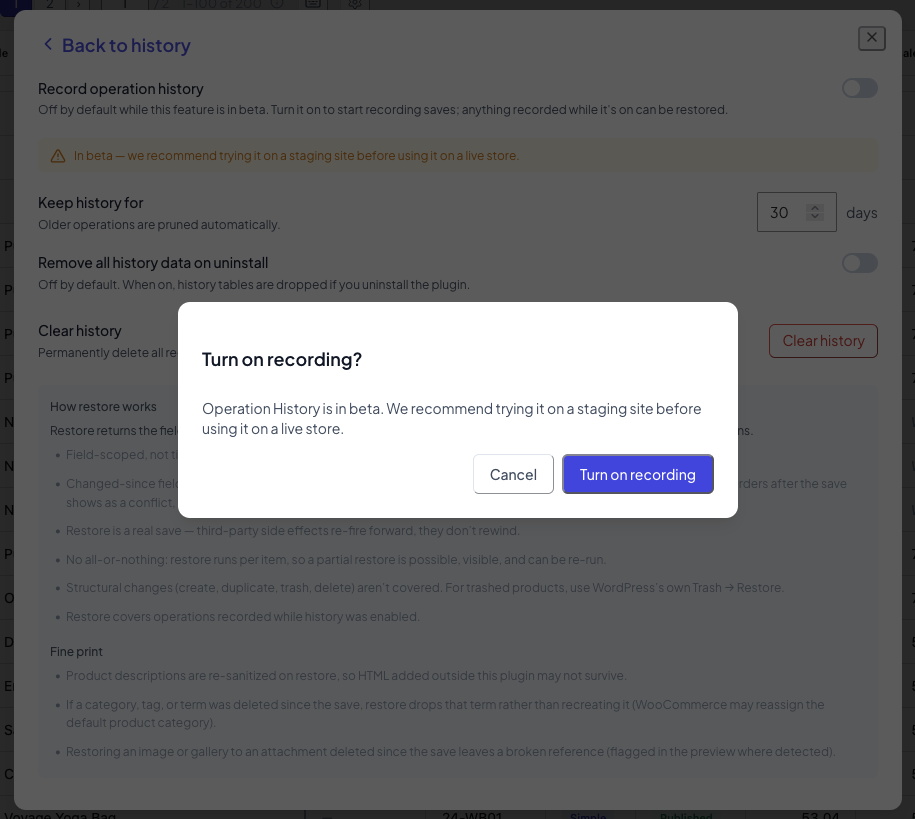
1. Turn on recording
Open History from the Bulk Edit toolbar, then open Settings and switch Record operation history on. Because this feature is in beta, you’ll be asked to confirm — this is also where we suggest testing on a staging site first.
Once recording is on, every bulk edit you save from that point is recorded automatically. Nothing that happened before you turned it on is recorded.
2. Make a bulk edit
Use the grid as you normally would — change prices, statuses, stock, or any other field across as many products as you like — and save. That save is now captured in your history, along with which fields changed and how many products were affected.
3. Restore a previous version
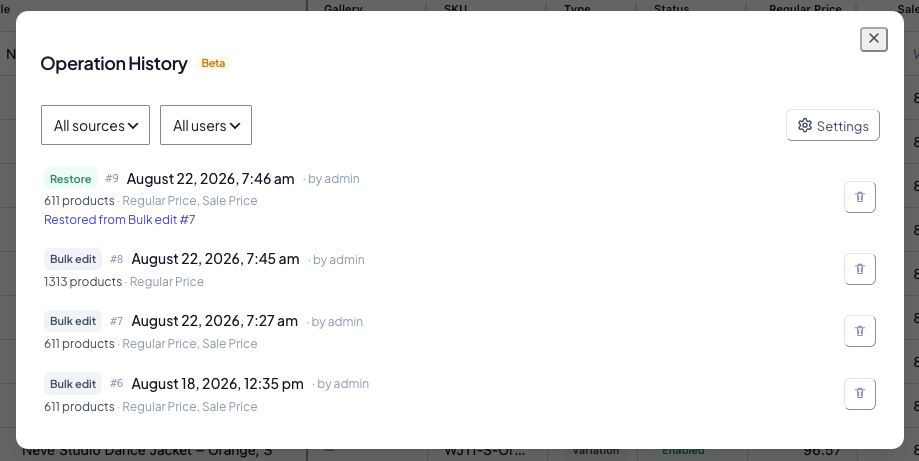
Open History and find the edit you want to roll back. Each entry is one saved bulk edit. Select it to restore, and you’ll see a preview of exactly what will be written back to each product before anything happens. Confirm, and the previous values are restored.
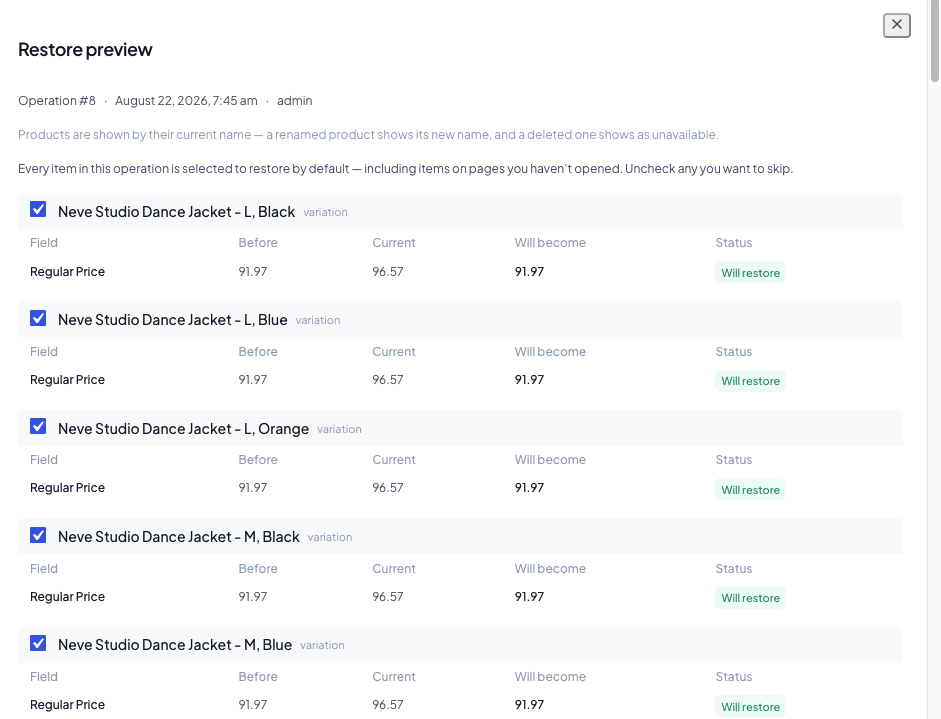
That’s the whole loop: turn it on, edit, and roll back from the history when you need to.
How it works (what to expect)
This section explains what Operation History records and, just as importantly, what a restore will and won’t do — so there are no surprises when you use it.
Reading the history list
Each row in the history is a single saved operation, and shows:
- What kind of operation it was — a Bulk edit you made in the grid, a Restore, or an API change made programmatically.
- An ID — a short reference like
#7, unique to that operation, so it can be pointed to unambiguously. - When it happened and who did it — for example, Jul 4, 2026, 7:32 PM · by admin.
- What it affected — the number of products and the fields that changed, in plain names: 519 products · Regular price, Sale price.
When a row is a restore, it also tells you what it restored from — for example, Restored from Bulk edit #7 — so you can trace a rollback back to the edit it reversed. The #7 there matches the ID shown on that earlier edit’s row, so you can find it by eye.

What a restore does
A restore is field-scoped, not time travel. It only touches the fields that that particular save changed, and it puts them back to what they were just before that save. Any edits you made to other fields afterwards are left completely alone — restoring an old price change won’t undo a later description change.
A restore is a real save, not a rewind. That means anything that reacts to a product being saved — other plugins, integrations, syncs — runs forward again as normal. It doesn’t un-happen the side effects of the original edit; it writes the old values as a fresh change.
Restores run per product, so there’s no all-or-nothing. If some products in an operation restore cleanly and others can’t, you’ll see exactly which did what, and you can run it again. A restore is itself recorded in the history, so it can be undone too.
When a value has changed since the edit
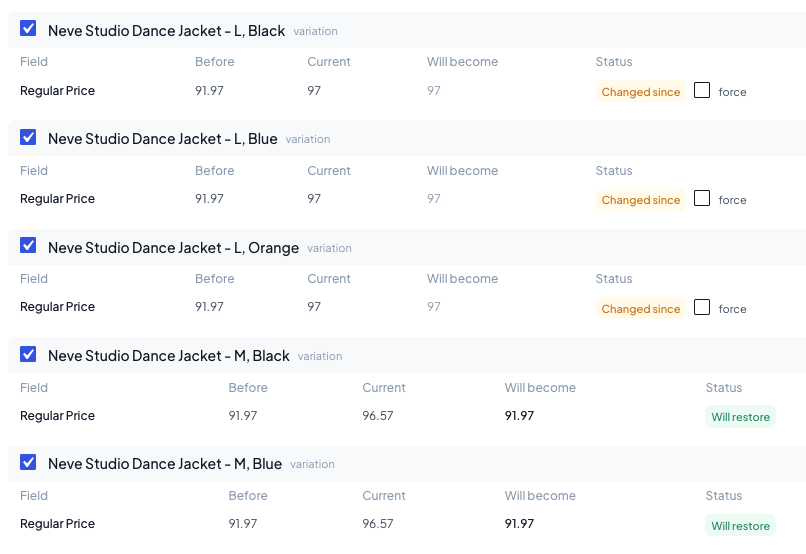
Sometimes a field has already moved on since the edit you’re restoring. A common example: you bulk-changed stock, and orders have since reduced it further. Restoring the old stock value would overwrite that newer, correct number.
Operation History detects these cases. Any field whose current value differs from what it was right after the original save is treated as a conflict and is skipped by default — the preview flags it, and you decide. If you do want to force an old value back over a changed one, you can turn that individual field on in the preview.
What’s not covered
Operation History records field changes to existing products. A few things are intentionally outside its scope:
- Structural changes — creating, duplicating, trashing, or deleting products aren’t recorded as restorable operations. If you trashed a product, use WordPress’s own Trash → Restore to bring it back.
- Changes made while recording was off — only operations saved while Operation History was enabled can be restored.
- External changes — a restore writes old values forward; it can’t rewind things other systems did in the meantime.
Settings and maintenance
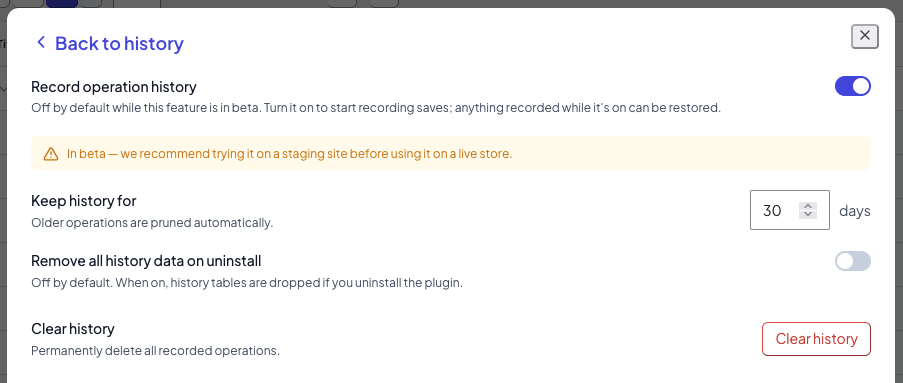
Open History → Settings to manage the feature.
Record operation history turns recording on or off. Turning it off stops new saves from being recorded but keeps your existing history fully restorable.
Keep history for N days sets how long operations are retained. Older operations are pruned automatically. The default is 30 days.
Clear history permanently deletes all recorded operations. This can’t be undone, and it doesn’t affect your products — only the history of past edits.
Remove all history data on uninstall controls whether the history tables are dropped if you uninstall the plugin. It’s off by default, so your history data is left in place unless you choose otherwise.
Fine print
A few edge cases worth knowing about when you restore:
- Product descriptions are re-sanitized on restore, so any HTML that was added outside this plugin may not survive exactly as it was.
- Deleted categories, tags, or terms — if a term was deleted after the original save, a restore drops that term rather than recreating it, and WooCommerce may reassign the product’s default category.
- Images and galleries — restoring an image or gallery to an attachment that has since been deleted leaves a broken reference. Where this is detectable, it’s flagged in the preview.
Operation History is available in WPMelon Advanced Bulk Edit Pro.