
Let customers upload files to WooCommerce products
On this page6 sections
A printed T-shirt needs the customer’s logo. A photo mug needs their photo. With a file upload field the customer picks the file right on the product page, it uploads while they finish choosing, and you download it from the order. Nobody has to send it by email afterwards.
What you need
- WPMelon Product Customization Fields 1.1 or later (free on WordPress.org)
- An option group shown on a product (see Getting started)
Free
File uploads are part of the free version, with nothing extra in Pro.
1. Add a file upload field
In your option group (Products → Product Options), click Add field and choose File upload. Then set:
- Label: what you’re asking for, for example “Your logo or artwork”.
- Description: the types and size you accept, so customers know before they try: “PNG, JPG or PDF, up to 5 MB.”
- Allowed file types: JPG, PNG, PDF, GIF and WEBP. JPG, PNG and PDF are ticked to start with.
- Maximum size (MB): 5 to start with. Your server’s own upload limit always applies too, whichever is lower (see Size limits).
- Required, if the product can’t be made without the file.
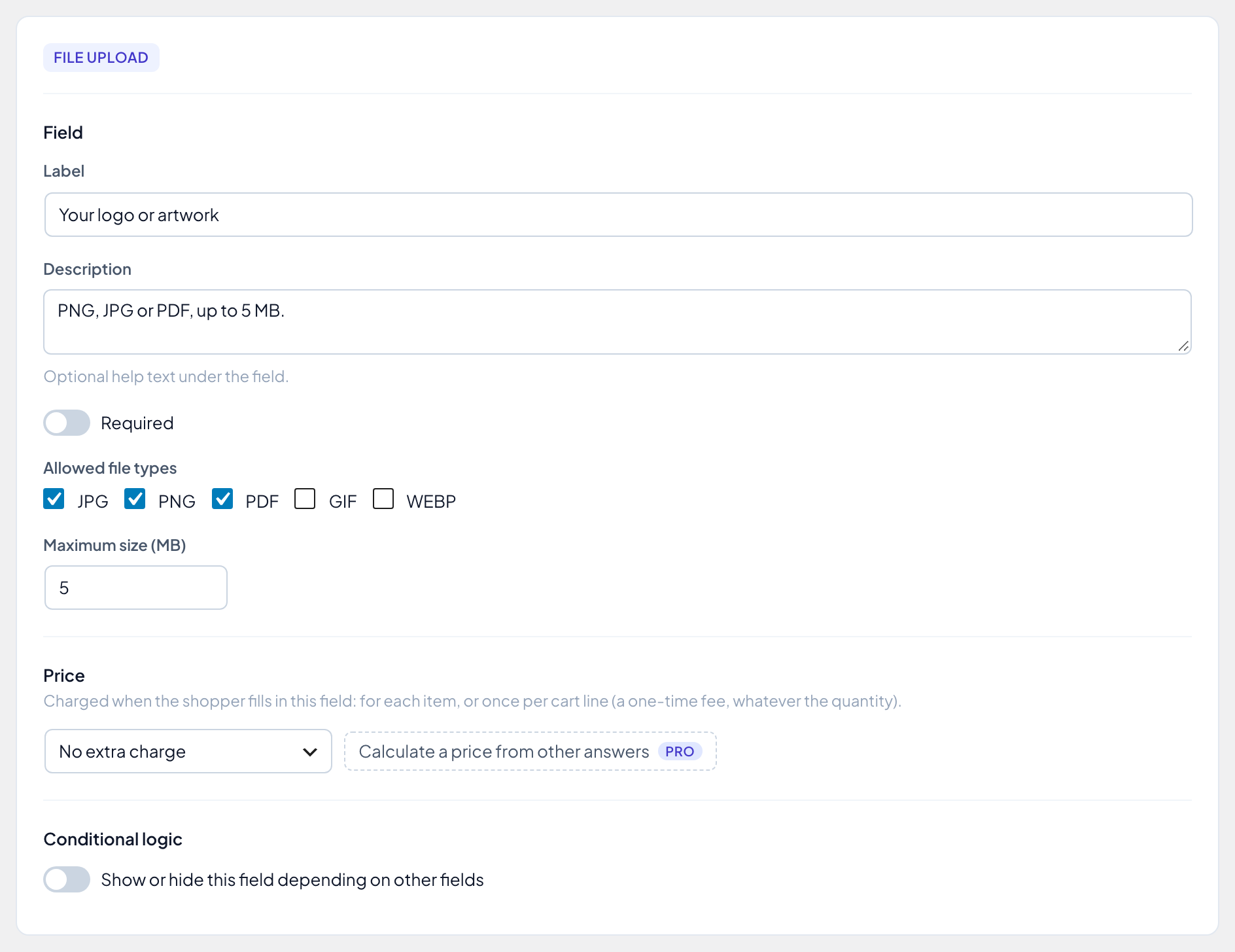
Like other fields, an upload can have a price under Price, charged when a file is attached: a flat artwork check fee, for example, or a one-time set-up fee (see Price options). Save the group.
2. What the customer sees
The field shows a Choose a file button. When the customer picks a file it uploads straight away (“Uploading…”), and then the file name shows next to a Replace file button and a Remove button.

- A file of the wrong type or over the size limit is turned down on the page (“This file type is not allowed.”, “The file is too large.”), before it uploads.
- The store checks each file again when it arrives, including that its content really matches its type, so a renamed file is refused.
- If the customer clicks Add to cart while the file is still uploading, they’re asked to wait for it to finish.
- An uploaded file only works in the cart it was uploaded from: nobody can attach someone else’s file to their order.
3. Where files are kept, and who sees them
Uploaded files go to a folder of their own in your uploads directory, wp-content/uploads/wpm-pcf/, under random file names with no extension. They never get a public link:
- In the cart, at checkout, in the order emails and in My Account, the customer sees the file name only.
- Files don’t appear in the Media Library.
- Only shop staff who can edit orders can download them.
To keep the files outside your website’s public folder altogether, a developer can point the plugin at another folder with the WPM_PCF_UPLOAD_DIR constant in wp-config.php.
4. Download the file from the order
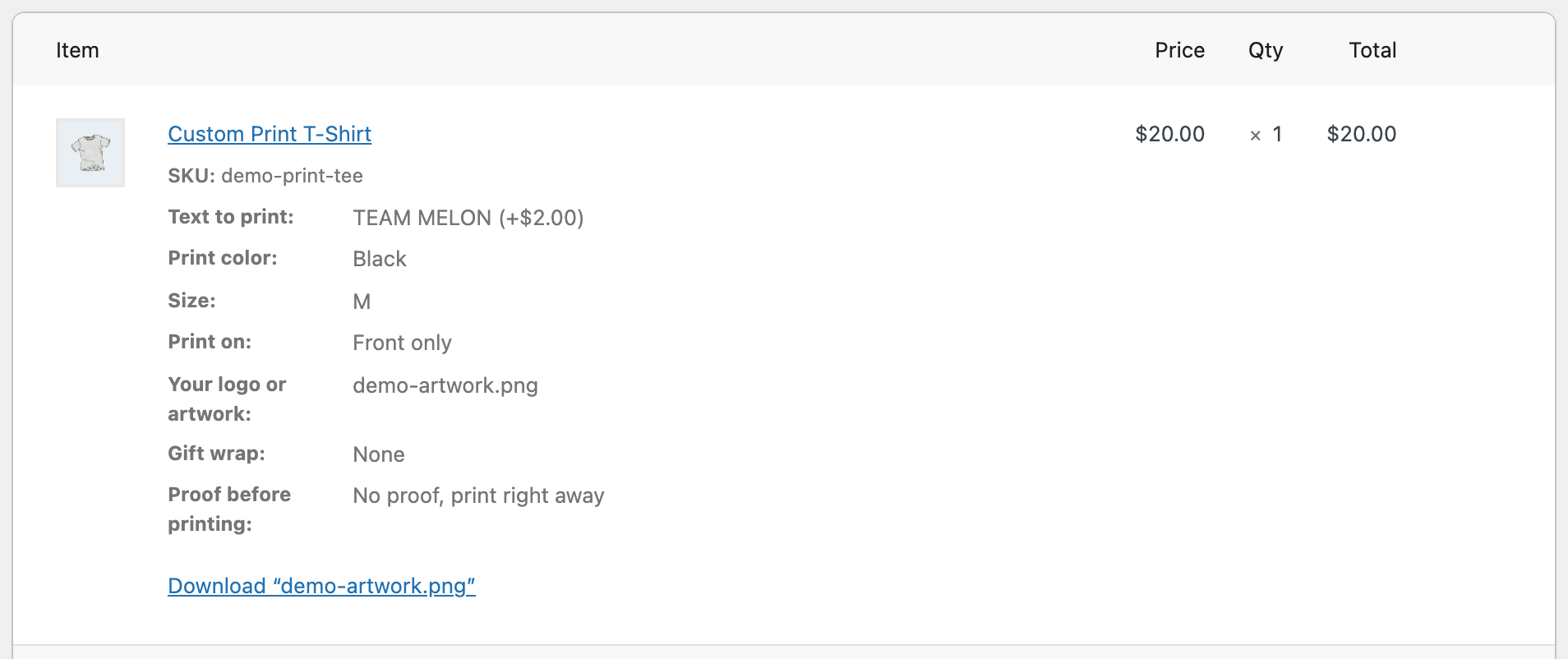
Open the order under WooCommerce → Orders. Under the product, the upload field shows the file name, and a Download “file name” link below the item’s options downloads it.
5. How long files are kept
- Files never ordered (the customer uploaded but didn’t buy, or replaced the file) are deleted after 72 hours by a daily clean-up.
- Files on an order stay as long as the order. They’re deleted when the order is permanently deleted. If a file is ever missing from the server (for example after moving the site without the uploads folder), the order shows “File “…” is no longer stored.” instead of the download link.
- Deleting the plugin keeps them, unless “Remove all data when the plugin is deleted” is on under Products → Product Options → Settings.
Size limits and hosting
If uploads fail even though the file is under your Maximum size, something in front of WordPress is stopping it:
- Your server’s PHP limits. The largest file WordPress accepts shows under Media → Add Media File (“Maximum upload file size”). Your host can raise it (the PHP settings
upload_max_filesizeandpost_max_size). - Cloudflare or another proxy. Cloudflare’s Free and Pro plans accept uploads of up to 100 MB.
- Too many uploads. To stop abuse, each visitor address can make 20 uploads in 10 minutes, and files waiting for an order are capped at 500 files or 1 GB in all. Behind Cloudflare or another proxy, every visitor can look like the same address and share one limit: a developer can pass the real visitor address with the
wpm_pcf_upload_client_ipfilter (for example from Cloudflare’sCF-Connecting-IPheader). Thewpm_pcf_upload_rate_limit,wpm_pcf_pending_max_filesandwpm_pcf_pending_max_bytesfilters change the limits.
Page caching for visitors who aren’t logged in is fine: the upload asks the server for a fresh security token right before it starts. Most caches don’t serve cached pages to logged-in customers; keep it that way for product pages with an upload field, or uploads can fail for them.