
Show or hide fields with conditional logic
On this page7 sections
Long forms put shoppers off. With conditional logic a field shows only when it’s needed: the shopper ticks “Add a gift message?” and the message box appears; they leave it unticked and never see it.
This guide builds that gift message on an Engraved Mug, then shows rules that compare numbers, using a cake that asks for a candle color only when candles are ordered.
What you need
- WPMelon Product Customization Fields 1.1 or later (free on WordPress.org)
- An option group shown on a product (see Getting started)
Free and Pro
Rules on other fields, several rules with all or any, and number comparisons are free. Pro adds “contains” rules on text and rules on product attributes, marked (Pro) below.
1. Add the question and the field it controls
In the mug’s option group (Products → Product Options), add two fields, in this order:
- A Checkboxes field labelled Add a gift message?, with one option: Yes, add a gift message.
- A Textarea field labelled Gift message, below it. A Maximum length of 150 keeps it to card size.
The order matters: a rule can only look at fields above the field it’s on. Drag a field by its handle to move it.
2. Add the rule
Select the Gift message field and scroll to Conditional logic. Turn on Show or hide this field depending on other fields. A first rule appears, set to the field just above with “is not empty”. Make it read:
Show this field when Add a gift message? is Yes, add a gift message
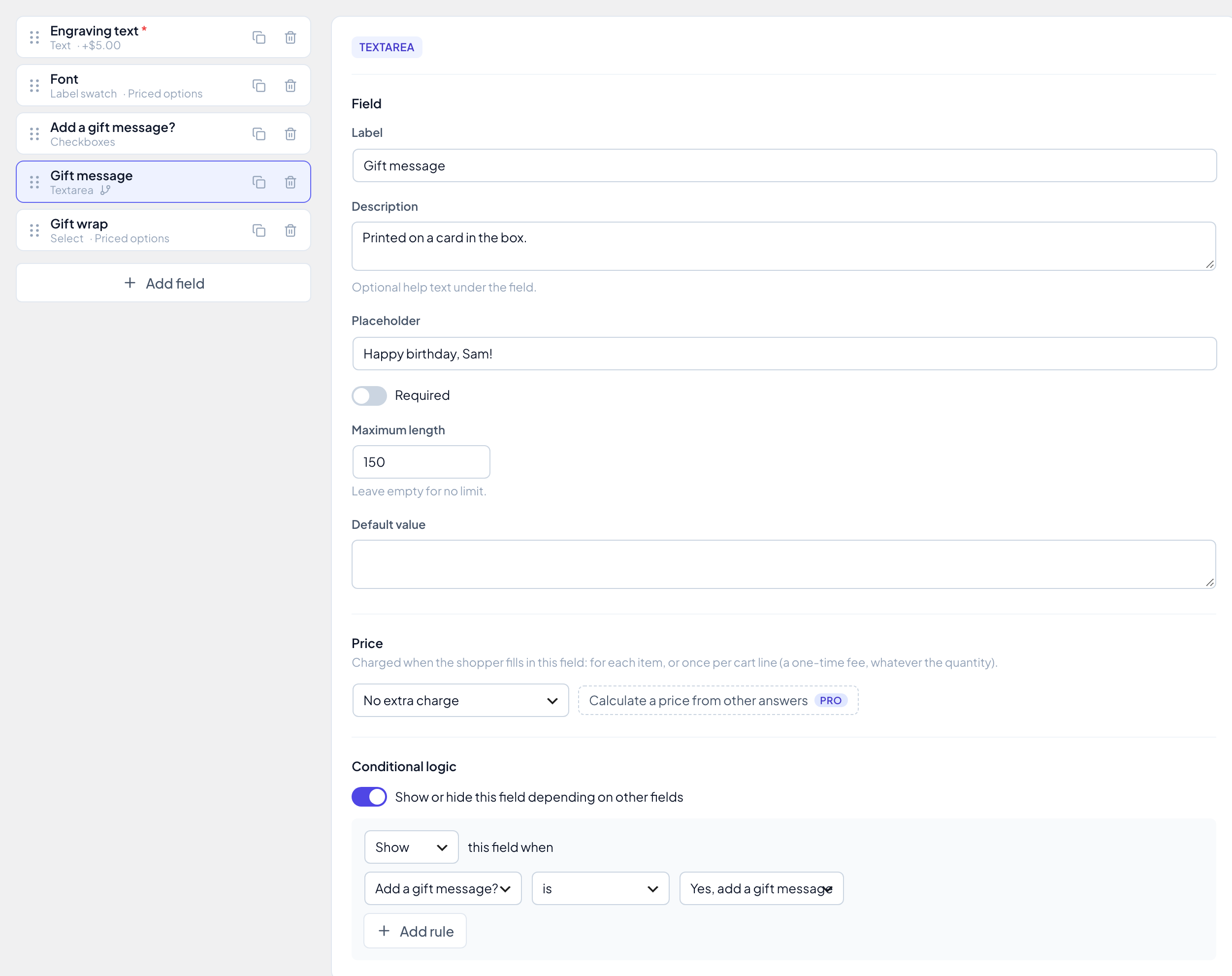
On a checkbox field, “is” means that option is ticked. For a field with choices, the value menu lists its options; for other fields you type the value. Fields with a rule show a small branch icon in the field list. Click Save changes.
3. Check it on the product page
Open the product. The Gift message box is hidden until the shopper ticks the box, and goes away again when they untick it.
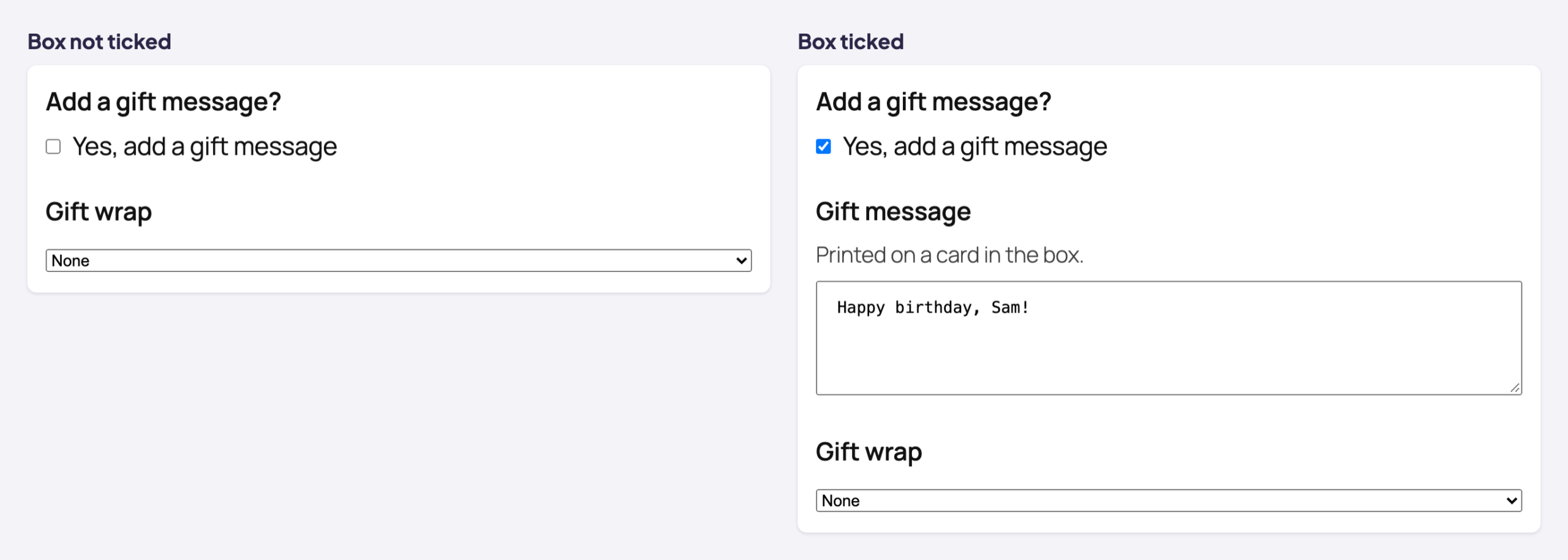
A hidden field doesn’t count:
- its value is dropped, so it never reaches the cart or the order;
- it’s never required, even when Required is on, so you can make the gift message required and it’s only asked for when the box is ticked;
- it’s never charged;
- for rules that look at it, it counts as empty.
The store checks the rules again when the product is added to the cart, so a field hidden on the page can’t be sent in anyway.
4. Combine several rules
Click Add rule to add more (up to 20 per field). With two or more rules, choose whether all or any of them must match: “Show this field when all of these rules match” or “… any of these rules match”. You can also turn a rule around with Hide: “Hide this field when …”.
Every field can be compared with is, is not, is empty and is not empty.
5. Compare numbers
A rule on a Number field gets four more comparisons: is greater than, is less than, is at least and is at most. The cake below has a Candles field (0 to 30) and a Candle color field that only shows when candles are ordered:
Show this field when Candles is greater than 0
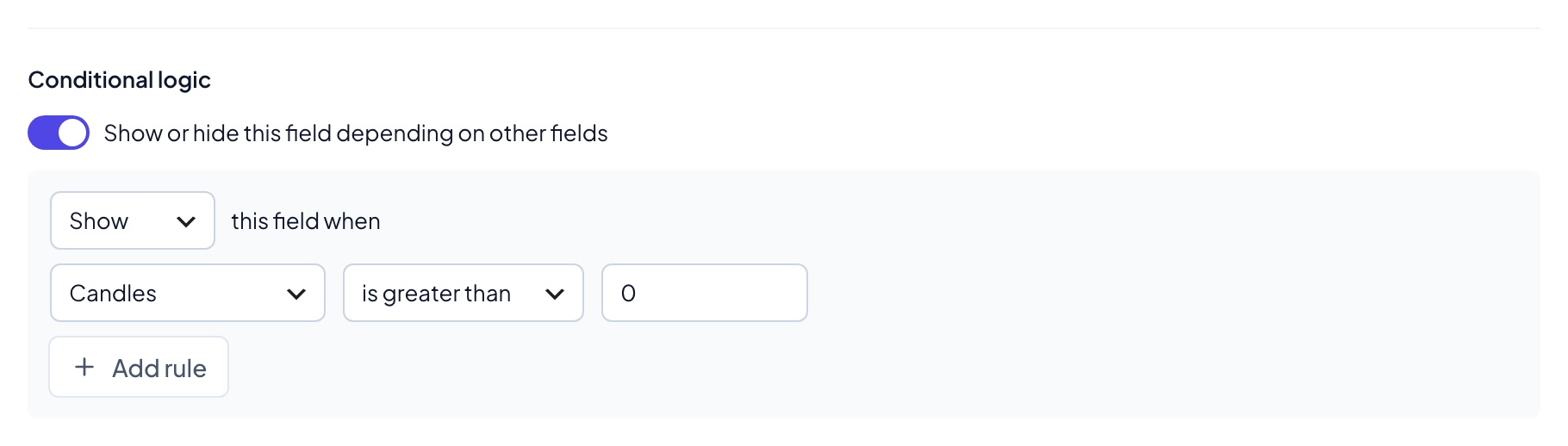
Another example: show a “Bulk engraving” field when a Names field is at least 10. Rules show or hide whole fields, not single choices inside a field.
Good to know
- Headings and paragraphs can be shown or hidden by rules too, so a whole section can appear at once. Rules can’t look at them, because they hold no answer.
- Moving and deleting fields: a rule only works on a field above it. If you move a field below one that looks at it, or delete it, that rule is removed. Before a delete, the editor asks you first and names the fields that would lose their rules.
- Required fields and the shop page: a product gets “Select options” instead of “Add to cart” in the shop only when a required field shows by default. A required field hidden by a rule doesn’t count.
More rules in Pro
- Contains and does not contain (Pro): rules that check whether a text or textarea field contains a word or not.
- Product attributes (Pro): show a field only for some attribute values: the variation the shopper picks on a variable product, or a product’s own attributes. For example, an “Embroidery thread” field only when Color is Navy. In the free version the rule’s field menu lists “Product attribute…” under PRO.