
Price options: flat, percentage, discounts and one-time fees
On this page7 sections
An option can cost more, cost a share of the product price, take money off, or add a fee once per order line. The shopper sees each price next to the choice and the total update as they pick, and the cart charges exactly that.
This guide uses the Custom Print T-Shirt ($18) from Getting started, with a few more options: printing on both sides, a logo set-up fee, and a discount for picking the order up in the store.
What you need
- WPMelon Product Customization Fields 1.1 or later (free on WordPress.org)
- An option group with at least one field (see Getting started)
Free and Pro
Flat amounts, percentages, discounts and one-time fees are all free. Pro adds prices per character or per word, a price the customer enters, and price formulas, marked (Pro) below.
1. Find where the price goes
Open the option group under Products → Product Options and select a field.
- Fields with choices (select, radio buttons, checkboxes, color and label swatches): each option has its own price, in its row under Options.
- Other fields (text, number, date, file upload and the rest): one price for the field, under Price. It’s charged when the shopper fills the field in.
Both use the same controls: the price type, Add or Subtract, the amount, and the charge.
2. Add a flat amount
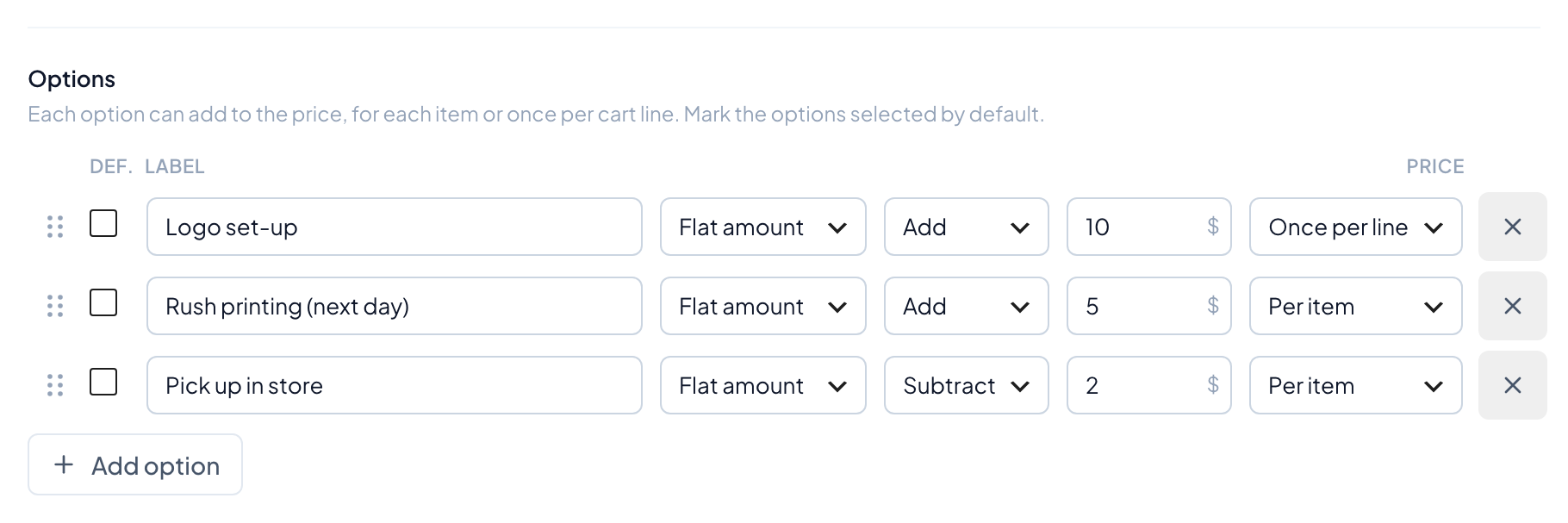
Choose Flat amount and type the amount, in your store’s currency. “Rush printing (next day)” above adds $5. Amounts are rounded to your store’s number of decimals.
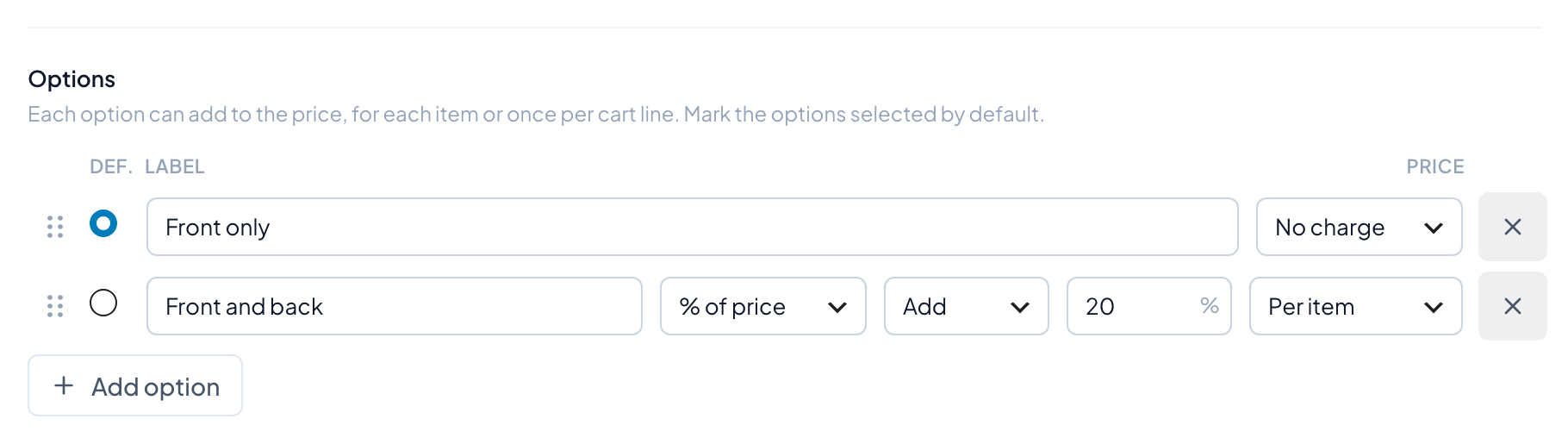
On choice fields the type menu is shorter: No charge, Flat amount and % of price. On other fields it reads No extra charge, Flat amount and Percentage of product price.
3. Take money off with Subtract
For a discount, choose Subtract next to the type and enter the amount without a minus sign. “Pick up in store” subtracts $2. The shopper sees “(-$2.00)” next to it. However many discounts a shopper picks, the price of the line never goes below zero.
4. Charge a percentage of the product price
Choose % of price (or Percentage of product price) and enter the percentage. “Front and back” adds 20%: $3.60 on the $18 T-shirt.
- The percentage is of the product’s own price, the sale price while it’s on sale.
- On a variable product, it’s a percentage of the selected variation’s price, so it changes when the shopper picks another variation.
- It never includes other options: two 10% options add 10% of the product price each, not 10% of each other.
5. Charge a one-time fee per cart line
Some costs don’t grow with the quantity: setting up a logo, making an engraving plate, a same-day decoration. Set the last menu, the charge, to Once per line. The menu shows when the price type isn’t “no charge”.
- Per item (the default): the price is added to each item, so 2 T-shirts pay it twice.
- Once per line: the price is charged once for the cart line, whatever the quantity. “Logo set-up” costs $10 for 1 T-shirt or for 50.
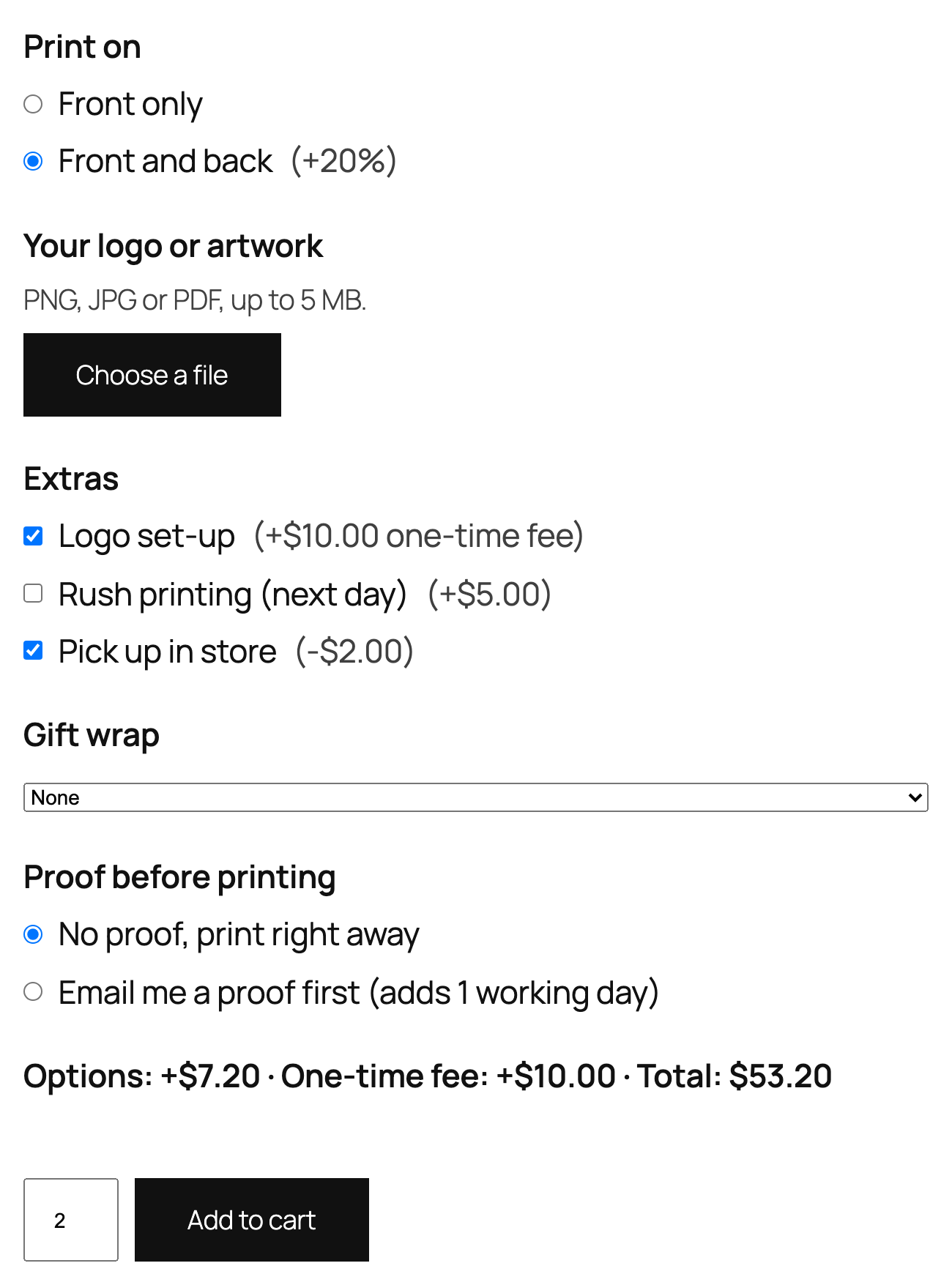
On the product page the shopper sees “(+$10.00 one-time fee)” next to the option, and the total line shows it apart from the per-item options. With 2 T-shirts, the printed text (+$2), front and back printing (+$3.60), the logo set-up and the pick-up discount (−$2): each T-shirt costs $18 + $2 + $3.60 − $2 = $21.60, so the options add $7.20 for two, and the fee adds $10.
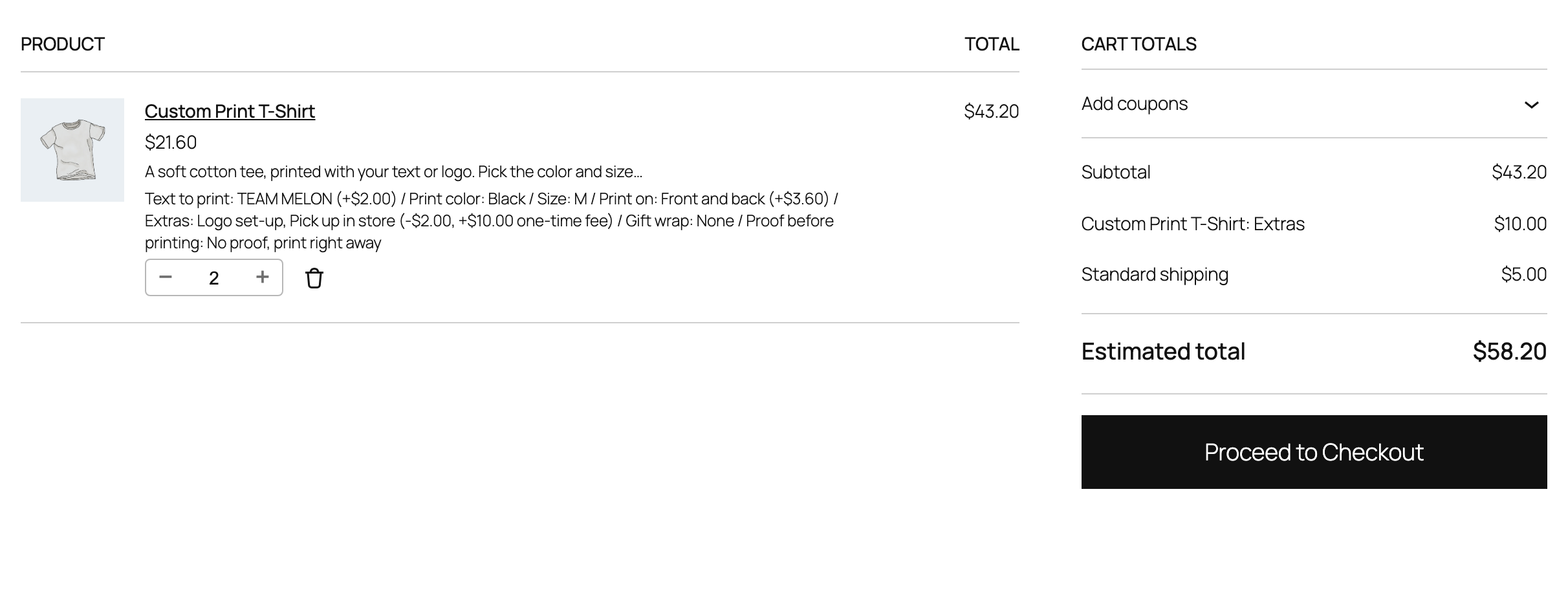
In the cart and at checkout, the fee gets a row of its own, named after the product and the field: “Custom Print T-Shirt: Extras”. The item price only holds the per-item options.
A few details:
- The same product added twice with different choices makes two cart lines, so it pays the fee twice.
- A one-time percentage is a percentage of one item’s price.
- The order keeps the fee on its own fee line, next to the products.
Taxes, coupons and currencies
- Taxes: enter option prices the way you enter product prices, with or without tax, as set in WooCommerce → Settings → Tax. They use the product’s tax class, and a one-time fee uses the product’s tax status and tax class.
- Coupons: options charged per item are part of the product price, so coupons discount them as usual. WooCommerce coupons don’t apply to fees, so one-time fees are charged in full.
- Currency switchers: the product page shows option prices before conversion; the cart, checkout and orders show converted amounts. With WPML’s multicurrency, flat amounts and one-time fees are not converted (a flat 5 is charged as 5 in every currency); percentages follow the converted product price.
The prices on the product page are a preview. The store works every price out again when the product is added to the cart and at checkout, from the group’s current settings.
More price types in Pro
- Per character and Per word (Pro): on text and textarea fields, “+$0.50 per letter” for engraving.
- Customer enters the price (Pro): on number fields, for donations or gift amounts.
- Price formulas (Pro): a price worked out from other answers, like width × height × price per square meter, with ready-made templates. In the free version, “Calculate a price from other answers” points to it.