
Paste from Excel is a Pro feature that lets you copy rows from any spreadsheet – Excel, Google Sheets, Numbers, LibreOffice – and apply them to your products right in the Bulk Edit grid. No CSV export, no import mapping files, no waiting for an import to run. You copy, you paste, you see the changes highlighted in the grid, and nothing touches your store until you click Save.
The typical case: a supplier sends you their new price list. It has their article numbers and the new costs, in whatever order their system spat them out. With Paste from Excel you paste that list, tell the plugin “match by SKU, put this column into Cost”, and every matching product gets the new value. The whole thing takes a minute.
Two ways to paste
There are two paste surfaces, and picking the right one is most of the learning curve:
Paste directly into the grid – for quick block edits, when your spreadsheet rows are in the same order as the grid. Works exactly like pasting in Excel: click a cell, Ctrl+V, the block fills right and down.
The Paste wizard – for updating products by a matching column (SKU, a supplier code, any column), even when the spreadsheet is in a completely different order than your grid. This is the one you want for supplier price lists.
Most of this article is about the wizard, because that’s where the magic is. The direct grid paste gets its own short section below.
Getting started with the wizard
1. Copy and paste
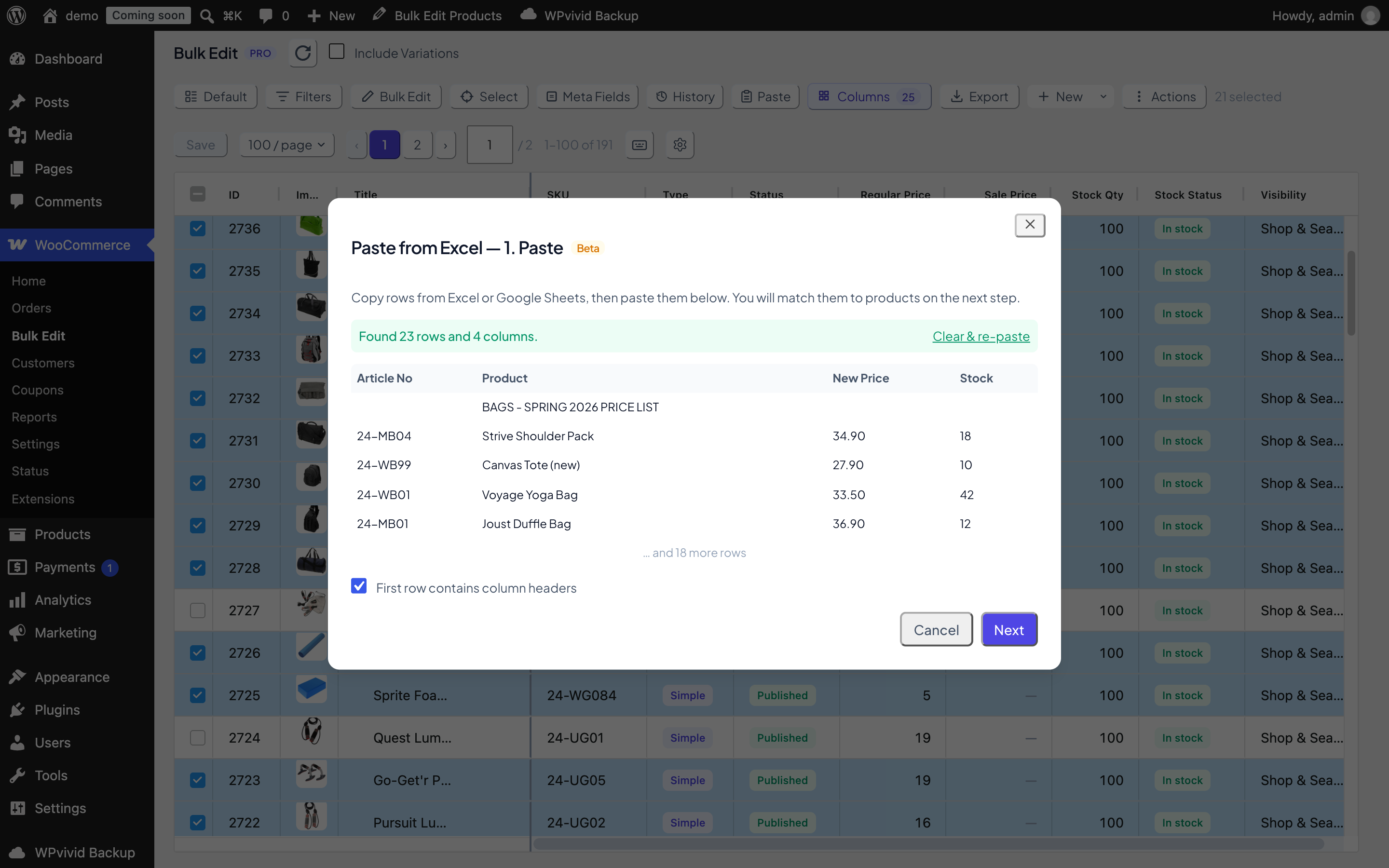
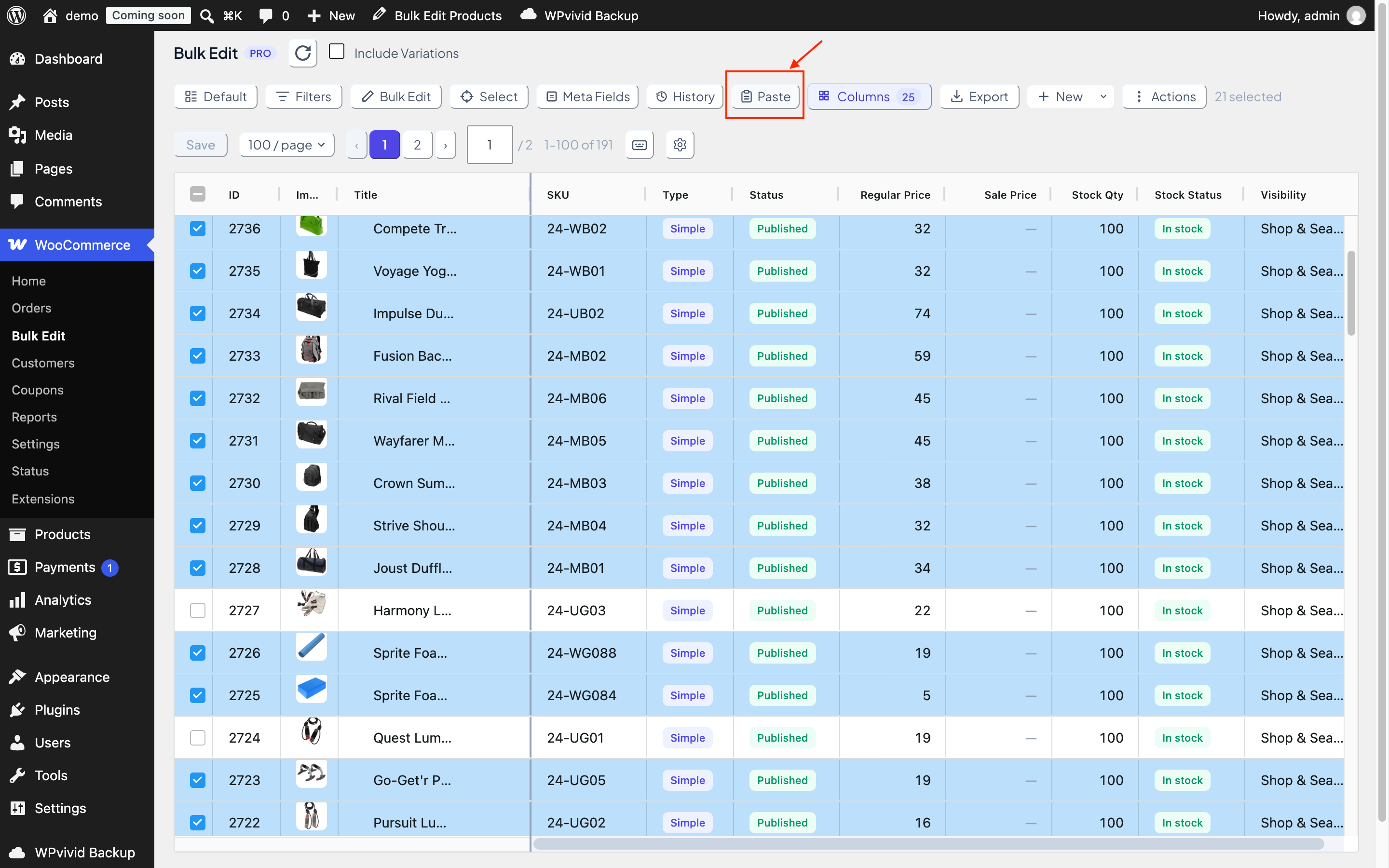
Copy the rows from your spreadsheet, including the header row if there is one. Then click Paste in the Bulk Edit toolbar and paste into the dashed area (Ctrl+V / Cmd+V, right-click → Paste, or just drag the selection in and drop it).
The wizard reads the data instantly. The paste area is replaced by a green summary – “Found 23 rows and 4 columns” – and a preview of the first rows, so you can confirm what you copied is what arrived before going further.
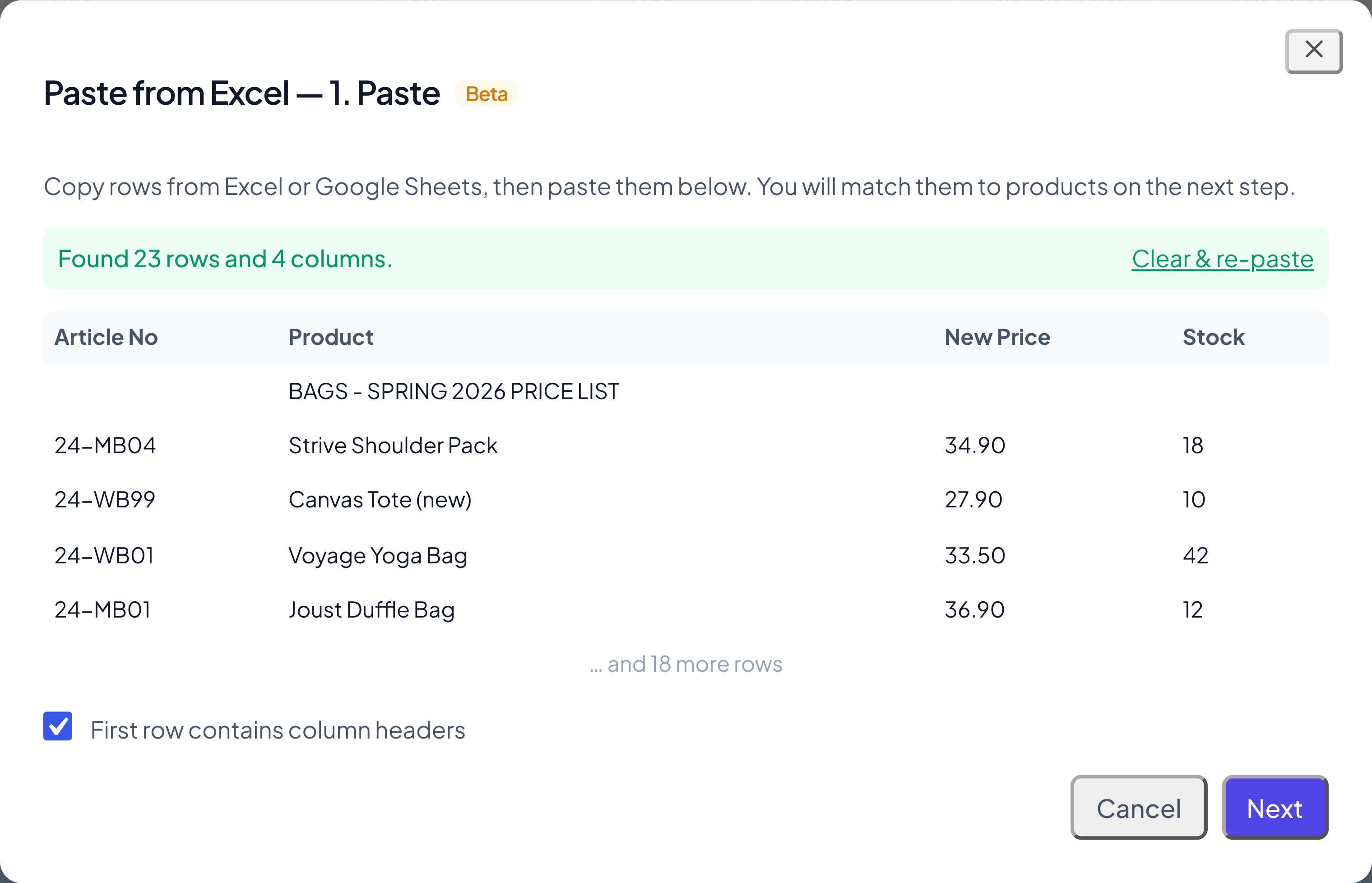
Leave “First row contains column headers” checked if your data has headers. The wizard uses them to pre-fill the column mapping in the next step. Pasted the wrong thing? Click Clear & re-paste and go again.
Also, you don’t need a perfectly clean sheet. Extra columns, section-heading rows, blank rows – all fine. You’ll ignore or skip them in the next steps.
2. Map columns
Two decisions here:
Match rows to products by: which pasted column identifies each row (say, Article No), and which product column it should match (SKU, or a custom supplier-code field you have in the grid). SKU is suggested automatically, but any column works.
Columns to update: for each remaining pasted column, pick the product column it should update, or leave it on Ignore. The wizard pre-fills the obvious ones – a “Stock” header maps to Stock Qty on its own.
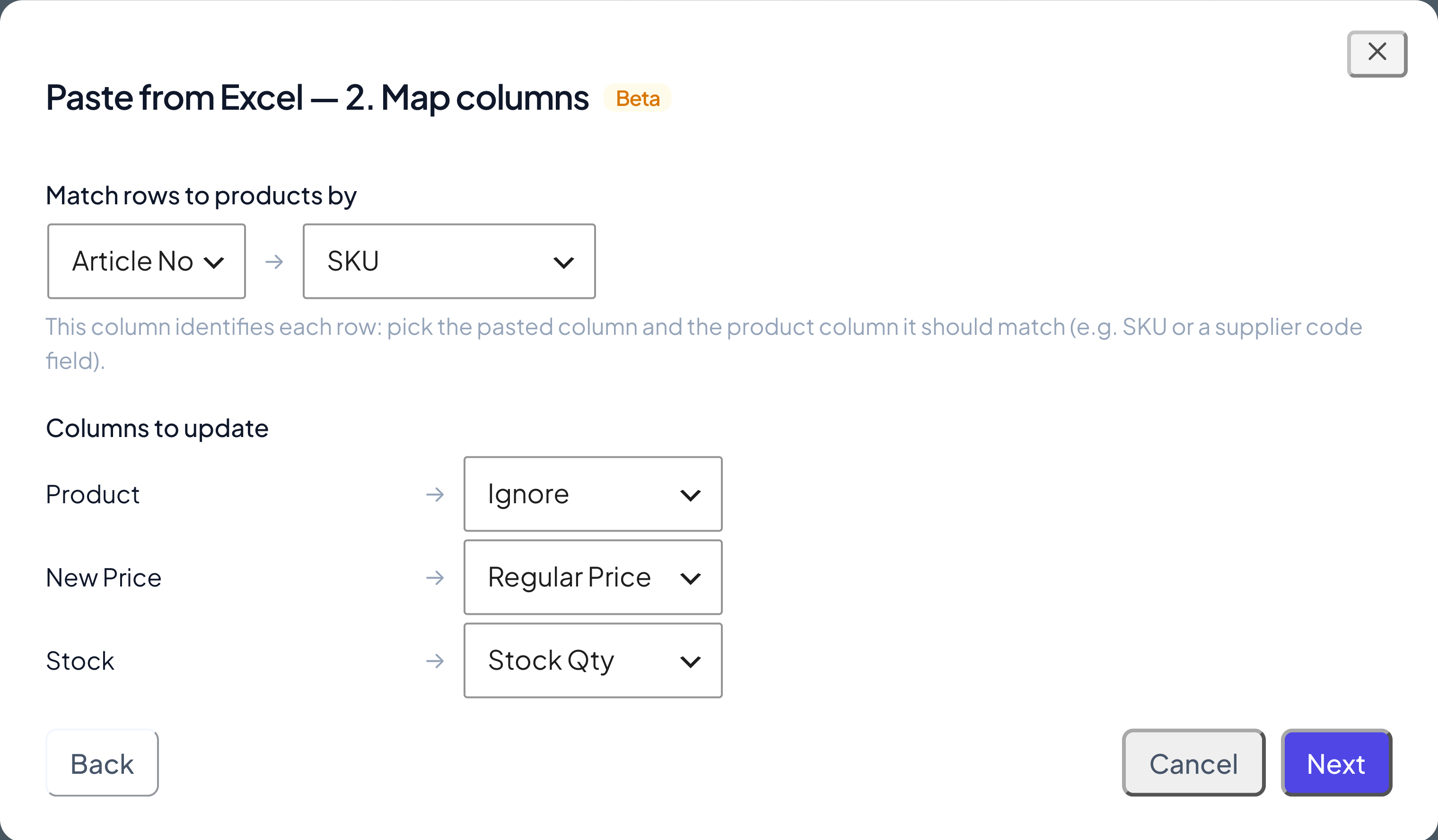
One nice detail for supplier sheets: when you map a column onto a custom number or text field, a small Format choice appears. Pick Price and the pasted values get cleaned and rounded to your shop’s price decimals – so a cost list with values like € 12,5049 lands in your Cost of Goods field as a proper price. The wizard even preselects it when the pasted header contains “price” or “cost”.
3. Preview and apply
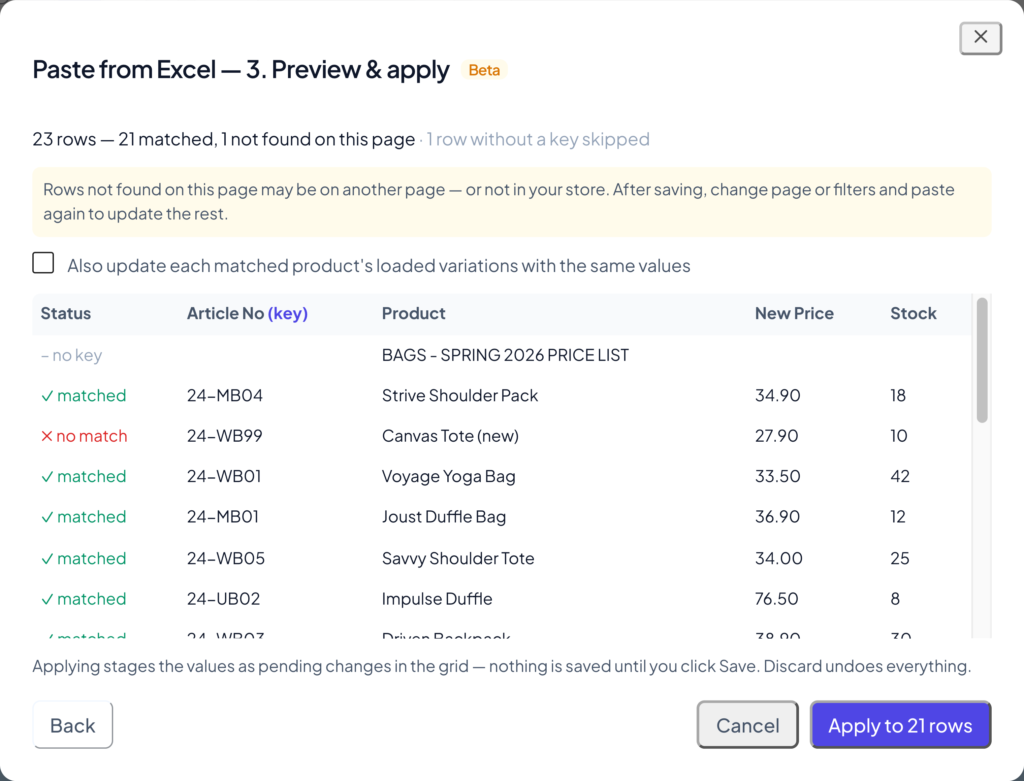
The preview shows every pasted row with its match result:
- ✓matched – the row will be applied to that product.
- ✗no match – no product on the current page has this key. It may be on another page, or not in your store at all.
- ⚠ambiguous – the key matches more than one product, so the row is skipped for safety.
- –no key – the key cell is empty (a section-heading row in a supplier sheet, for example), so the row is skipped.
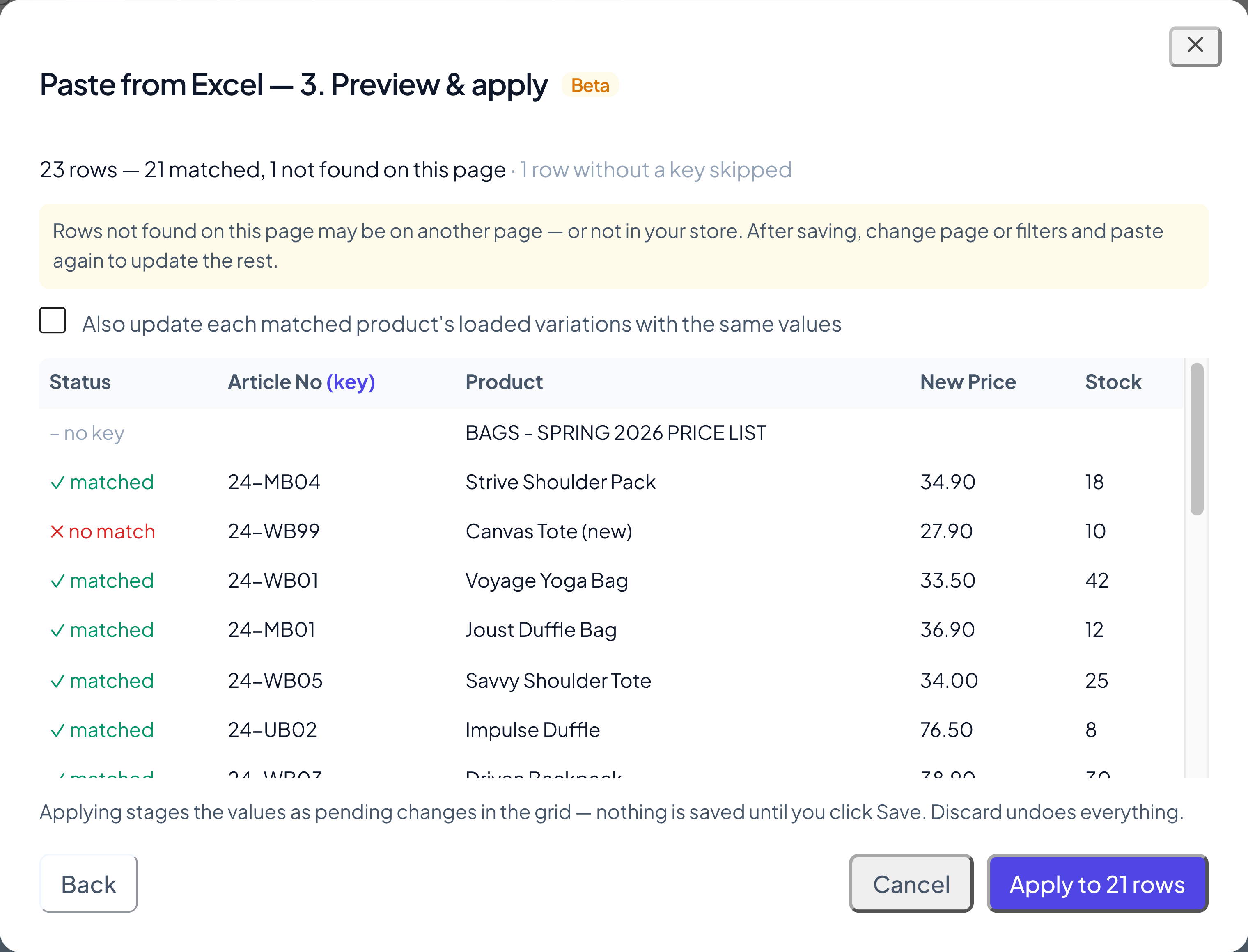
If the same key appears more than once in your pasted data, the last occurrence wins. Handy when a corrected line appears further down the sheet.
Updating variations too: tick “Also update each matched product’s loaded variations with the same values” to copy the mapped values onto each matched product’s variations – a new cost price on the parent and all its variations in one go. Variations must be loaded in the grid (enable Include Variations) to receive the update.
Click Apply. The grid scrolls to the first updated cell and selects every updated row, so you see exactly what the paste changed – even when the matches are scattered across a long page. The changes appear as yellow pending cells, exactly like manual edits.
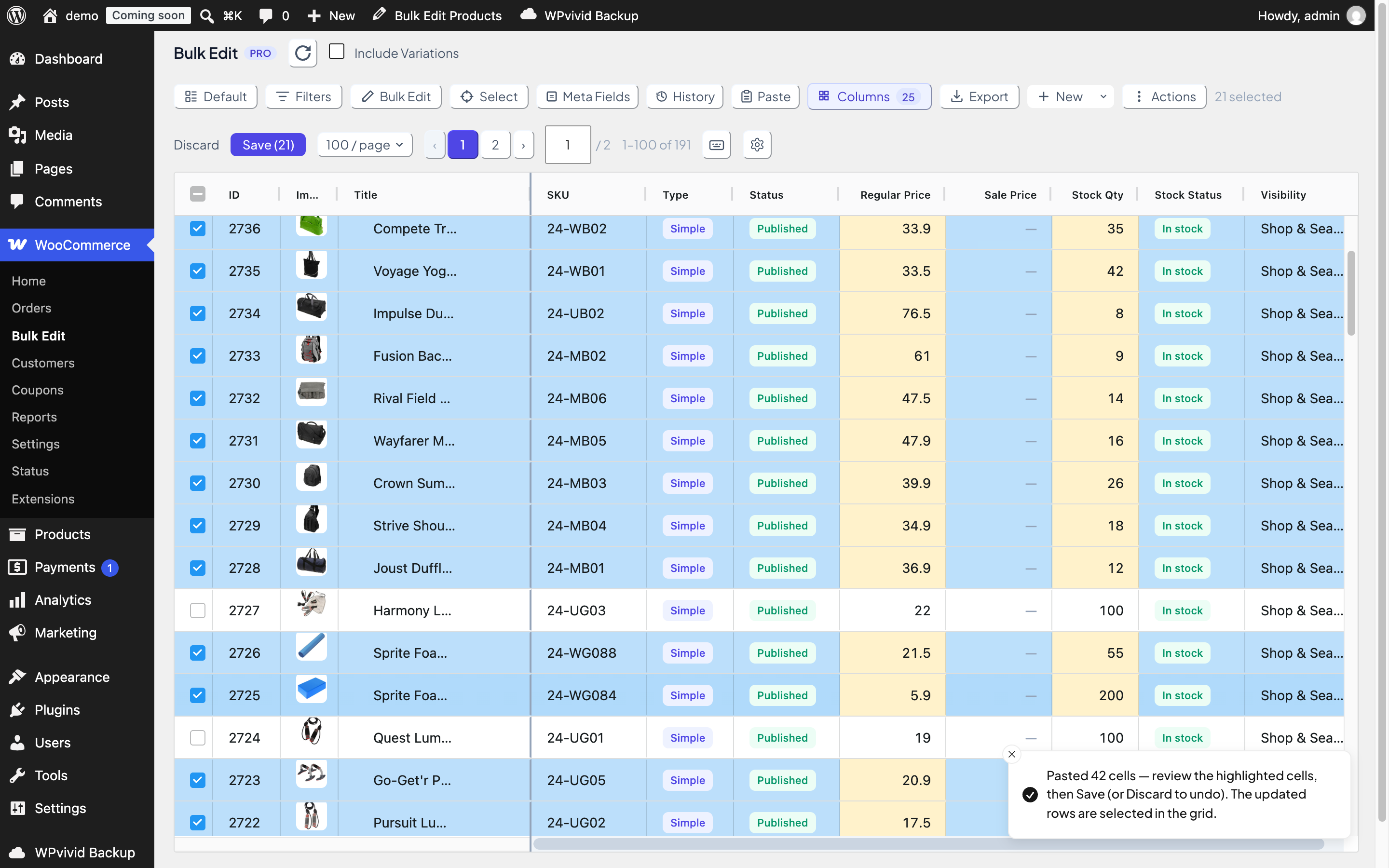
Review them, then Save. Or Discard to undo everything.
That’s the whole loop: paste, map, preview, apply, save.
Pasting directly into the grid
For quick edits where your rows are already in grid order, skip the wizard entirely:
- In your spreadsheet, copy the cells you want. No header row, just the data.
- In the grid, click the cell where the top-left value should land, then press Escape so the cell is selected but not open for typing.
- Ctrl+V.
The block fills to the right and down, following the column order you see in the grid. Changed cells turn yellow as pending changes, and a message tells you how many cells were updated and how many were skipped.
How it works (what to expect)
A few things worth knowing before your first real paste.
Everything is preview-first. Pasting only stages pending changes in the grid – the same yellow cells you get from manual edits. Save writes them to your store; Discard reverts them all. There is no moment where a paste silently changes live data.
Matching works within the loaded page. The wizard matches against the products currently loaded in the grid. Raise the page size to cover more of your catalog in one pass, or better: filter first. Filter to one supplier before pasting their price list, and the paste physically can’t touch anyone else’s products. Rows that found no match on this page are reported, so after saving you can switch page or filters and paste the same sheet again to update the rest.
Empty cells never overwrite. A blank spreadsheet cell keeps the product’s current value. So a sparse sheet with only the columns you care about is completely safe.
Skipped cells are reported, not silently dropped. Cells are skipped when they’re not editable (a price on a variable parent, a stock quantity where Manage stock is off), invalid (text in a number column, an unknown status), empty, or unchanged. The message after pasting counts each kind.
Values are understood the way spreadsheets write them. Prices accept 19.99, 19,99, 1.234,56, even € 12,50 – currency symbols and both US and EU number formats work, and values are rounded to your shop’s price decimals. Statuses accept friendly aliases (published, draft, but also yes/no for variation enabled). Yes/no fields take yes/no, true/false, 1/0. Dates take 2026-07-18. Multi-line text cells are preserved.
Custom fields work too. ACF fields and custom meta shown in your grid accept pasted values like any native column.
What’s not covered
A few columns are intentionally not pasteable: categories, tags, attributes, images, and linked products (upsells/cross-sells). These carry structured data that a plain text cell can’t represent safely.
Pasting also never creates new terms or options. An unrecognized value is skipped and reported, so a messy supplier sheet can’t quietly alter your store’s structure.
And there’s a size limit of 5,000 pasted rows at a time. For bigger sheets, split and paste in batches – with keyed matching, running the same sheet twice is harmless anyway, since unchanged values are simply skipped.
Fine print
- The wizard remembers your variation-cascade choice for next time; everything else resets per paste.
- Ambiguous keys (one SKU on several products) are always skipped, never guessed.
- If your paste is wider than the header suggests – say a header row of 2 cells over data rows of 3 – the wizard counts the widest row and shows the extra column as “Column 3”, so nothing gets hidden.
Paste from Excel is available in WPMelon Advanced Bulk Edit for WooCommerce PRO. If you try it on your supplier workflow and something doesn’t map the way you expected, tell us – the mapping aliases grow from exactly this kind of feedback.