Skip to content
WPMelonWPMelon
  • Plugins
    • WooCommerce Advanced Bulk Edit (WCABE)
    • Add-ons for WCABE
    • Smart Match for WooCommerce
    • Fomo Pop Marketing
  • Support
  • Blog
  • Feedback
How-tos

Bulk set an image

Posted on November 23, 2016January 28, 2026 by George Iron

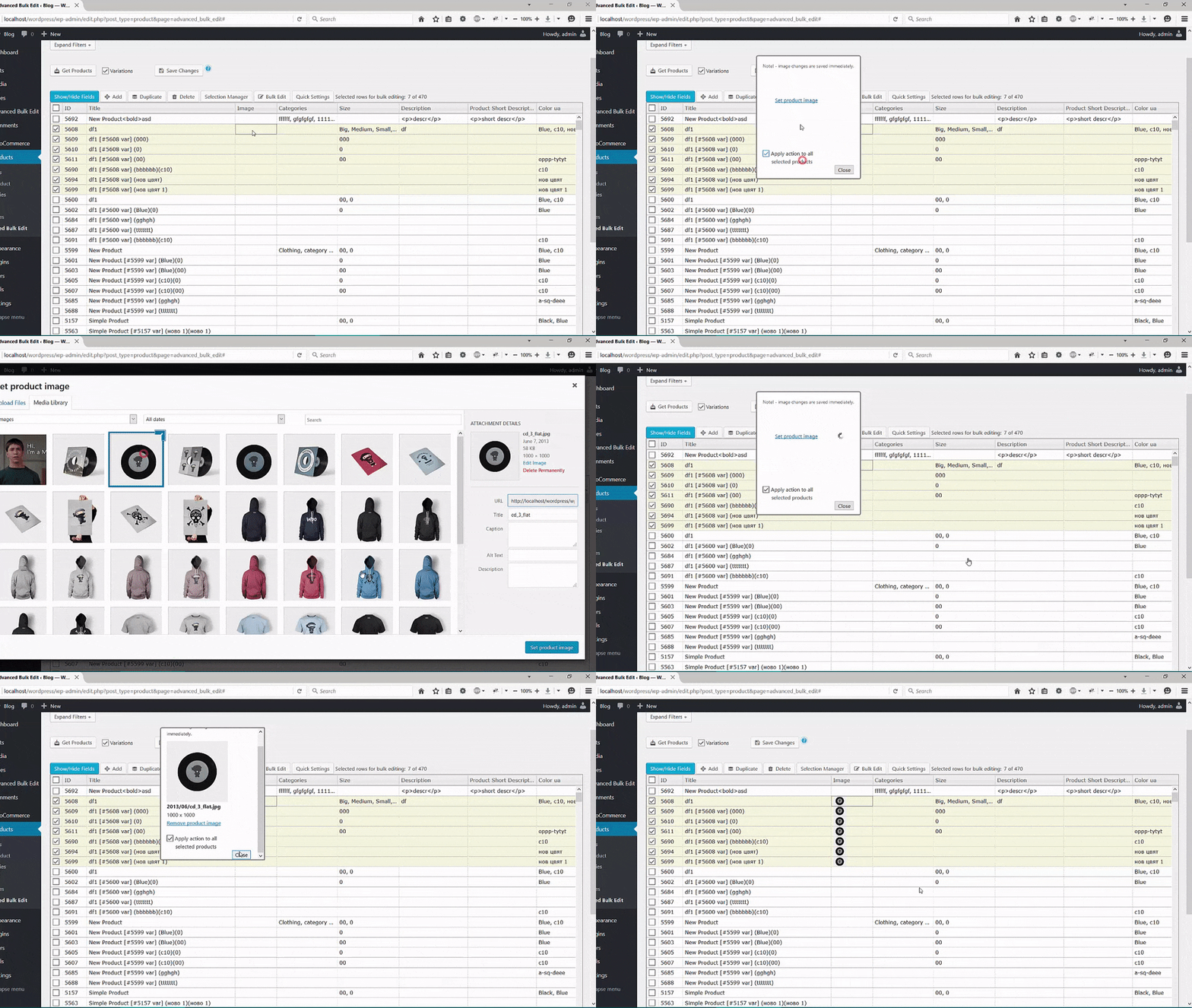
Open the image dialog and check “Apply action to all selected products” before selecting the image.


bulk setting an image


This entry was posted in How-tos. Bookmark the permalink.
George Iron

Where are the plugin settings
Version 4.0 (July 23, 2016)
  • Docs
    • WooCommerce Advanced Bulk Edit
    • FomoPop Marketing
  • General
  • WooCommerce
Recent Posts
  • New Add-on: Paste From Excel into WCABE
  • How to Filter WooCommerce Products by Custom Taxonomies in WCABE
  • New License Management Area in the Support Portal
  • New Add-on in Beta: Storewide Bulk Edit
  • How to Bulk Edit Prices in WooCommerce Using WooCommerce Advanced Bulk Edit
How-tos
  • WCABE Getting Started
  • Show different built-in fields/columns
  • Where are the plugin settings
  • Bulk set an image
Copyright 2026 © WPMelon.com
  • Plugins
    • WooCommerce Advanced Bulk Edit (WCABE)
    • Add-ons for WCABE
    • Smart Match for WooCommerce
    • Fomo Pop Marketing
  • Support
  • Blog
  • Feedback